Uploading conversations
Uploading is the quickest way to get calls into a voice application. Each file you upload becomes one conversation and starts processing as soon as it is in.
- The Voice IntELIEgence app in your top bar.
- This permission: Voice · Conversation - Create.
- A voice application (a draft accepts uploads too, so you can try one out before activating it), and recordings in WAV, MP3, M4A, OGG, WEBM, FLAC or AAC format, up to 100 MB each.
If Voice IntELIEgence isn't in your top bar, your role can't view it or your plan doesn't include it. Ask a workspace administrator, or see Permissions and module visibility.
Steps
Open the upload page
Open the application's Conversations or Dashboard and select Upload conversation at the top right. Upload conversation opens as a page of its own; Cancel at the bottom takes you back.
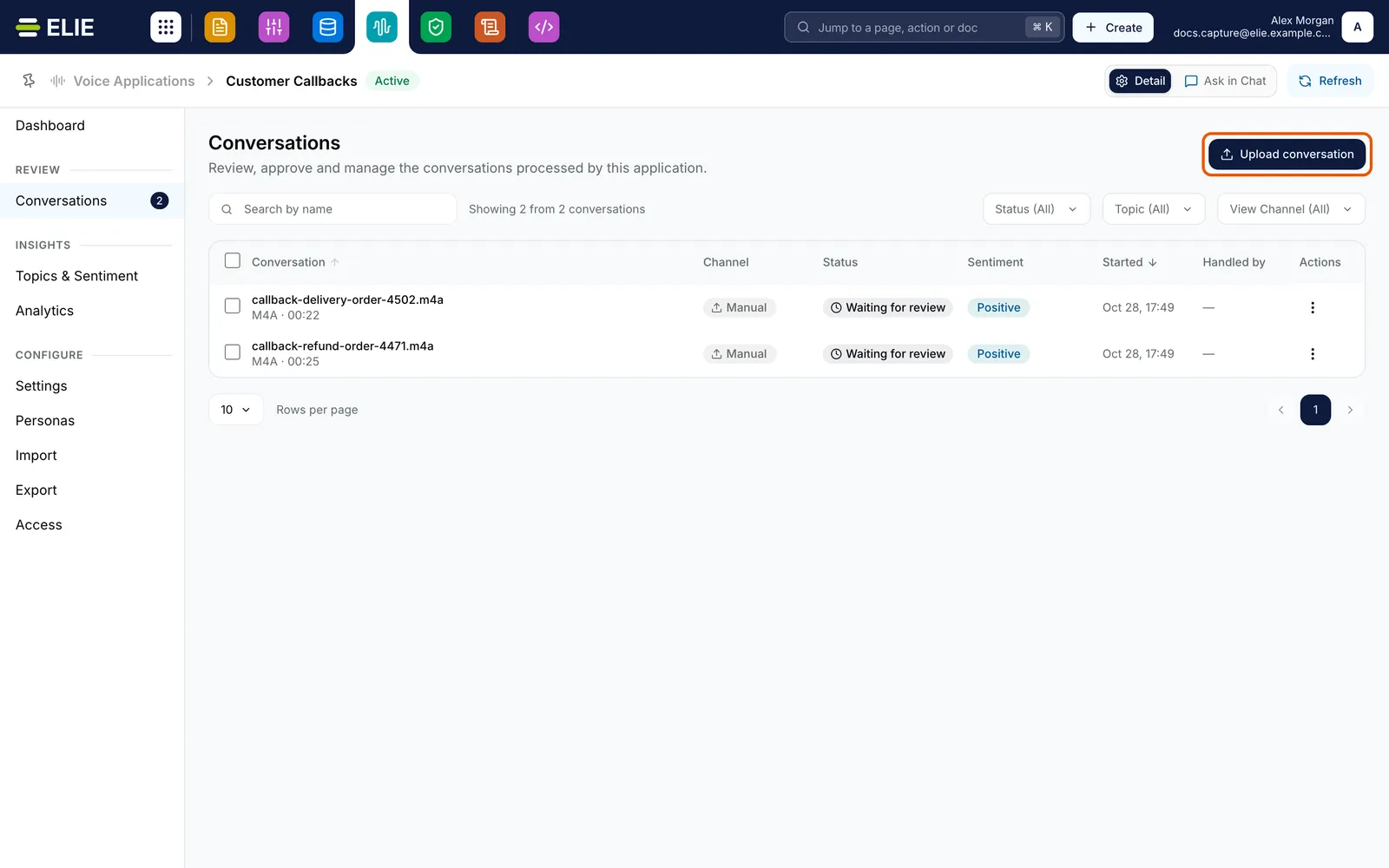
Customer Callbacks' Conversations page with the Upload conversation button ringed at the top right. EnlargeAdd the recordings
Under Audio files, select Choose files or drag files onto the box. You can add several at once; each becomes its own conversation, named after the file. Remove all clears the list.
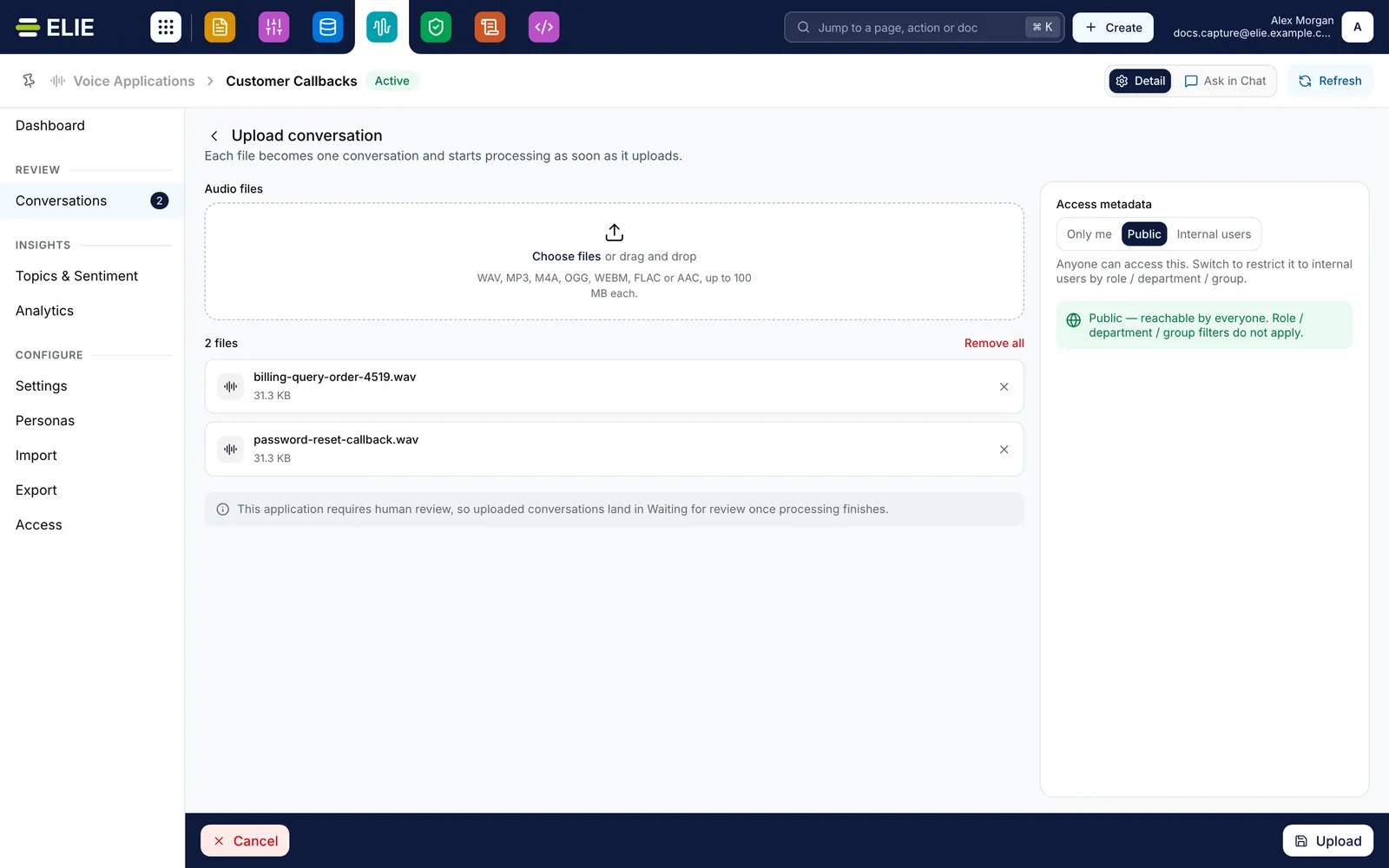
The Upload conversation page with two recordings added under Audio files, billing-query-order-4519.wav and password-reset-callback.wav, the Access metadata card set to Public on the right, and Cancel and Upload at the bottom. EnlargeChoose who can find them
If the application has a knowledge base, Access metadata decides who can find these calls there. Public, the default, reaches everyone. Internal users narrows it to an Access role, Department or People group, and matching any one is enough. Only me keeps them to you and tenant administrators. The choice applies to every file.
Upload
Select Upload. Each file shows its progress, then Uploaded. When every file is in, you return to Conversations. A file that failed stays on the page with its reason; select Retry on it, or the main button, which now reads as in Retry Failed (1).


What success looks like
- 2 conversations uploaded. Processing has started. appears, with your number of files.
- Each file is a new row on Conversations, with Manual under Channel and a status that moves from Queued to the stage it is on.
- The page tells you beforehand whether the calls will wait for review once processed.
When access cannot be chosen
The roles, departments and groups offered are only those already granted on the application's knowledge base. If none are, Internal users reaches only you and tenant administrators. If you have no access to that knowledge base yourself, your uploads are always Public, and the card says so. Leaving the page with files still waiting asks Unsaved Changes first; Yes, Leave cancels the uploads.
If something goes wrong
| Symptom | Likely cause | What to do |
|---|---|---|
| Upload conversation is greyed out. | Your role cannot add conversations here, or the application's classifier was deleted. | Point at the button for the reason. For a classifier, see Voice application settings. |
| The reason reads Manual upload is turned off for this application. | Manual upload was switched off through the API. There is no switch for it in the app, whatever the message suggests. | Ask whoever manages the application through the API to turn it back on. |
| A file is refused as soon as you add it. | It is over 100 MB or not an audio file. | Convert or trim it, then add it again. |
| Upload stays greyed out after you chose Internal users. | Your access choice could not be checked. | Select Try again, or Use Public instead. |
| A new row reads Exception at Transcribe. | The recording could not be transcribed. | Hover the badge for the reason. See Conversation statuses. |
Next
- Browsing conversations - finding the new rows.
- Reviewing a conversation - checking what came out.
- Importing conversations - letting a connector bring calls in instead.