Importing conversations
Import brings recordings into a voice application automatically. You connect an IntELIEKonnect import connector, such as Azure Blob, SFTP or email, and each new file it collects becomes a conversation, exactly as if someone had uploaded it. An application can have any number of sources.
- The Voice IntELIEgence app in your top bar.
- These permissions: Voice · Import - View, Voice · Import - Create, IntELIEKonnect · Import - List, IntELIEKonnect · Import - Create.
- A published (not draft) application, and an import connector already set up and connected in IntELIEKonnect. Connecting a source creates a binding in IntELIEKonnect, so each action needs both sides: pausing or resuming needs Voice · Import - Update and IntELIEKonnect · Import - Update, disconnecting Voice · Import - Delete and IntELIEKonnect · Import - Delete, and Sync now IntELIEKonnect · Import - Execute.
If Voice IntELIEgence isn't in your top bar, your role can't view it or your plan doesn't include it. Ask a workspace administrator, or see Permissions and module visibility.
Steps
Open Import
Open the application and select Import in its menu. Each connected source is a row with its Status; with none yet, the page reads _No import sources yet_.
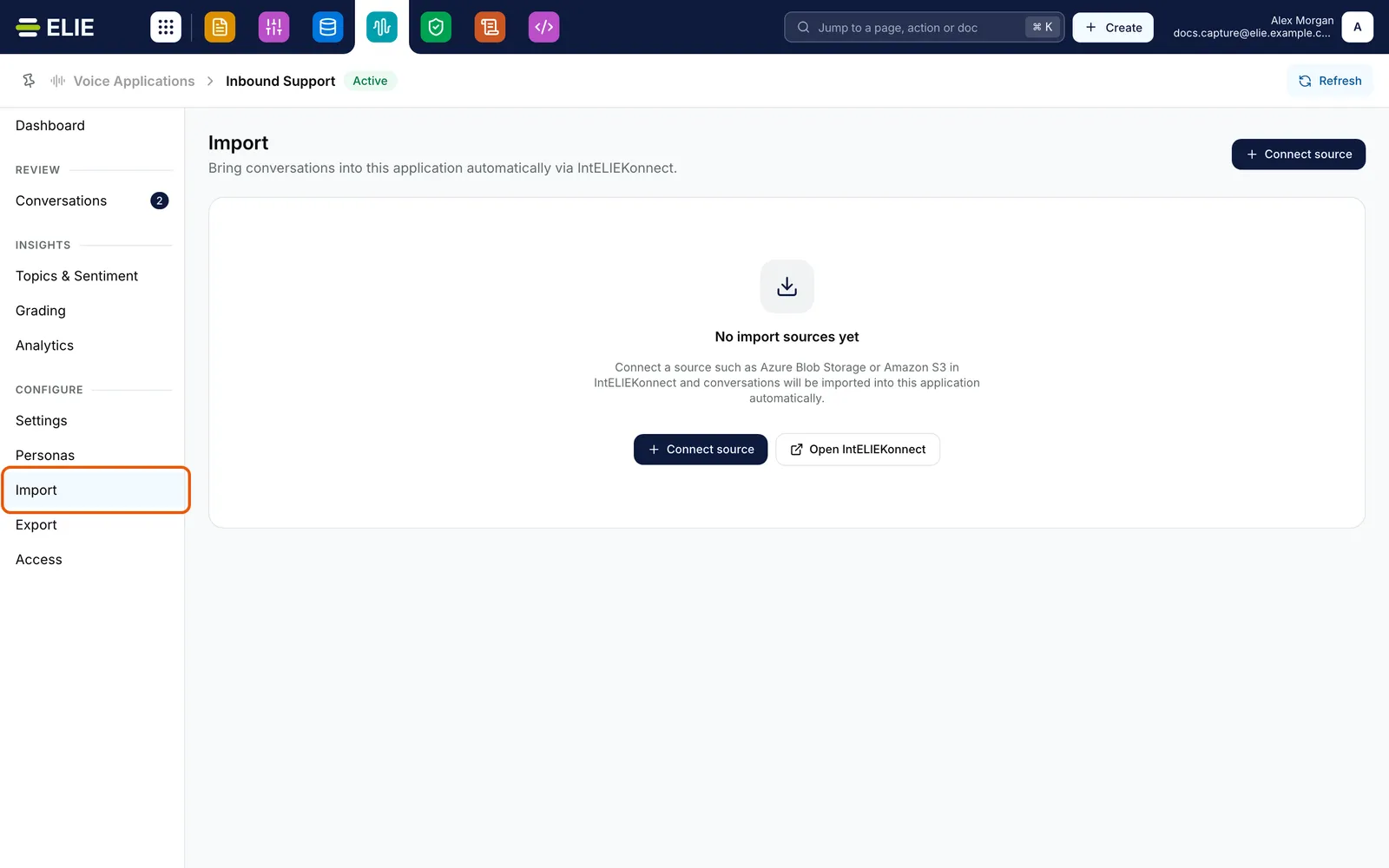
Inbound Support's Import page with Import ringed in the menu, reading No import sources yet above Connect source and Open IntELIEKonnect. EnlargeConnect a source
Select Connect source. In Connect an import source, pick a connector under Connector. The list shows connected import connectors; one already feeding this application says so and cannot be picked. Select Connect source.
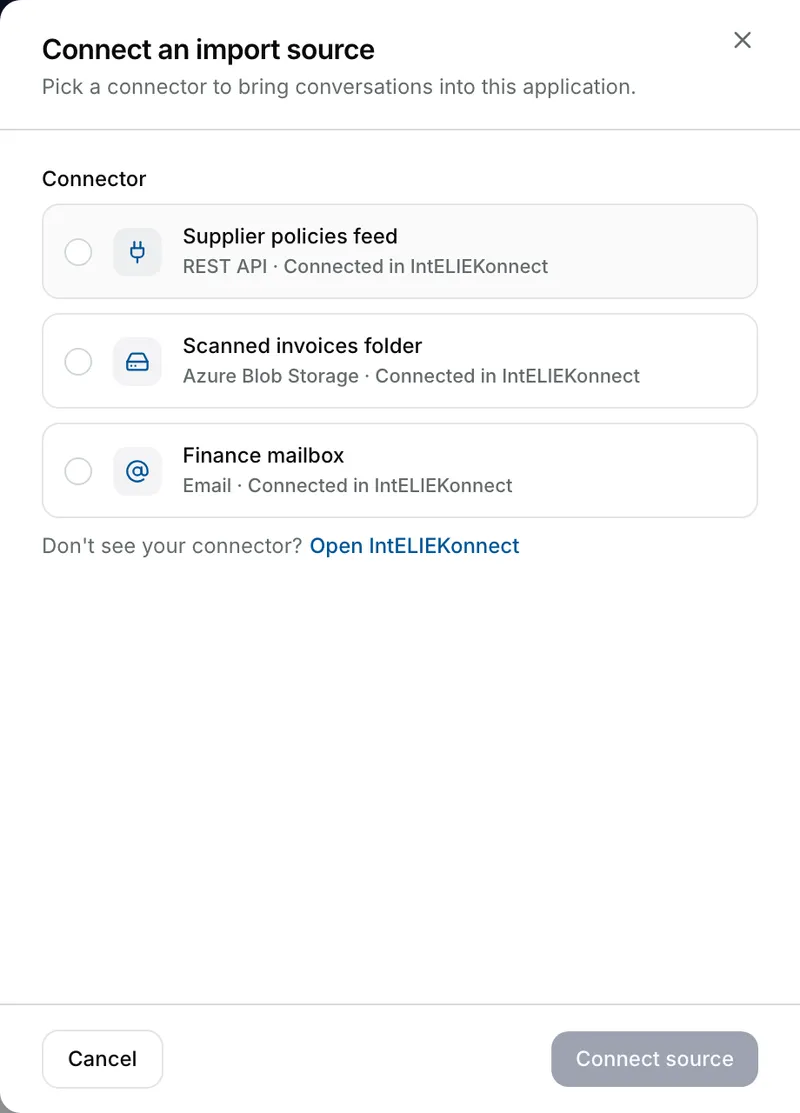
The Connect an import source panel listing the connected import connectors under Connector, each with its type, above Cancel and Connect source. Bring files in now
The new row reads Active. Files arrive on the connector's own schedule; select Sync now on the row to check for new files straight away.
Pause or disconnect a source
Open the row's menu (the three dots). Pause importing stops it feeding this application and keeps it listed, and Resume importing turns it back on. View in IntELIEKonnect opens the connector. Disconnect source…, then Disconnect, takes it off the application altogether.


What success looks like
- The connector appears as a row reading Active, and Sync now says Sync started.
- New files from that connector appear on Conversations with IntELIEKonnect in the Channel column.
What pausing and disconnecting keep
Neither touches conversations already imported. Disconnecting only stops new files from that connector arriving in this application; the connector itself stays in IntELIEKonnect, and other applications or orchestrators bound to it keep working. If the connector is turned off in IntELIEKonnect, its row reads Disabled in IntELIEKonnect and stops importing until it is turned back on there.
If something goes wrong
| Symptom | Likely cause | What to do |
|---|---|---|
| Connect source is greyed out: Activate this application before connecting an import source. | The application is still a draft. | Select Activate at the top of the application first. |
| The Connector list says there are no connected import connectors yet. | None exist or none are connected. | Select Open IntELIEKonnect and create one. |
| The page says IntELIEKonnect is not part of your plan, or that you do not have access to it. | The workspace plan omits the module, or your role cannot see import connectors. | Ask an administrator. |
| Couldn't connect that source. Try again. | Your role lacks IntELIEKonnect · Import - Create, which connecting needs as well as the Voice permission. | Ask an administrator to add it. |
| A row reads Connector removed, No access or Unavailable. | The connector was deleted, you lost access to it, or IntELIEKonnect could not be reached. | Point at the badge for the reason. For a removed connector, disconnect the row and connect another. |
Next
- Uploading conversations - adding recordings by hand.
- Import connectors - creating and connecting the connector itself.
- Browsing conversations - finding what arrived.