Topics and sentiment
Topics and sentiment tell you what callers talk about and how they feel about it. Both come from one output, Topics & sentiment, which is on by default. While it is on, the application has a Topics & Sentiment page and every processed call gets topics and a mood.
- The Voice IntELIEgence app in your top bar.
- This permission: Voice · Topics - View.
- The Topics & sentiment output switched on, and conversations that have finished processing. Switching the output on needs Voice · Settings - Update.
If Voice IntELIEgence isn't in your top bar, your role can't view it or your plan doesn't include it. Ask a workspace administrator, or see Permissions and module visibility.
Steps
Check the output is on
If Topics & Sentiment is not in the application's menu, open Settings, then Outputs & Grading, switch on Topics & sentiment and select Save changes. It applies to calls processed from then on.
Open Topics & Sentiment
Select Topics & Sentiment in the menu, then choose 7 days, 30 days or Custom at the top right; it starts at 30 days.
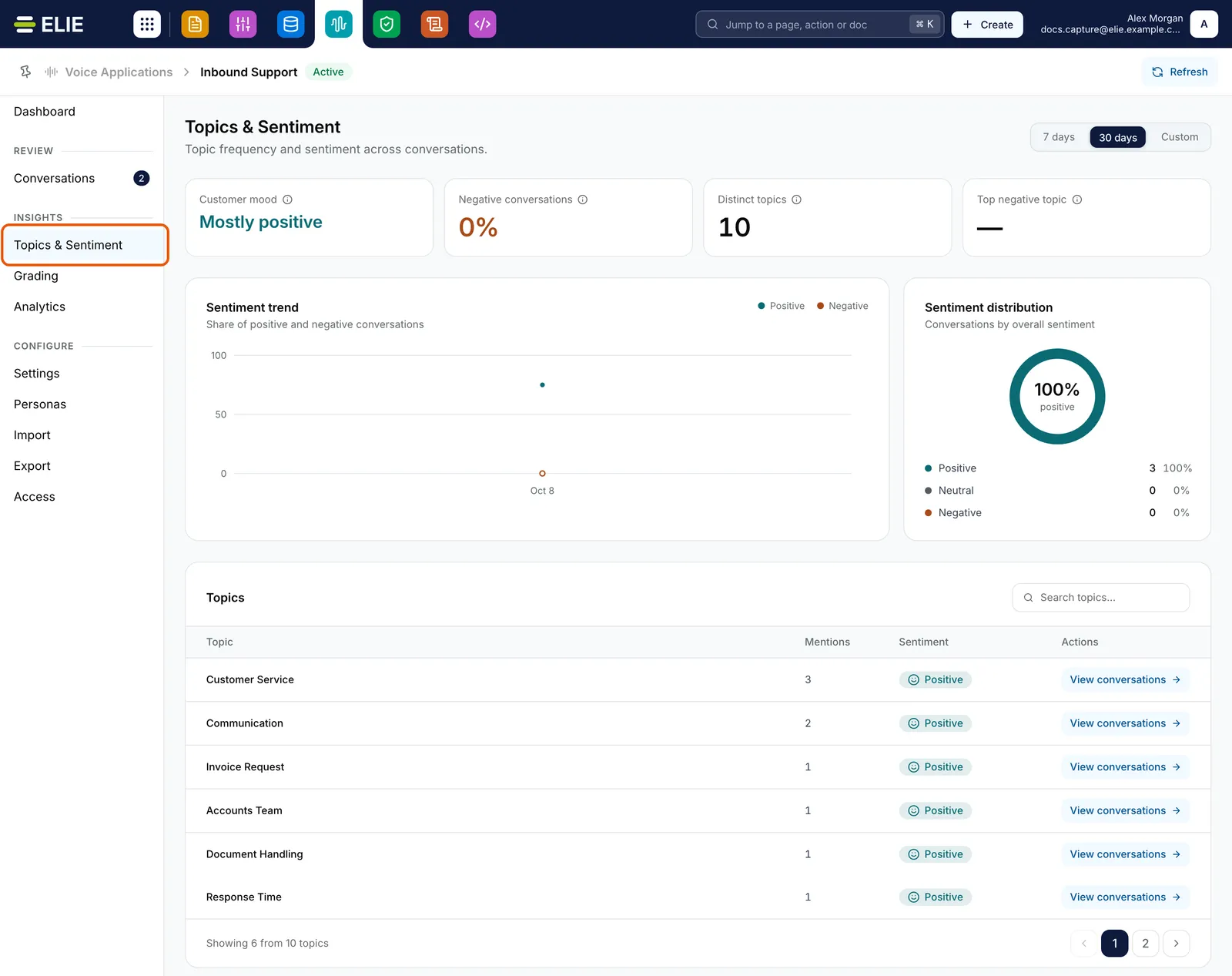
Topics & Sentiment for Inbound Support with its menu item ringed: Customer mood, the share of negative conversations, distinct topics and the top negative topic, the sentiment trend and distribution, and the topics table with each topic's mentions and sentiment. EnlargeRead the mood
The tiles show Customer mood, Negative conversations, Distinct topics and Top negative topic; the information icon on each explains it. Sentiment trend plots the share of positive and negative calls per day, and Sentiment distribution splits them by band.
Work the topics table
Under Topics, each row shows the Topic, its Mentions and its Sentiment. Narrow it with Search topics…, or select View conversations on a row to list just the calls tagged with that topic.
Read one call
On Conversations, the Sentiment column shows each call's band, with a separate badge when the customer escalated, and Topic (All) filters by topic. On a call's Outputs tab, the Topics & sentiment card lists its topics above a five-band bar.

What success looks like
- Topics & Sentiment is in the menu, and Conversations has a Sentiment column and a Topic (All) filter.
- A processed call's Outputs tab has a Topics & sentiment card.
Sentiment bands
Each call's sentiment is scored from -1 (very negative) to +1 (very positive) and shown as one of five bands. Hover a band to see the score.
| Band | Score | Roughly means |
|---|---|---|
| Very negative | -1 to -0.6 | The customer was angry or upset. |
| Negative | -0.6 to -0.15 | The customer was unhappy or frustrated. |
| Neutral | -0.15 to 0.15 | Matter-of-fact, with no strong feeling. |
| Positive | 0.15 to 0.6 | The customer was satisfied. |
| Very positive | 0.6 to 1 | The customer was happy or grateful. |
An escalation is a separate signal from the mood: a call can be Neutral and still carry an escalation badge because of the customer's tone or words.
If something goes wrong
| Symptom | Likely cause | What to do |
|---|---|---|
| No Topics & Sentiment in the menu, and a saved link opens Dashboard. | The output is off. | Switch on Topics & sentiment in Settings, Outputs & Grading. |
| No topic data yet | Nothing finished processing in the period. | Choose a wider period, or wait for calls to finish. |
| A call's card reads No topics extracted. | That call produced no topics. | Check it has speech in its transcript. |
| A call reads Sentiment not computed. | It was processed while the output was off. | Only calls processed from now on are analysed. |
Next
- Voice application dashboard - Customer mood with the other headline figures.
- Grading conversations - the other output with its own page.
- Browsing conversations - the Topic (All) filter on the list.