The Voice IntELIEgence overview
Overview is the first screen of Voice IntELIEgence. It adds up every application you can see, so you can tell at a glance where calls are waiting or failing before you open any one of them.
- The Voice IntELIEgence app in your top bar.
- These permissions: Voice · Application - View, Voice · Application - List.
- At least one voice application you can see. Asking a question also needs Voice · Chat - View on an application whose chat is switched on.
If Voice IntELIEgence isn't in your top bar, your role can't view it or your plan doesn't include it. Ask a workspace administrator, or see Permissions and module visibility.
Steps
Open Overview
Select the Voice IntELIEgence icon in the top bar. From Voice Applications, select Overview in the switch at the top.
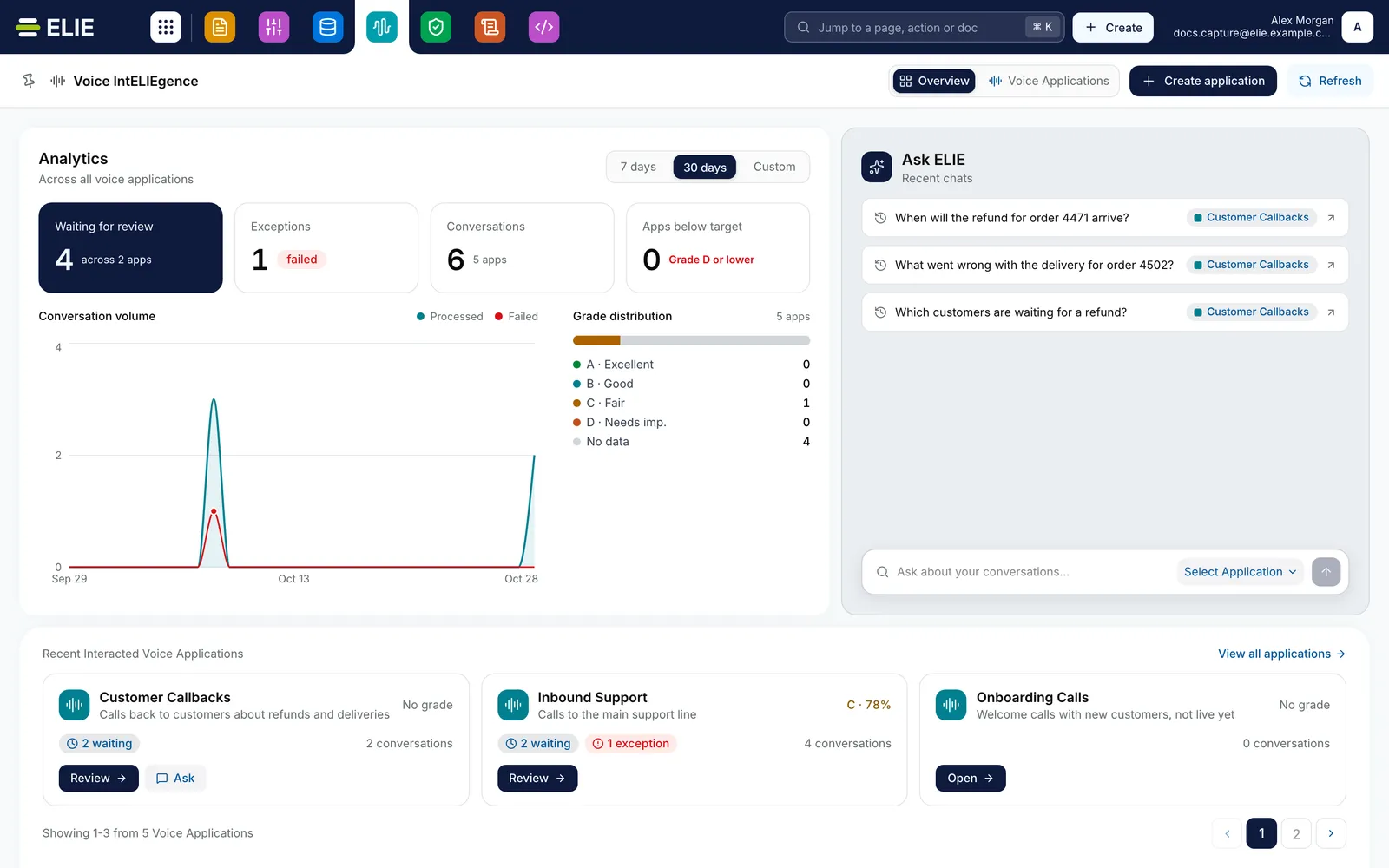
The Voice IntELIEgence Overview set to 30 days: tiles for Waiting for review (4 across 2 apps), Exceptions (1), Conversations and Apps below target, a conversation volume chart and a grade distribution, the Ask ELIE card with three recent chats from Customer Callbacks, and Recent Interacted Voice Applications showing Customer Callbacks, Inbound Support and Onboarding Calls. EnlargePick the period
Choose 7 days, 30 days or Custom at the top of Analytics. It starts at 7 days. Custom opens a calendar with presets such as Last 90 days; pick a start and end, then select Apply.
Read the figures
Waiting for review and Exceptions count the calls that need someone now. Conversations counts calls added in the period, and Apps below target the applications averaging Grade D or lower. Conversation volume plots processed and failed calls per day, and Grade distribution sorts applications by their average grade.
Ask a question
Under Ask ELIE, type into Ask about your conversations…, pick an application in Select Application, then select the arrow. That application's chat opens with your question. Recent chats reopens one of your last three.
Go where you are needed
Each card under Recent Interacted Voice Applications offers Review when calls are waiting, View exceptions when some failed, and Open otherwise. Use the arrows to page through, or View all applications.

What success looks like
- The tiles and charts change when you change the period, except Waiting for review and Exceptions.
- Review opens that application's Conversations showing only calls waiting for review, and View exceptions only the calls at Exception.
What the period covers
Waiting for review and Exceptions are the backlog as it stands, whatever period you pick, and they add up to the counts on the application cards below. Everything else covers only calls added in the period. An application with no graded calls in the period counts as No data in Grade distribution.
If something goes wrong
| Symptom | Likely cause | What to do |
|---|---|---|
| The page reads No voice applications yet. | No application exists, or none is shared with you. | Select Create application, or ask an administrator. See Creating a voice application. |
| Analytics could not be loaded. | A temporary problem reaching the service. | Select Try again. |
| Ask ELIE is greyed out: No application you can access has chat switched on. | No application you can use has a knowledge base with chat on. | See Attaching a knowledge base. |
| Select an application to ask. | You typed a question without picking an application. | Pick one in Select Application. |
| Everything reads 0 apart from the backlog. | No calls were added in the period. | Choose 30 days or a wider Custom range. |
Next
- Voice application dashboard - the same view for one application.
- Asking questions about conversations - what happens after Ask ELIE.
- Reviewing a conversation - clearing the backlog.