Exporting conversation data
Export delivers what a voice application produces, such as summaries, action items and grades, to systems outside Elie. Each destination is an IntELIEKonnect export connector, such as a webhook, SFTP, email or Salesforce, and an application can send to several at once.
- The Voice IntELIEgence app in your top bar.
- These permissions: Voice · Export - View, Voice · Export - Update, IntELIEKonnect · Export - List, IntELIEKonnect · Export - Create.
- An export connector already set up and connected in IntELIEKonnect. Adding a destination creates a binding in IntELIEKonnect; disconnecting or reconnecting needs IntELIEKonnect · Export - Update, and removing needs IntELIEKonnect · Export - Delete. Resending or retrying a delivery needs Voice · Conversation - Execute.
If Voice IntELIEgence isn't in your top bar, your role can't view it or your plan doesn't include it. Ask a workspace administrator, or see Permissions and module visibility.
Steps
Open Export
Open the application and select Export in its menu. Destinations are listed at the top, each with its Status, Trigger, Payload, Last delivery and Success (30d), and Export jobs below.
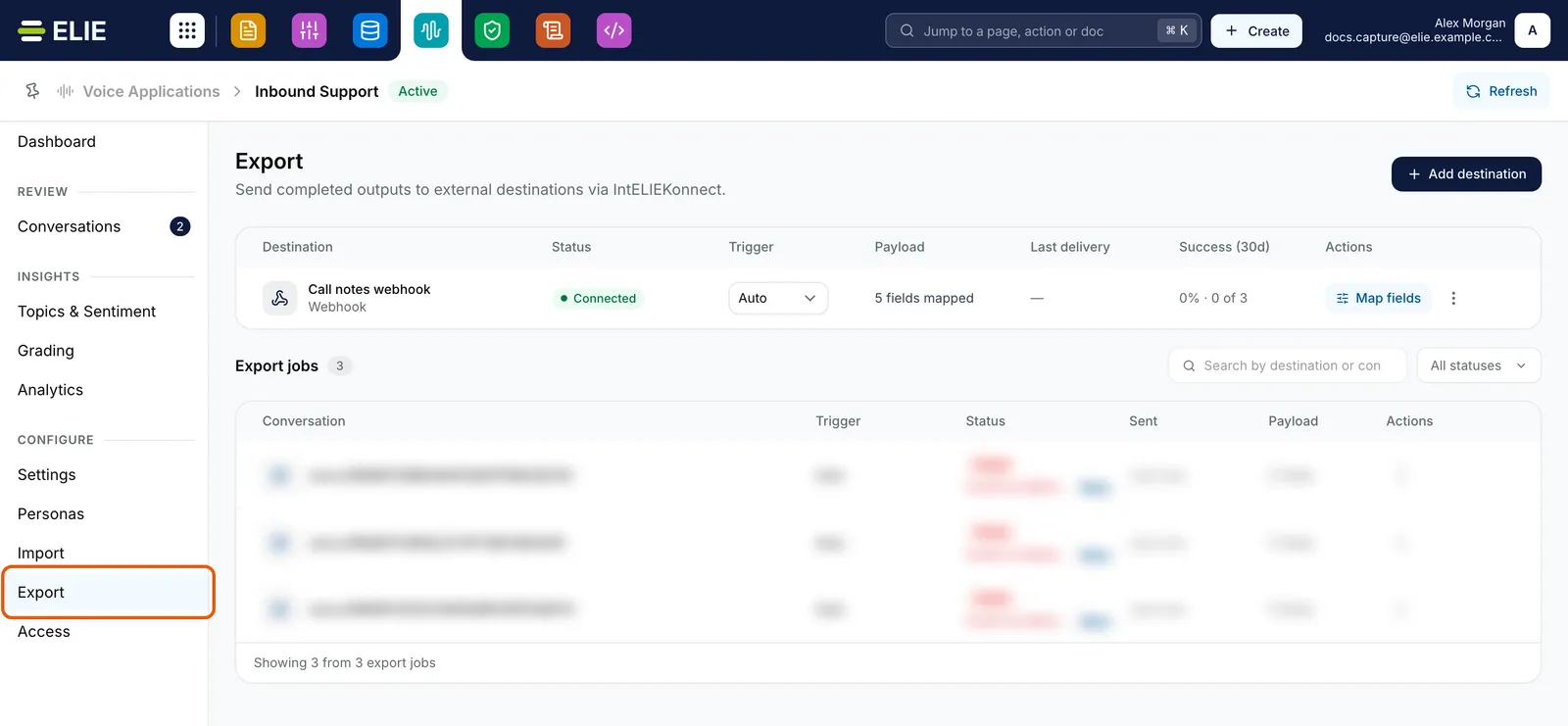
Inbound Support's Export page with Export ringed in the menu: the Call notes webhook destination (Connected, Auto, 5 fields mapped, Success 0% of 3) with its Map fields button, and the Export jobs table below with its three rows softened. EnlargeAdd a destination
Select Add destination. In Add export destination, pick a Connector and a Trigger: Auto delivers every completed conversation, and Manual sends nothing by itself. Select Add destination. You can change the trigger later straight from the row.
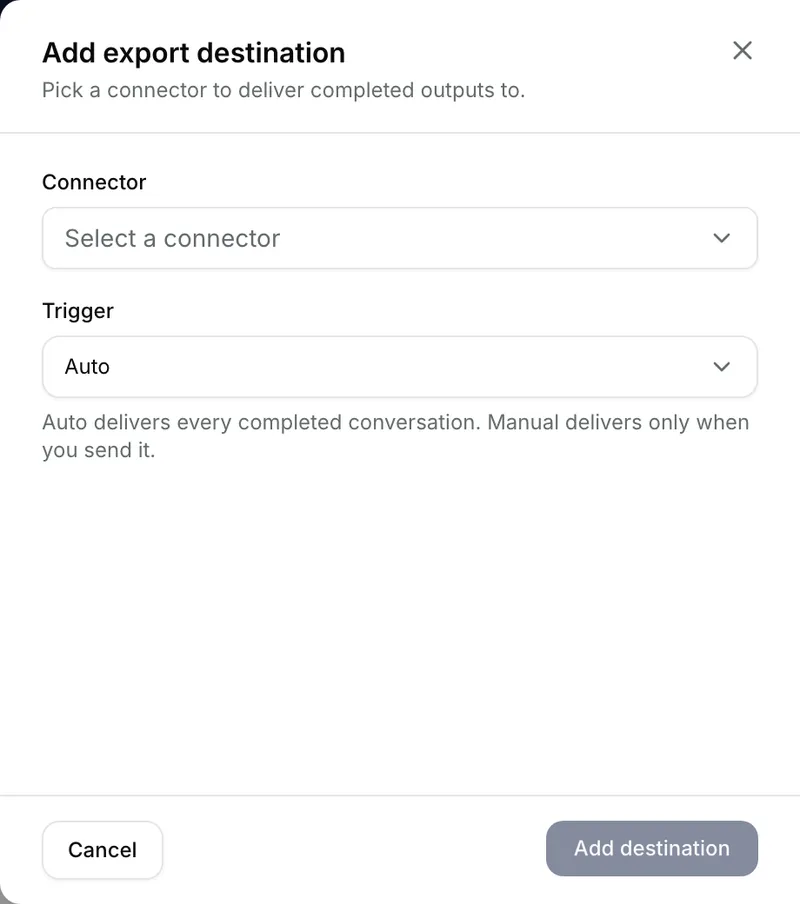
The Add export destination panel with Select a connector under Connector, Trigger set to Auto and its note that Auto delivers every completed conversation, above Cancel and Add destination. Choose what goes in the payload
Select Map fields on the destination. Each output has a Payload key and an Include switch; Conversation ID is always sent. Turn off what must not leave, rename keys if the destination expects other names, then select Save mapping.
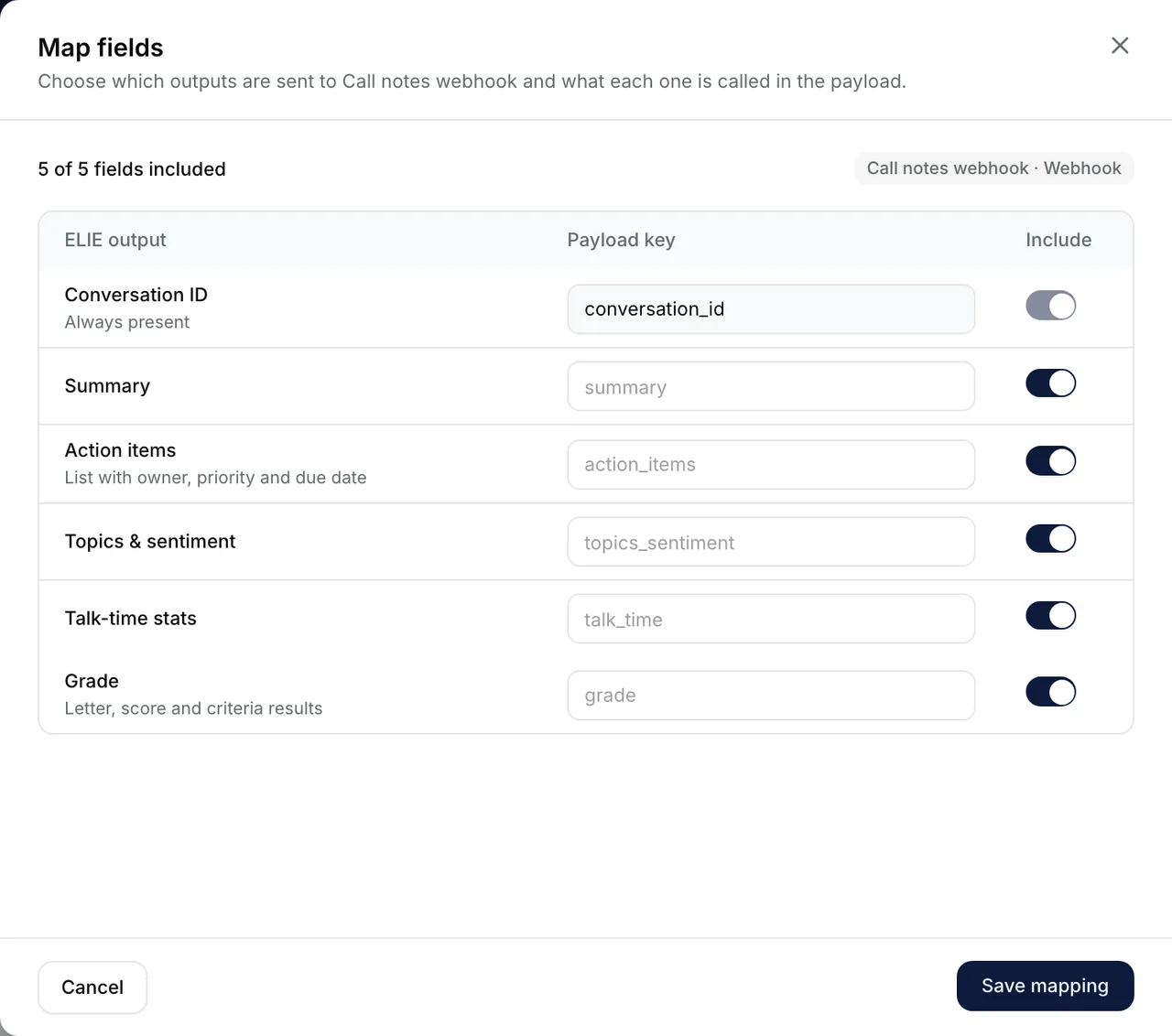
The Map fields panel for Call notes webhook, 5 of 5 fields included: Conversation ID always present, and Summary, Action items, Topics & sentiment, Talk-time stats and Grade each with a payload key and switched on, above Cancel and Save mapping. Follow the deliveries
Export jobs has one row per conversation and destination, with its Trigger, Status and when it was Sent. Search with Search by destination or conversation, or filter with All statuses: Delivered, Sending or Failed.
Resend, retry or pause
A failed job shows its error and a Retry link beside Failed. A job's menu (the three dots) offers View error details and Retry delivery on a failed one, Resend on a delivered one, and View payload. A destination's menu offers Edit destination, Disconnect to pause deliveries (then Reconnect), and Remove destination….


What success looks like
- Destination added. Completed conversations will be sent to the connector appears, and the row reads Connected with a count such as 5 fields mapped.
- Each finished conversation adds a job that moves from Sending to Delivered, and Last delivery shows the time.
What leaves the platform
Each delivery is one record for one conversation: its identifier, a reference to its transcript (the redacted one wherever redaction ran, never the raw text) and the outputs you included. With no mapping saved, every output the conversation produced is sent. Delivery happens when processing finishes, whether or not the conversation has been approved, and includes calls that ended Partially completed. A conversation uses the destinations and mappings that were in place when it arrived, so a change applies only to conversations that arrive afterwards.
If something goes wrong
| Symptom | Likely cause | What to do |
|---|---|---|
| Add destination is greyed out. | Your role lacks Voice · Export - Update here, or cannot see export connectors in IntELIEKonnect. | Point at the button for the reason, then ask an administrator. |
| Couldn't add that destination. Try again. | Your role lacks IntELIEKonnect · Export - Create, which adding needs as well as the Voice permission. | Ask an administrator to add it. |
| No exports yet, though a destination exists. | No conversation has arrived and finished since it was added, or its Trigger is Manual. | Set the trigger to Auto. Only conversations that arrive after the change are sent. |
| Include at least one field in the payload. or a duplicate field message. | Every output is switched off, or two included outputs share a key. | Include at least one, and give each a different key. |
| A job reads Paused, or a destination Disabled or Connector removed. | The destination was disconnected here, or the connector was turned off or deleted in IntELIEKonnect. | Select Reconnect, turn it back on there, or remove the destination here. |
Next
- Who can see a voice application - who can manage destinations.
- Export connectors - creating the connector itself.
- Conversation statuses - when a conversation counts as finished.