Managing a tenant’s gateway connection
A gateway connection lets a tenant's users sign in through their own organisation's identity provider. A tenant can have one, and it needs a subdomain first, because the subdomain becomes the connection's alias.
- Access to Tenants in the staff console.
- A tenant that is not Offboarding or Deleted, with a subdomain set, and the provider's details from the tenant.
If an area or a button is missing, your staff role does not include it. Ask a platform administrator to extend your access.
Steps
Open the tenant’s Gateways section
Open the tenant from Tenants, then select Gateways in the Settings rail.
Name the connection
Select Add Gateway. In the New Gateway Connection drawer, enter a Connection Name. Tenant and Keycloak alias (the tenant’s subdomain) are read-only.
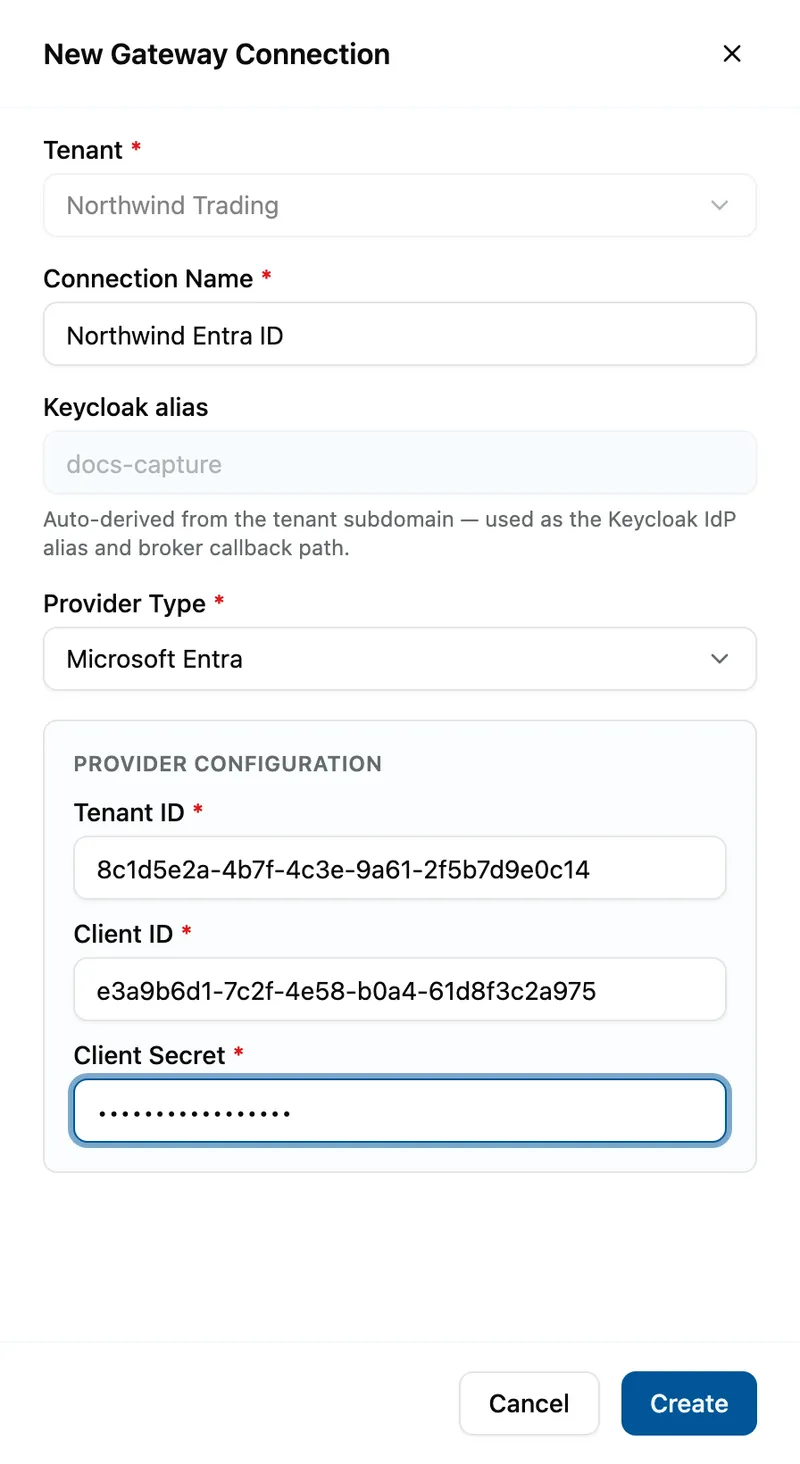
The New Gateway Connection drawer for Northwind Trading: Connection Name Northwind Entra ID, Keycloak alias docs-capture greyed out, Provider Type Microsoft Entra, and Tenant ID, Client ID and Client Secret filled in under Provider Configuration. Choose the provider
Pick a Provider Type: Microsoft Entra (the default) or Google. Entra asks for Tenant ID, Client ID and Client Secret; Google for Client ID and Client Secret.
Fill in Provider Configuration
Every field under Provider Configuration is required. Select Create; it reads Saving… while it runs.
Hand over the redirect URI and test
Under Connection configuration, select Copy beside Redirect URI (give this to the tenant) and send it to the tenant for their provider. Then select Test connection.

What success looks like
- Gateway connection created successfully! appears, and the row shows its ALIAS, PROVIDER and STATUS Enabled.
- Test connection reports Registered in Keycloak and the provider responded. The test does not check the client secret, only that the provider is registered and reachable.
- On Tenant Details, the Sign-in figure names the provider with gateway enabled.
Changing or removing a connection
Edit opens Edit Gateway Connection. The alias and provider type are fixed; the Connection Name, the configuration and the Enabled switch (Allow new logins via this provider.) can change. Secrets show as hidden: leave one alone to keep it, or type a new value. Finish with Save Changes.
Disable stops new sign-ins through the connection after you confirm; turn Enabled back on to restore it. Remove deletes the connection and its configuration for good.
Older connections may show Okta, Generic SAML or Generic OIDC. They still display and can be edited, but new connections offer only Entra and Google.
If something goes wrong
| Symptom | Likely cause | What to do |
|---|---|---|
| Keycloak alias reads This tenant has no subdomain yet. Set it in the tenant's settings before adding a gateway. | The tenant was created without a subdomain. | On Tenant Details, enter one and select Set subdomain. It cannot be changed later. |
| Add Gateway is greyed out. | The tenant already has a connection. | Edit that one. |
| Create stays greyed out. | A field is empty. | Fill every field under Provider Configuration. |
| Could not create the gateway connection. Please try again. | The request was refused. | The message stays in the drawer; correct the form and select Create again. |
| Test connection reports This connection has a problem. | The provider details are wrong or the provider is unreachable. | Read the reason under the message, then Edit the values. |
Next
- Finding and creating a tenant - setting the subdomain.
- Granting a tenant an entitlement - what its users can reach.