Signing in to the staff console
The staff console signs you in against a separate staff realm at the identity provider, so tenant credentials will not get you in, and signing in here does not sign you in to the tenant workspace.
- Access to Staff console in the staff console.
- A platform staff account and your organisation's staff console address. Tenant sign-in details do not work here.
If an area or a button is missing, your staff role does not include it. Ask a platform administrator to extend your access.
Steps
Open the staff console
Open your organisation’s staff console address, not the tenant workspace. The sign-in page opens with the ELIE logo and Welcome in the bar at the top.
Select Staff
The card Log in your account offers one tile, Staff, for platform staff signing in through the identity provider. Select it. There is no password box on this card.
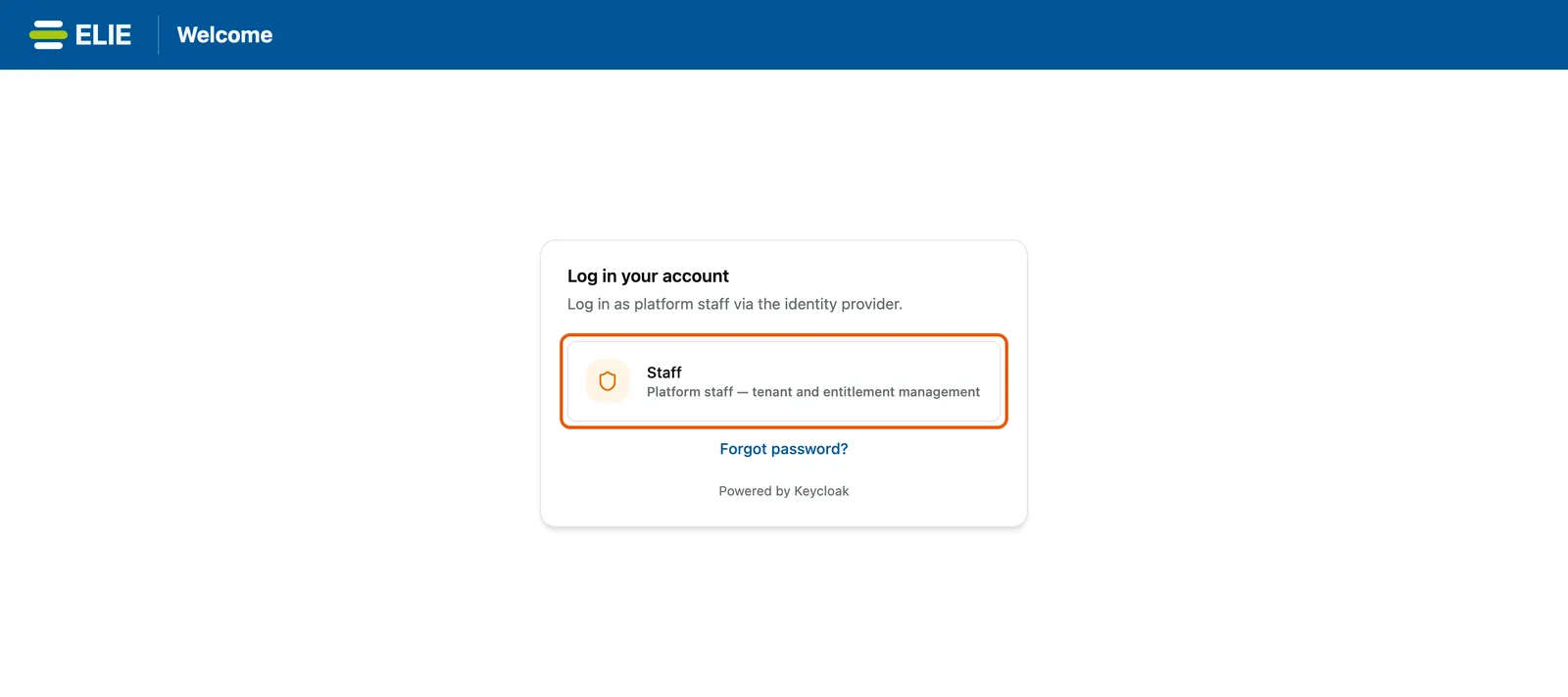
The staff console sign-in page: the ELIE bar reading Welcome above the Log in your account card, with its one tile, Staff, ringed above Forgot password? EnlargeEnter your credentials
The identity provider’s own page takes over. Enter your staff email and password. The hand-off works like the tenant workspace’s: see Signing in.
Wait for the return
A spinner shows while the console finishes signing you in, then Platform overview opens. You move between apps from the Available Apps panel at the far left of the header.
Sign out when you are done
Select your name at the right of the header, then Logout. There is no confirmation; you land back on the sign-in card.
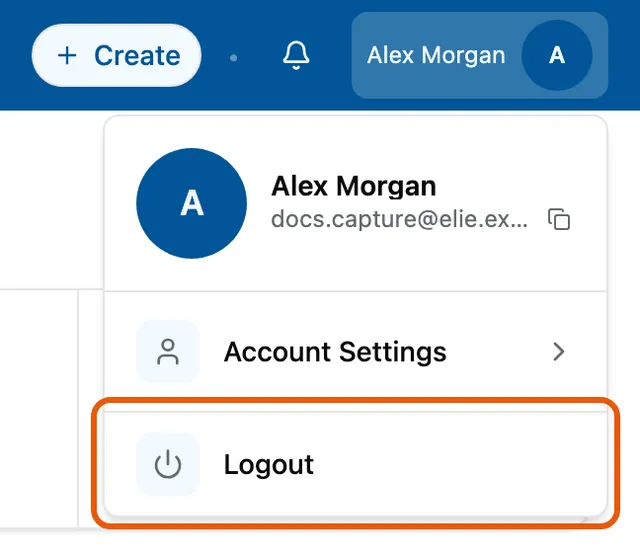
The profile menu open under Alex Morgan at the right of the header, showing the name and email above Account Settings, with Logout ringed.


What success looks like
- Platform overview opens, under the line Tenants, entitlements and billing across EliePlatform.
- Your name and email head the profile menu, above Account Settings and Logout.
- Opening the sign-in page again while signed in takes you straight back to Platform overview.
Account Settings lists, under Roles, the staff billing permissions your session holds, or No scopes granted. Those decide which billing actions you see; see Billing in the staff console.
If something goes wrong
| Symptom | Likely cause | What to do |
|---|---|---|
| Sign-in failed with Sign-in was cancelled or no authorization code was returned. | You left the identity provider's page, or used Back, before finishing. | Select Staff again and complete the page. |
| Sign-in failed with Sign-in could not be completed. Please try again. | The sign-in could not be finished. | Try once more; if it repeats, ask a platform administrator to check your account. |
| Login unavailable with Sign-in is not configured for this application. Contact your administrator. | Staff sign-in is switched off on this installation. | Contact your administrator. Forgot password? is hidden too. |
| You cannot remember your password. | Staff passwords are reset from the console, not the tenant workspace. | Select Forgot password?, enter your email and select Send reset link. The link brings you back to the staff console. |
| Access denied with Go to overview | The page you opened is not one this account can see. | Select Go to overview, then ask your administrator. |
| You are back on the sign-in card without signing out. | The session ends after 30 minutes without activity. Activity in another staff console tab counts. | Sign in again. |
Next
- The staff console - Platform overview and the apps.
- Finding and creating a tenant - the usual first task.
- Signing in - the tenant workspace's own sign-in.