Managing a tenant's billing account
Each tenant has one billing account: its wallet of credits, its ledger and its enforcement settings. Every screen here acts on exactly one tenant. A tenant's platform status and its billing state are separate facts, so an ACTIVE tenant can still be blocked by billing.
- Access to Billing in the staff console.
- These permissions: billing.tenant.read, billing.tenant.manage, billing.grant.create.
If an area or a button is missing, your staff role does not include it. Ask a platform administrator to extend your access.
Steps
Open the tenant directory
In Billing, select Tenants under Operations. Tiles count tenants that are Blocked, In grace, In debt or have No credit, and each page of the table lists those needing attention first.
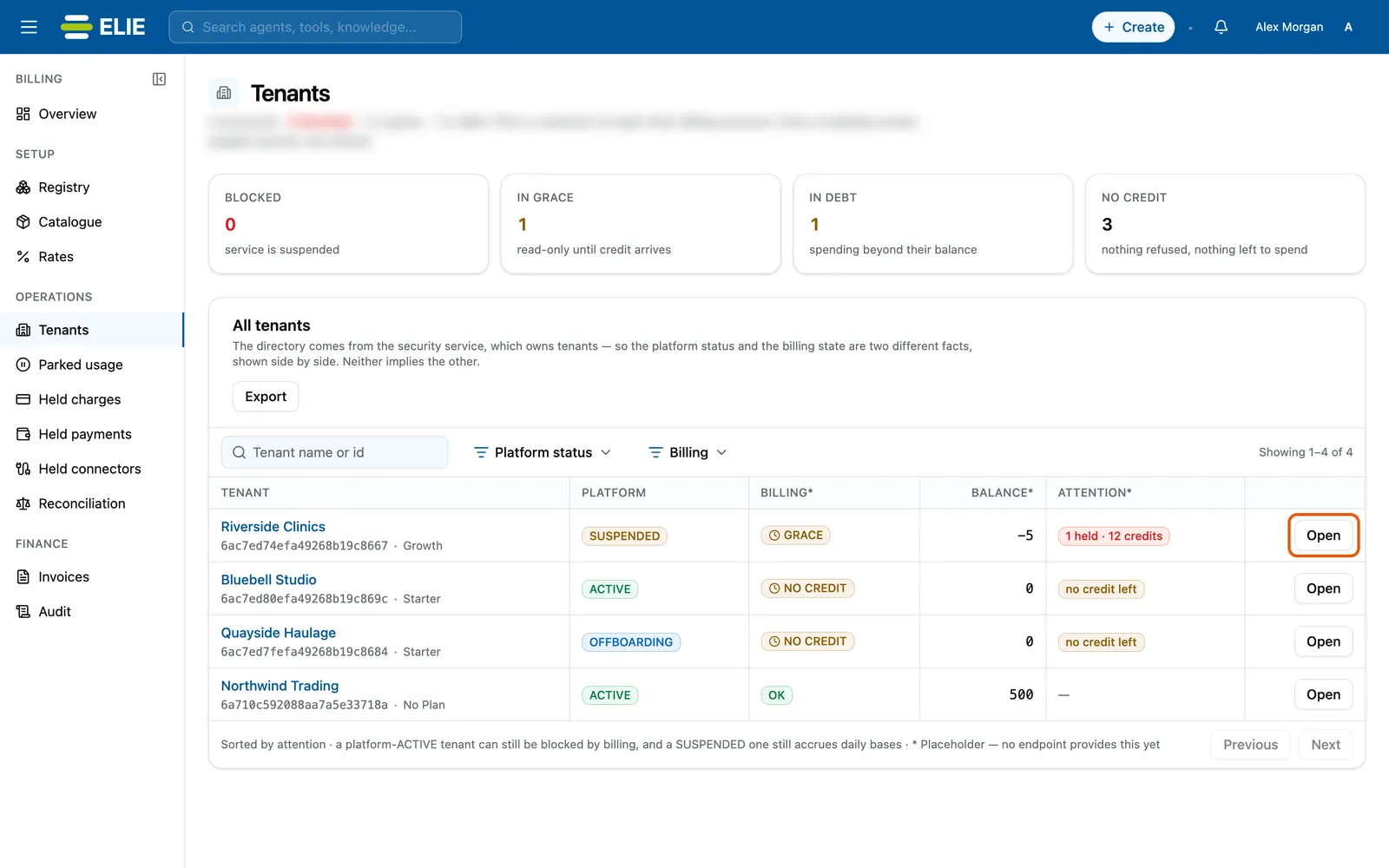
The billing Tenants directory: the Blocked, In grace, In debt and No credit tiles, then Riverside Clinics first (Suspended, Grace, balance -5, 1 held, 12 credits) with its Open ringed, above Bluebell Studio, Quayside Haulage and Northwind Trading. EnlargeOpen the account
Search by Tenant name or id, then select Open on the row. A tenant with no account shows Provision instead; select it, then Provision billing account on its page.
Start the grant
On the tenant’s summary, select Grant credits.
Fill in the grant
Enter Credits, set Expires to the date unspent credit lapses, and type a Reason. After this grant shows the balance before and after, and says when the grant clears the debt or stops refusals.
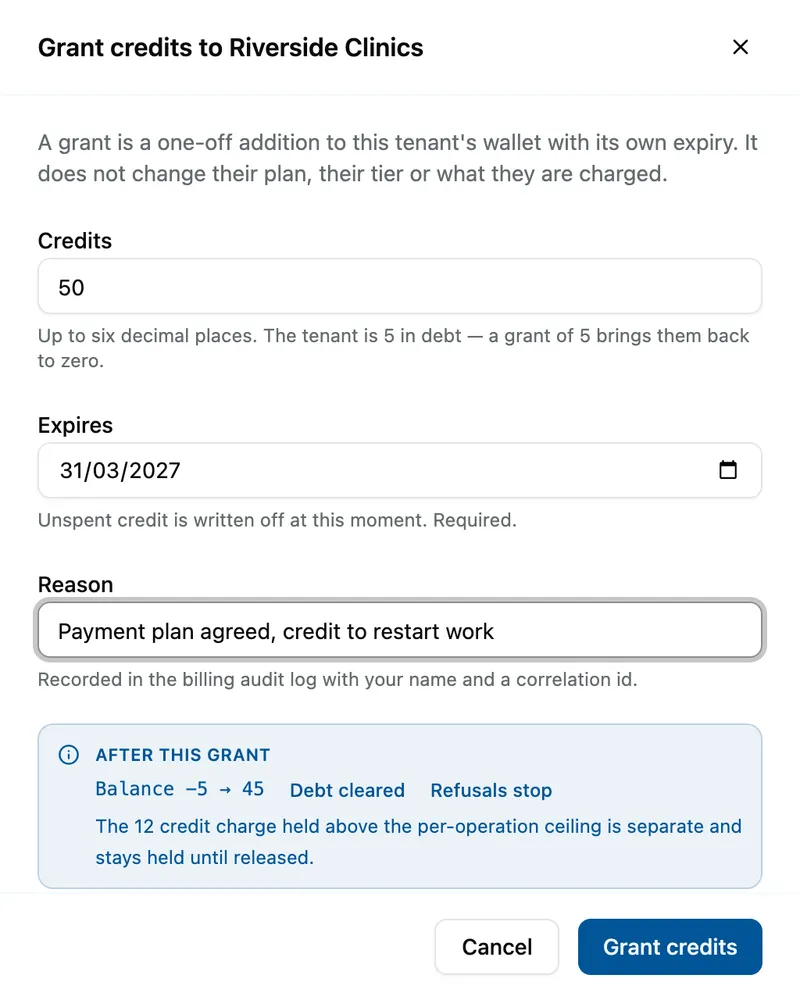
The Grant credits to Riverside Clinics drawer with 50 credits expiring 31 March 2027 and a reason; After this grant reads Balance -5 to 45, Debt cleared, Refusals stop, and notes the 12-credit held charge stays held until released. Grant
Select Grant credits.


What success looks like
- Credits granted appears and the drawer closes.
- Credit balance under Entitlement and credit rises by the amount granted.
- The grant appears as a new line on the tenant's Ledger.
A grant cannot be deleted. Unspent credit lapses on its expiry date.
Reading the account
The summary's badge shows the service state, or Blocked when work is being refused. It also shows the Security tier beside the Credit balance, so nobody sells credit for a component the tier cannot reach; Open the entitlements editor goes to the tenant's entitlements.
| Service state | What it means |
|---|---|
| Active | Credit available; paid work runs. |
| Active, no credit | Provisioned, with nothing to spend. |
| Read-only grace | In debt; paid work is refused until the balance recovers. Grace deadline shows when grace ends. |
| Suspended | Grace ran out and suspension is enabled. |
Effective settings lists the debt ceiling, safe threshold, per-operation ceiling, retention window and whether suspension is enabled. Billing identity shows the legal name and address the customer gave for invoices. The tenant's other screens are in the rail: Ledger (every credit movement, with Trace for where one came from), Usage (each usage event and how it was priced, with Export CSV), Inventory (when each product last reported what the tenant has), Rate overrides and Enforcement.
If something goes wrong
| Symptom | Likely cause | What to do |
|---|---|---|
| This tenant has no billing account yet | Billing was never set up for it. | Select Provision billing account. It creates the wallet and ledger but no credit. |
| Enter an amount above zero and an expiry date. | Credits is zero or Expires is empty. | Fill both. |
| The tenant is still Blocked after a grant. | A charge is held above a ceiling, separately from the balance. | Select Review held charge (or Review held charges) in the red banner. |
Next
- Changing a tenant's enforcement mode - whether work is refused.
- Clearing held charges and parked usage - what blocks a tenant besides credit.
- A tenant's billing and API limits - the same tasks from the tenant's page.