Registering components, meters and resource types
The Registry records what billing knows about. A component is a product it can charge for, a meter is a unit that product reports (pages, minutes, requests), and a resource type is something it charges a daily base for, such as a knowledge base. Registering one does not price it: that is a separate step under Rates.
- Access to Billing in the staff console.
- These permissions: billing.meter.read, billing.meter.manage.
- The component the meter belongs to, already in the Registry.
If an area or a button is missing, your staff role does not include it. Ask a platform administrator to extend your access.
Steps
Open the Registry
In Billing, select Registry under Setup. The Meters tab opens, with counts of Active meters, Priced and Unpriced above it.
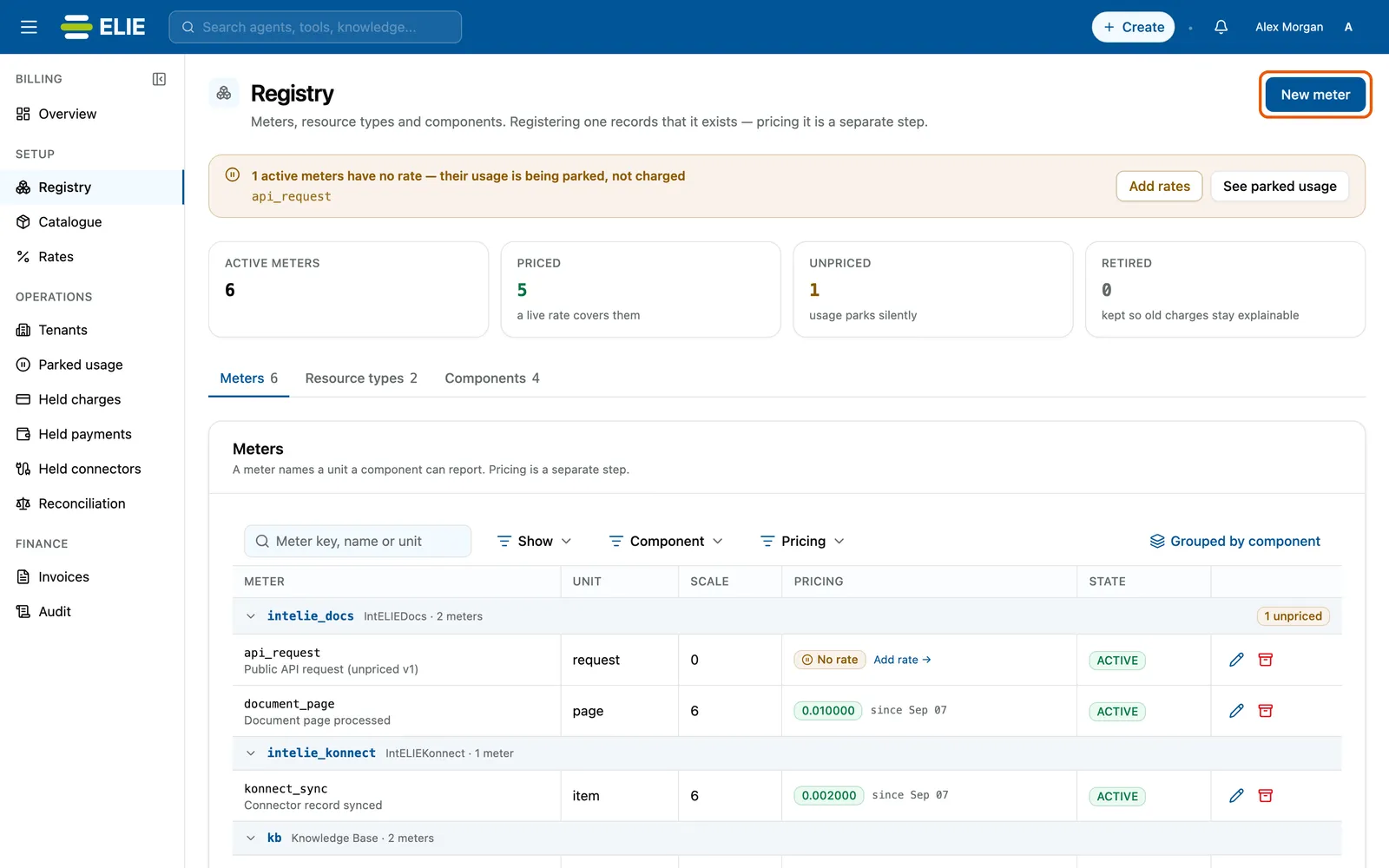
The Registry on its Meters tab, with New meter ringed at the top right: a banner naming api_request as an active meter with no rate, the Active meters, Priced, Unpriced and Retired counts, and the meters grouped by component. EnlargeStart a meter
Select New meter. The Register a meter drawer opens.
Describe it
Enter a Meter key (lowercase snake_case, 3-64 characters, such as
kb_ingestion_page), pick the Component, and enter the Unit, the Scale (decimal places allowed, 0 to 6) and a Display name. The key, component and scale can never change afterwards.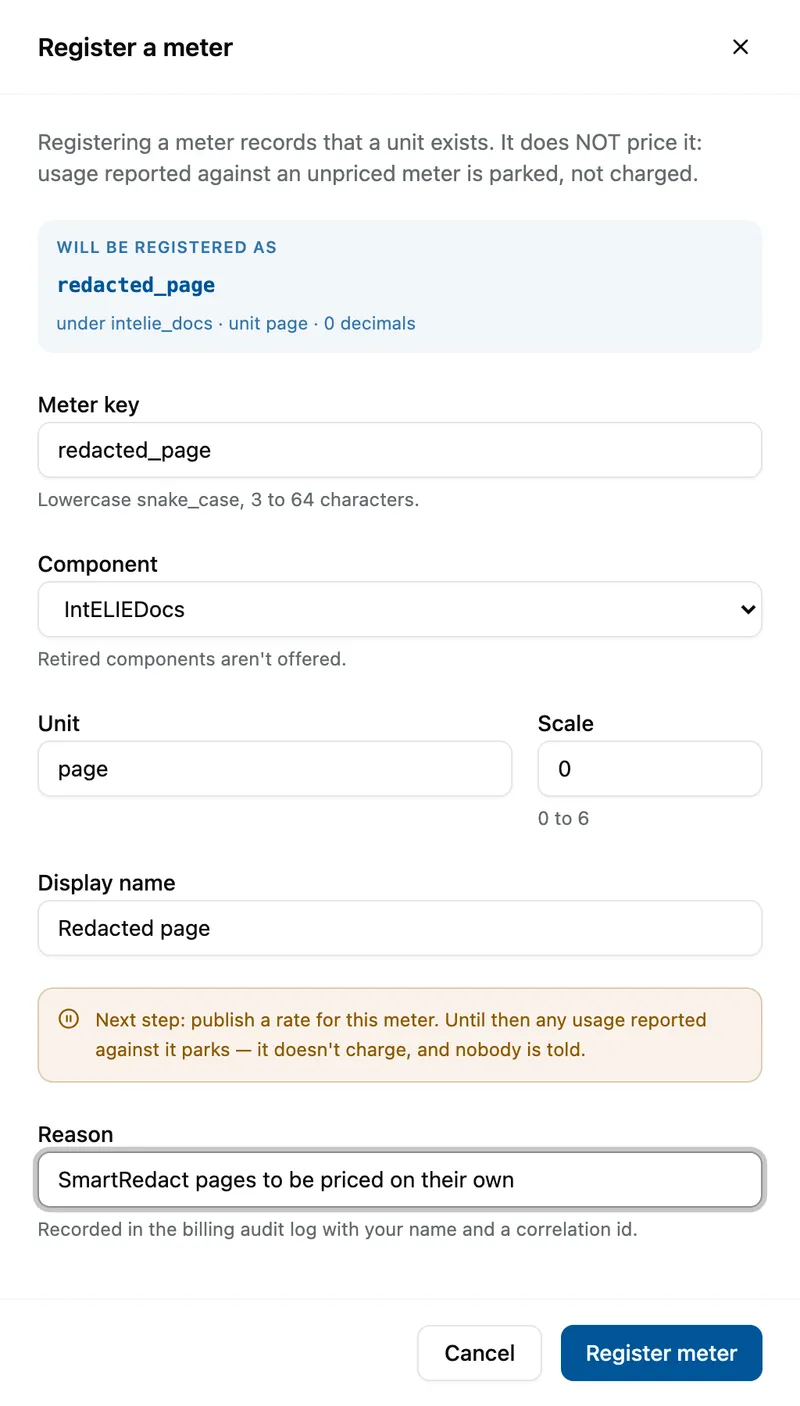
The Register a meter drawer filled in: Meter key redacted_page, Component IntELIEDocs, Unit page, Scale 0, Display name Redacted page and a reason, with the preview reading redacted_page under intelie_docs, unit page, 0 decimals. Register it
Type a Reason and select Register meter.
Price it
Until a price is published, usage reported against the meter parks instead of charging. Select Add rate → in its Pricing cell to go to Rates.


What success looks like
- Meter registered. It is not priced until a rate is published. appears.
- The meter is listed under its component with ACTIVE and No rate under Pricing, and the component's group shows an unpriced count.
- An amber banner names the active meters with no rate, with Add rates and See parked usage.
Components and resource types
The Components and Resource types tabs work the same way: New component asks for a Component key, a Display name and a reason; New resource type adds a key and name under a component. The Ceiling column shows each component's per-operation ceiling, the largest single charge allowed before it is held. That ceiling is a billing setting and cannot be changed in the console.
Edit changes only names (and a meter's unit until it has usage). Retire stops new usage being accepted; it asks you to type the key, cannot be undone, and leaves past charges alone. Retired rows stay listed as RETIRED so old charges remain explainable.
If something goes wrong
| Symptom | Likely cause | What to do |
|---|---|---|
| Register meter stays greyed out. | The key is not lowercase snake_case of 3-64 characters, the scale is outside 0 to 6, or a field or the reason is empty. | Correct the field. |
| The component is not offered. | It is retired. | Register a new component, or use another. |
| Changing a meter's unit is refused. | The meter already has usage. | Register a new meter for the new unit. |
Next
- Publishing a price - the step that makes a meter charge.
- Clearing held charges and parked usage - usage that arrived before a price.