Searching the staff audit trail
Audit Logs reads the platform audit trail one tenant and one service at a time. Both are required, because that is how the trail is kept, and your own searches are recorded too.
- Access to Audit Logs in the staff console.
- A staff sign-in. A tenant session is refused.
If an area or a button is missing, your staff role does not include it. Ask a platform administrator to extend your access.
Steps
Open Audit Logs
Select Audit Logs in the Available Apps panel. The page is headed Activity. From a tenant’s page, Audit trail at the foot of the rail opens it with that tenant chosen.
Choose the trail
In the Trail bar, pick a tenant in Select tenant, then a service in Select service, which starts on IntELIEDocs. Until a tenant is chosen the page reads Choose a tenant to begin.
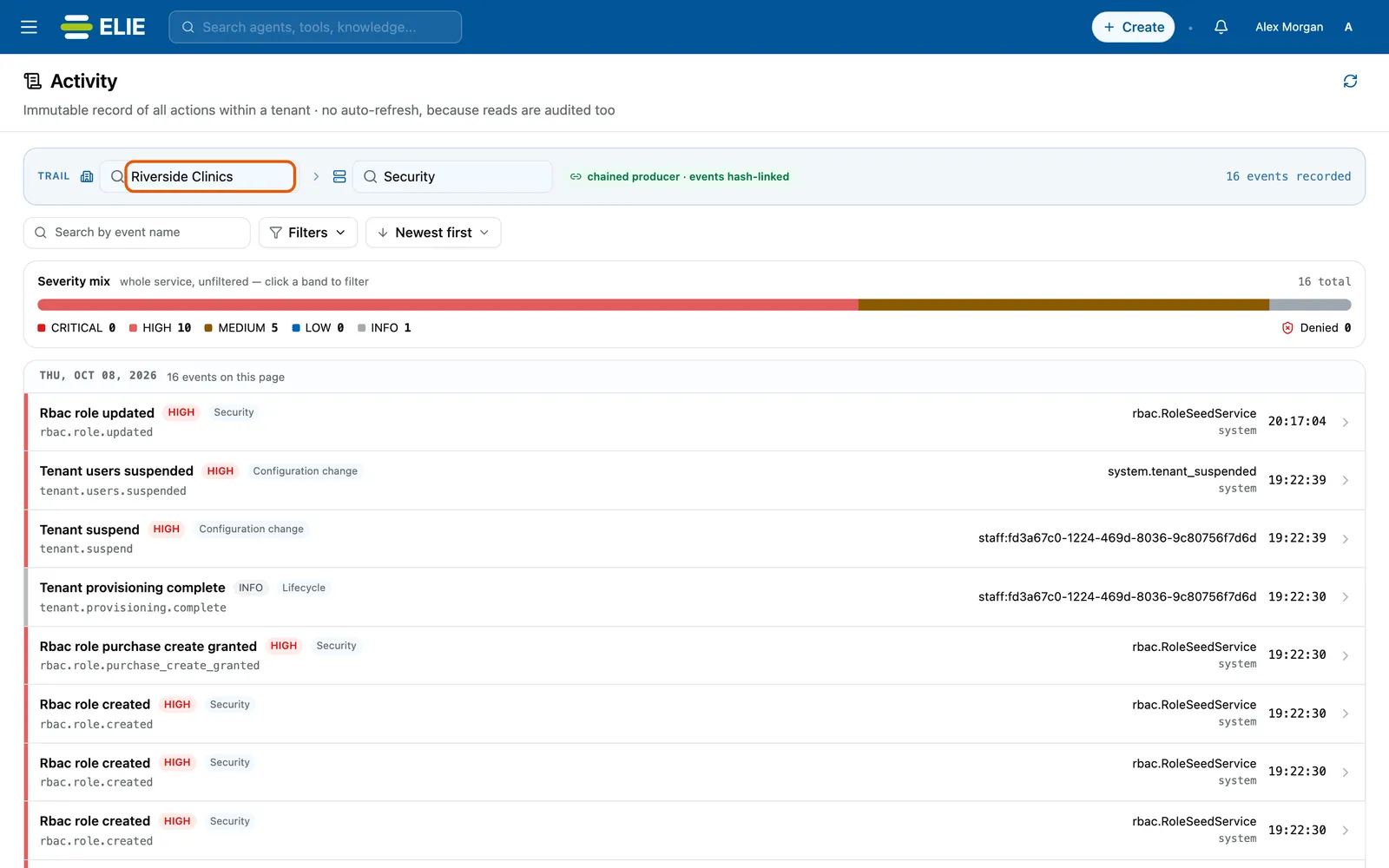
The Activity page with Riverside Clinics ringed in Select tenant and Security chosen as the service: the chained producer chip and the number of events recorded, the Severity mix bar, and the day's events, each with its severity, category, actor and time. EnlargeNarrow it down
Type the start of an event name into Search by event name, such as
document_. For more, select Filters, set any tab and select Apply.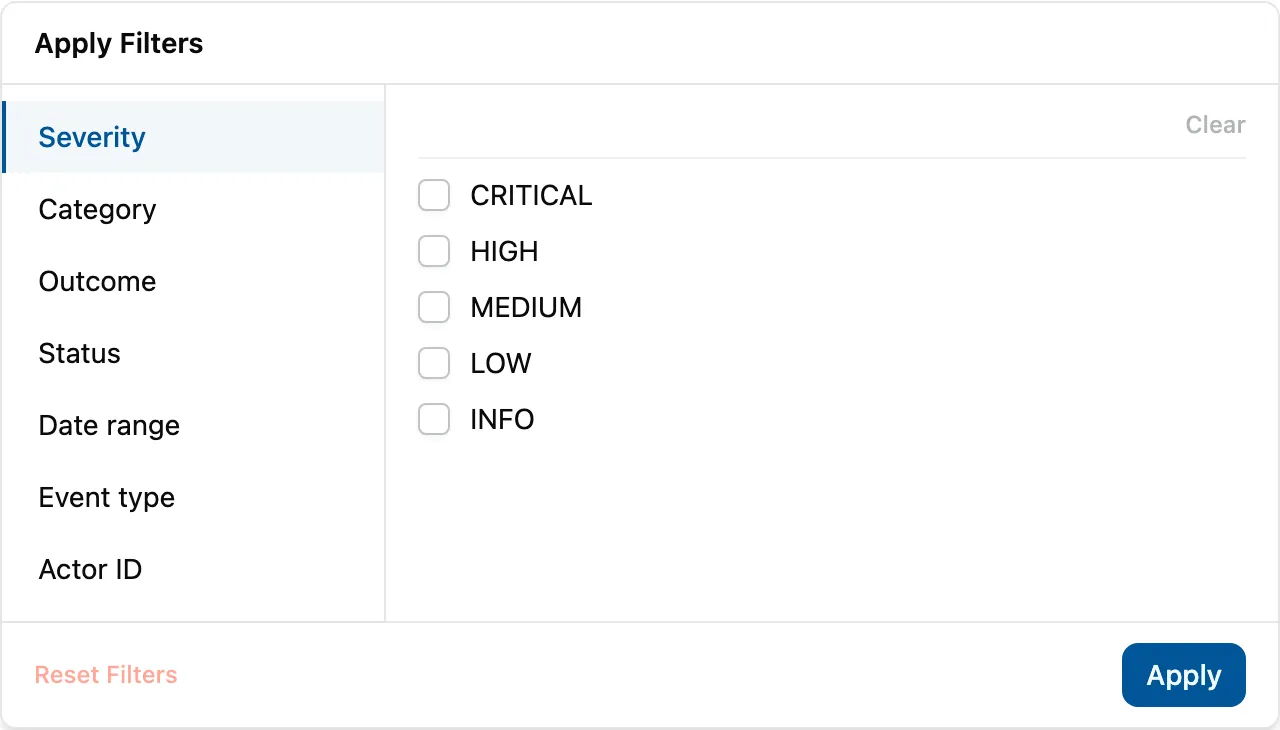
The Apply Filters panel with its tabs Severity, Category, Outcome, Status, Date range, Event type and Actor ID, Severity open with CRITICAL, HIGH, MEDIUM, LOW and INFO to tick, and Reset Filters and Apply below. Open an event
Select a row. Its Event details panel opens on the right.


The filters
| Tab in Filters | Choices |
|---|---|
| Severity | CRITICAL, HIGH, MEDIUM, LOW, INFO |
| Category | Security, Privileged operation, Configuration change, Data access, Authentication, Lifecycle |
| Outcome | SUCCESS, DENIED, ERROR |
| Status | COMPLETED, IN_PROGRESS, PENDING, FAILED, CANCELLED |
| Date range | Any time, Last 24 hours, Last 7 days, Last 30 days, Custom range |
| Event type | The start of an event name. The chevron lists the event families and every known event. |
| Actor ID | The user, staff or service identifier recorded on the event. |
Each filter you set appears as a chip you can remove on its own; Clear filters drops them all but keeps the tenant and service. Order the results with Newest first or Oldest first. Nothing reloads by itself: select Refresh for new events.
What success looks like
- The Trail bar shows how many events the tenant and service hold, with a chip reading chained producer · events hash-linked or pipeline worker · no chain proof (see What the trail covers).
- Severity mix shows the share of each severity for the chosen date range, ignoring your other filters. Select a band to filter by it, or Denied to see refused actions.
- Events appear grouped by day, newest first, 20 to a page unless you change it.
Sharing a search
The tenant, service, every filter, the page, the order and the open event all live in the address. Bookmark it, or send it to a colleague, and the same view opens.
If something goes wrong
| Symptom | Likely cause | What to do |
|---|---|---|
| Choose a tenant to begin | No tenant chosen. | Pick one in Select tenant. |
| The tenant is not in Select tenant. | Offboarding and deleted tenants are left out, and the list holds at most 100 tenants. | Open the tenant from Tenants and use Audit trail in its rail. |
| No events match these filters. | The filters exclude everything, or the service recorded nothing for this tenant. | Widen Date range, select Clear filters, or try another service. |
| Could not load the audit trail. Check the filters and try again. | The search was refused or the service is unreachable. | Adjust the filters, then Refresh. |
Next
- Reading one audit event - the details panel field by field.
- What the staff audit trail covers - services and event names.
- Finding and creating a tenant - whose trail you are reading.