Uploading documents to a knowledge base
Upload Documents adds files to a knowledge base by hand, the one-off alternative to a source on Sources. Nothing you upload can be cited until it has been indexed.
- The Knowledge Base app in your top bar.
- This permission: Knowledge Base · Document - Create.
- A knowledge base. A new version of an existing document also needs Knowledge Base · Document - Update. To tag files by role, department or group, those must already have access to the knowledge base.
If Knowledge Base isn't in your top bar, your role can't view it or your plan doesn't include it. Ask a workspace administrator, or see Permissions and module visibility.
Steps
Open the upload page
Open the knowledge base on Documents and select Upload Documents. The Add documents page opens.
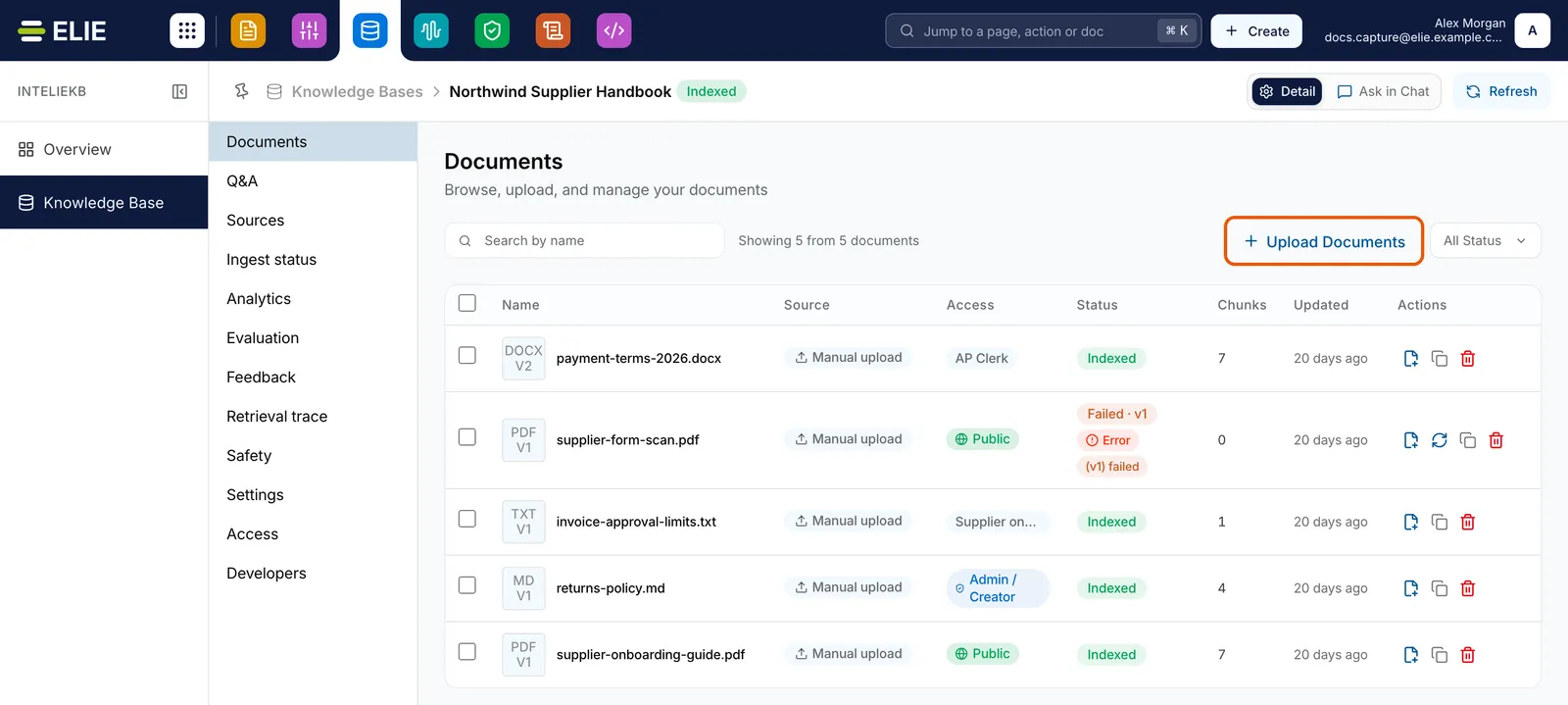
The Documents section of Northwind Supplier Handbook listing five documents, with the Upload Documents button at the top right ringed. EnlargeAdd your files
Select Choose a file or drag it here, or drag files onto the page. Each can be up to 50 MB with a name of up to 200 characters; a file that breaks a rule is named in a message and left out. The files are listed on the left and the selected one is previewed in the middle. Add files (the plus) adds more.
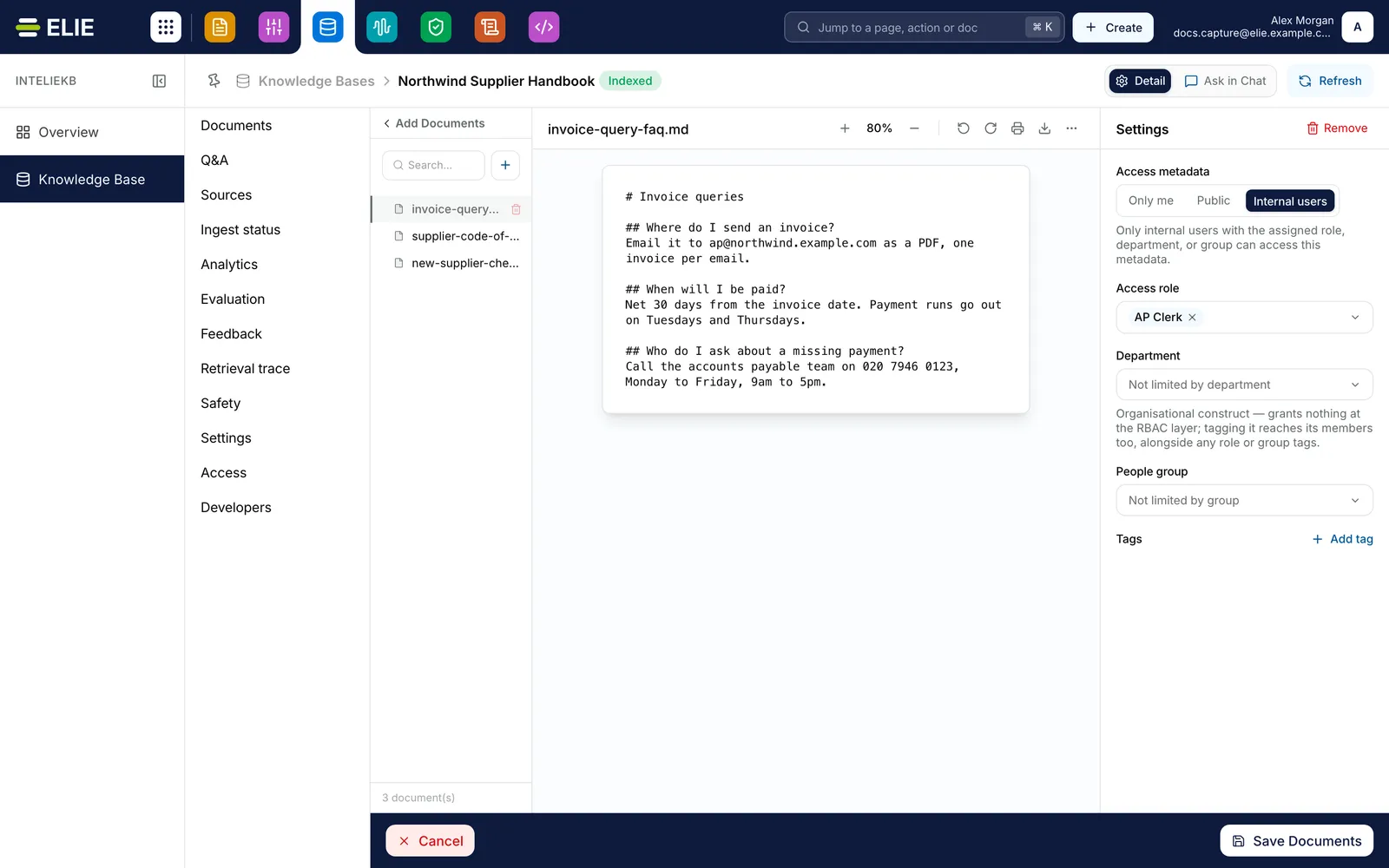
The Add documents page with three files listed on the left, invoice-query-faq.md selected and previewed in the middle, its Settings card on the right with Internal users chosen and AP Clerk picked under Access role, and Cancel and Save Documents along the bottom. EnlargeDecide who can retrieve each file
The Settings card applies to the selected file only, so select each file in turn. Under Access metadata, choose Only me, Public, or Internal users and pick one or more Access role, Department or People group tags; matching any one is enough. Add tag stamps a key and value under Tags.
Save
Select Save Documents. Files go up a few at a time while the button counts them, as in _Uploading 2 of 3…_, and the page returns to Documents once every file is accepted.


Accepted types are PDF (.pdf), Word (.docx, .doc), .odt, PowerPoint (.pptx, .ppt),
Excel (.xlsx, .xls), .csv, .tsv, .txt, Markdown (.md), HTML (.html, .htm) and
images (.png, .jpg, .jpeg, .tif, .tiff, .bmp). Emails (.eml) are not accepted here.
What success looks like
- 3 document(s) uploaded successfully. appears, with your count, and you are back on Documents.
- Each file is listed as Manual upload, moving from Queued to Indexed.
- If only some files went up, the page stays open on the failures and the button reads Retry Failed (1), with your count.
When a document with that name exists
If a file has the same name as a document already here, even in another format, its Settings card says so. Save Documents then opens Document already exists, where you choose Upload as separate document, Upload as new version or Cancel. A new version keeps the existing document's access and tags, whatever you picked for the file.

To replace a document on purpose, select Upload new version on its row. The same page opens for one file, with the document's access filled in; a change there applies to the document and every version. Add an optional What changed? note for the version history, then select Upload new version. The previous version keeps answering until the new one is indexed.

If something goes wrong
| Symptom | Likely cause | What to do |
|---|---|---|
| report.json is not a supported file type, with your file's name. | The extension isn't accepted. .eml, .json, .xml, .gif and .markdown are refused. | Save the file in an accepted format and add it again. |
| A message that the file exceeds the 50 MB upload limit, or the 200 character filename limit. | The file is too big, or its name too long. | Split or compress the file, or rename it. |
| Upload Documents is greyed out. | Your role lacks Knowledge Base · Document - Create. | Ask a workspace administrator. |
| Under Internal users, a note says no roles, departments or groups are granted yet. | Nothing has been granted access to this knowledge base. | Grant access on Access, or choose Public. |
| The document lands as Failed on Documents. | Ingest could not read it, often a file with no readable text. | Hover the Error tag, then see Managing knowledge base documents. |
Next
- Managing knowledge base documents - access, retries and removal after upload.
- Ingest statuses explained - what happens after upload.
- Who can see a knowledge base - who can retrieve what you uploaded.