Enabling, disabling and removing a connector
Only an Active connector runs on its schedule, and only an Active one is offered when you bind it to an orchestrator. Disable pauses it and keeps everything; Remove deletes it.
- The IntELIEKonnect app in your top bar.
- These permissions: IntELIEKonnect · Import - Update, IntELIEKonnect · Import - Delete.
- To enable: Engagement Status Connected and a saved schedule. To remove: the connector switched off and not bound to anything.
If IntELIEKonnect isn't in your top bar, your role can't view it or your plan doesn't include it. Ask a workspace administrator, or see Permissions and module visibility.
Steps
Check it is ready
Open the connector. Under Connector Details on Overview, Engagement Status must read Connected; Enable doesn’t appear until it does. It also needs a schedule on Schedule Configs.
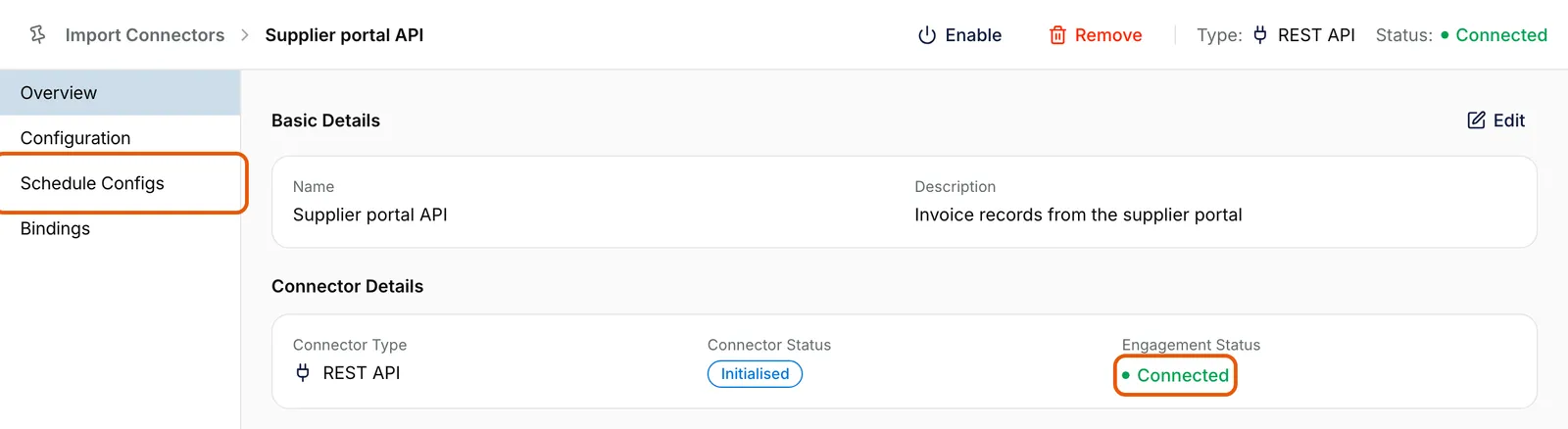
The Overview tab of Supplier portal API, with Engagement Status Connected ringed under Connector Details and the Schedule Configs tab ringed in the tab list. Enable is at the top. EnlargeEnable it
Select Enable at the top, or its icon in the row’s Actions on the list. _Connector enabled_ confirms it and Connector Status becomes Active. Its settings are now locked, and a banner says so.

The header of Supplier portal API with Enable ringed and its tooltip open: Turn this connector on so its scheduled runs start and documents flow again. Nothing is transferred until the next scheduled run or a manual one. EnlargeDisable it when you need to
Select Disable. _Connector disabled_ confirms it and the status becomes Disabled. Scheduled runs stop; the settings, schedule and bindings stay, and documents already in Elie keep processing.
Remove it
Remove appears only while the connector is not Active. Select it, then Yes, Remove in the Remove Connector dialog. If it is greyed out, the connector is still bound: remove those bindings on its Bindings tab first.
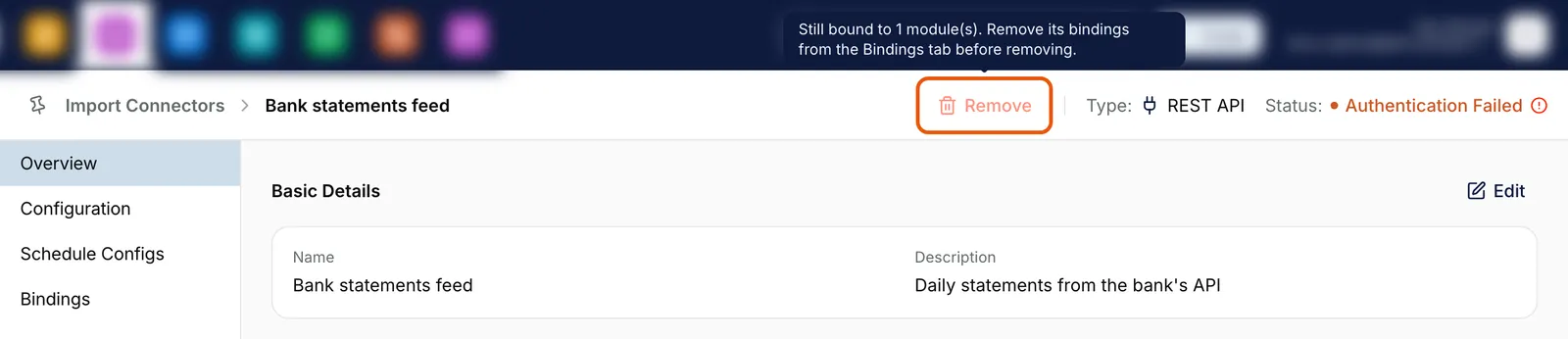
The header of Bank statements feed, a disabled connector, with Remove greyed out and ringed, and its tooltip: Still bound to 1 module(s). Remove its bindings from the Bindings tab before removing. Enlarge


What Enable checks
- A working connection: Enable is hidden until Engagement Status is Connected.
- A schedule: without one, enabling fails with Set a schedule before enabling a pull import.
- The choices made after signing in: a cloud drive needs its folder, and an accounting connector its organisation. Until they are set, Enable is greyed out and its tooltip names them.
After you enable it, the first run picks up only what arrives from then on, unless you turned on Import Existing Files (or emails, or records) on Configuration. Re-enabling a disabled connector carries on from where it stopped.
The connector and its stored sign-in details are deleted. Before removing one that feeds an orchestrator, bind its replacement first, so nothing is missed in between.
What success looks like
- Enable: Connector Status reads Active and the list shows Active.
- Disable: the status reads Disabled and the tabs can be edited again.
- Remove: the connector is gone from Import Connectors.
If something goes wrong
| Symptom | Likely cause | What to do |
|---|---|---|
| No Enable anywhere. | Engagement Status isn't Connected, or your role lacks Update. | Verify it. See Verifying a connector. |
| Enable is greyed out. | A folder or organisation hasn't been chosen yet. | Its tooltip names the fields; set them on Configuration. |
| No Remove. | The connector is Active, or your role lacks Delete. | Select Disable first. |
| Remove is greyed out. | The connector is still bound. Its tooltip says how many modules. | Remove the bindings on its Bindings tab. See Connectors & Bind. |
| It went Disabled on its own. | Its sign-in stopped working and Elie switched it off. | Fix it on Configuration, then select Enable. |
Next
- Binding an import connector to an orchestrator - the step after enabling.
- Fetching documents now - proving it works without waiting.
- Connector statuses explained - every status and its badge.