Configuring an import connector
Configuration holds how Elie signs in to the outside system and which documents it picks up. The setup wizard's second step is the same form, so this page covers both.
- The IntELIEKonnect app in your top bar.
- These permissions: IntELIEKonnect · Import - Update, IntELIEKonnect · Import - Execute.
- An import connector that is not Active. Saving tests the connection first, which is why Execute is needed too.
If IntELIEKonnect isn't in your top bar, your role can't view it or your plan doesn't include it. Ask a workspace administrator, or see Permissions and module visibility.
The tab has two cards. Credentials & Connection shows the Connector Type, the Authentication Method, Credentials (Configured once stored, never the secret itself) and the address details. Configuration holds the filters. After a test, Connection successful or Connection failed sits beside the first card's heading.

Steps
Open the form
Open the connector, select Configuration, then Edit. In the wizard the form opens ready to edit.
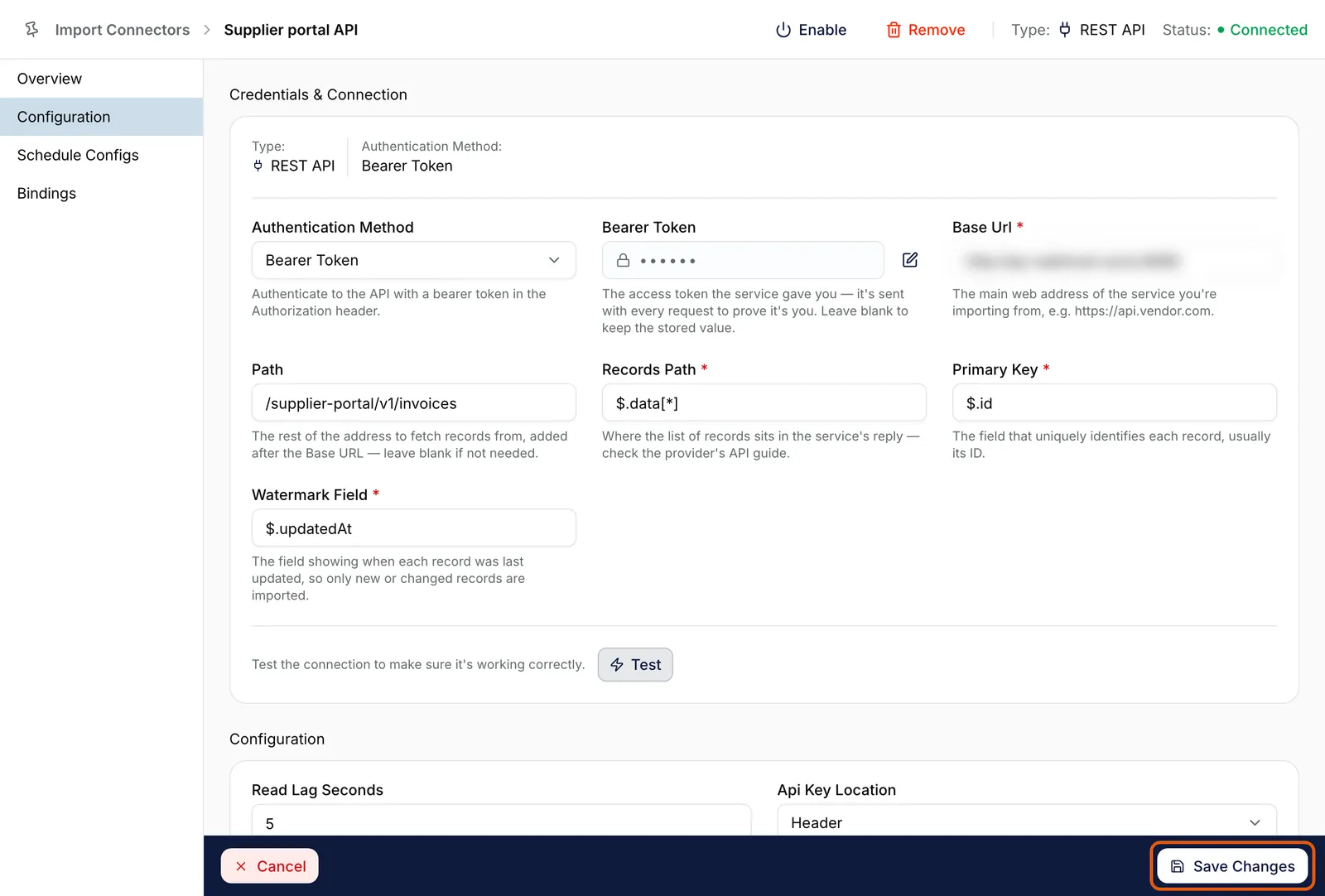
Edit mode. Test sits at the foot of the first card. EnlargeFill in the sign-in details
Complete every field marked * in Credentials & Connection; each has a hint saying what it wants. If the type offers an Authentication Method list, choose that first. A stored secret shows as dots: leave it to keep it, or select the pencil to type a new one. Change the server of an Email connector and you type its password again, because a saved password is never sent to a different server.
Narrow what is imported
In Configuration, a blank filter means import everything. Import Existing Files (or Import Existing Emails, Import Existing Records) decides whether the first run also brings in what is already there; leave it off and only new items arrive.
Pick the folder, for a cloud drive
On Google Drive, Dropbox and Microsoft OneDrive, sign in with Authenticate first. Then select Choose Google Drive folder, Choose Dropbox folder or Choose OneDrive folder and pick one in the provider’s window. Change folder picks another, which Elie treats as a new source: with Import Existing Files on, its existing files come in too.
Test, then save
Select Test to try the connection without saving. Then select Save Changes, or Continue setting up in the wizard: Elie tests what you typed and saves it only if it connects. Types that sign in at the provider show Authenticate instead of Test; see Verifying a connector.

What success looks like
- A message confirms the test, and Connection successful sits beside Credentials & Connection.
- Engagement Status reads Connected, and a Draft has become Initialised.
- Back in read mode, each secret reads Configured.
A failed test saves nothing
Wrong credentials never overwrite working ones. If the test fails, Save Changes keeps you in the form with your edits and stores nothing, and the connector carries on with its last good settings. Fix the field and save again, or select Cancel, which asks before discarding edits.
If something goes wrong
| Symptom | Likely cause | What to do |
|---|---|---|
| There is no Edit. | The connector is Active, or your role lacks Update or Execute. | Select Disable first. A banner above the tabs says the same. |
| Test is greyed out. | A required field is empty or invalid, such as an IMAP Host with https:// or a port in it. | The hint beside Test names the field. Enter a host name alone, with the port in IMAP Port. |
| The test fails although the host is right. | Wrong port, or an account password where an app password is expected. | Check the port the field hint suggests, and use an app password for App Password mail. |
| The folder button is greyed out and reads Authenticate first to choose a folder. | You haven't signed in yet. | Select Authenticate, finish signing in, then choose the folder. |
| Save Changes stays greyed out after signing in. | No folder is chosen yet. | Choose the folder; a cloud drive connector can't save without one. |
Next
- Verifying a connector - Test, Authenticate and the sign-in banner.
- Setting an import schedule - how often it runs.
- Enabling, disabling and removing - switching it on.