Binding an import connector to an orchestrator
An import connector collects nothing until something uses its documents. You make that link, called a binding, from the orchestrator in IntELIEDocs; nothing in IntELIEKonnect creates one.
- The IntELIEKonnect app in your top bar.
- These permissions: IntELIEKonnect · Import - List, IntELIEKonnect · Import - Create, IntELIEKonnect · Import - Update, IntELIEKonnect · Import - Delete.
- An import connector that is Active and Connected, and a saved (not draft) orchestrator you can open. List shows the tab, Create attaches, Update connects and disconnects, Delete removes.
If IntELIEKonnect isn't in your top bar, your role can't view it or your plan doesn't include it. Ask a workspace administrator, or see Permissions and module visibility.
Steps
Open the orchestrator
Open IntELIEDocs from the top bar, then the Smart Extract, Smart Classes, Smart Queue or Smart Redact orchestrator the documents should go to.

The top bar of Elie with the module icons. The IntELIEDocs icon is ringed and its tooltip reads IntELIEDocs. EnlargeOpen Import Channels
Select Import Channels in the orchestrator’s left rail. The table lists the connectors already attached, under NAME, TYPE, STATUS and ACTION.
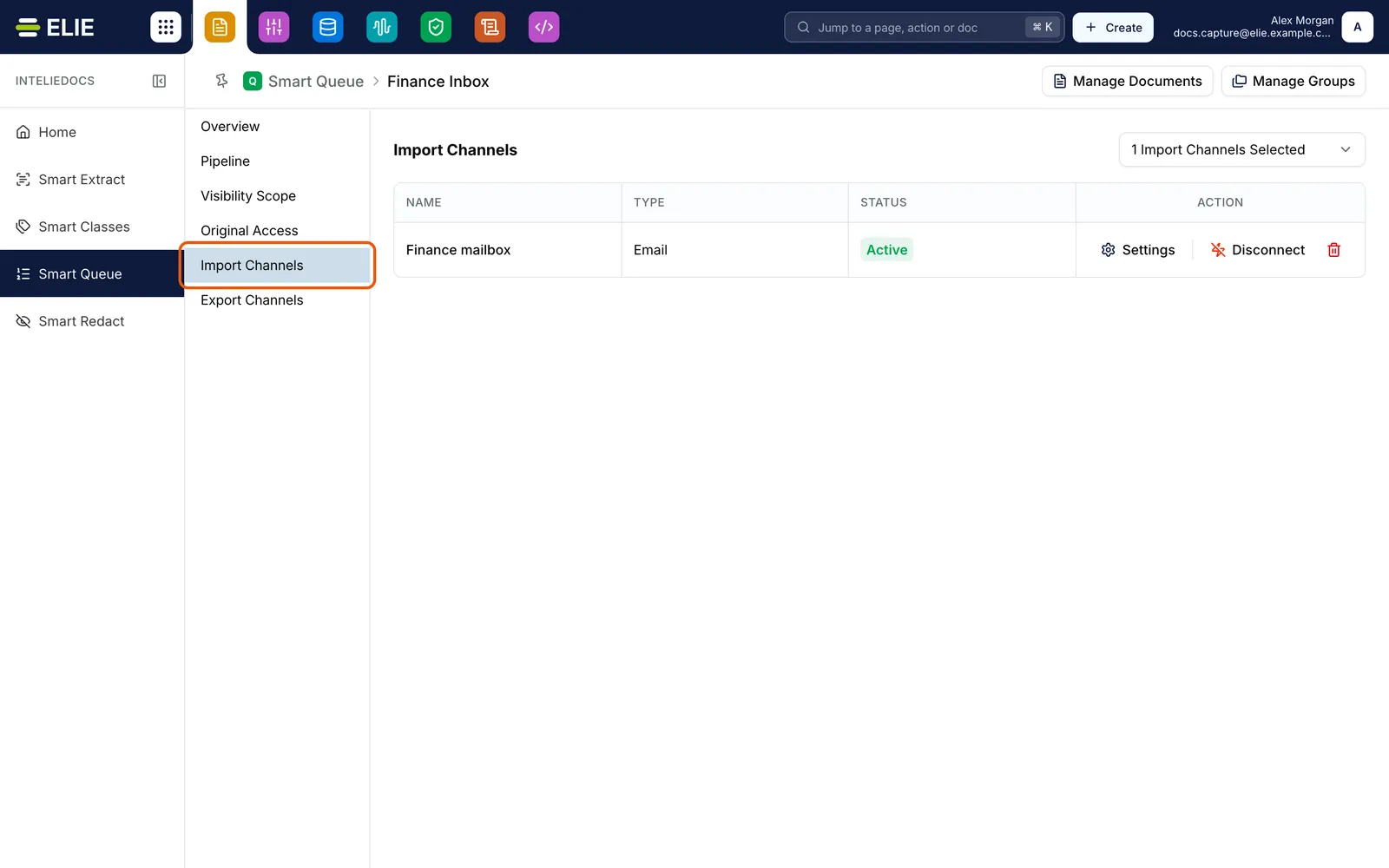
The Finance Inbox queue in IntELIEDocs with the Import Channels tab ringed. One channel is attached: Finance mailbox, an Email connector, Active, with Settings, Disconnect and a trash icon under ACTION, and 1 Import Channels Selected in the dropdown on the right. EnlargeTick the connector
Open the dropdown on the right, which reads Import Channels Selected with a count, and tick the connector. It attaches straight away; there is no Save.
Check the row
The connector appears as a row whose ACTION cell offers Settings, Disconnect and a trash icon. Disconnect means the channel is live.
See documents arrive
Binding starts a run at once, which collects everything that has arrived since the connector was enabled. Open the orchestrator’s documents list to watch them come in.


What success looks like
- The connector is a row with STATUS Active and Disconnect under ACTION.
- New documents appear in the orchestrator, starting at Processing.
- The connector's own Bindings tab lists the orchestrator under Bound To Channel.
Disconnecting and removing
Disconnect pauses the channel and the button becomes Connect. The trash icon removes the channel after Remove Import Channels; unticking it in the dropdown removes it with no question. The connector itself keeps running. While no binding of a connector is live, it stops collecting and later catches up from where it stopped. If it is still live for another orchestrator, documents collected meanwhile go there only.
If something goes wrong
| Symptom | Likely cause | What to do |
|---|---|---|
| The connector is missing from the dropdown. | It isn't both Active and Connected. | See Enabling, disabling and removing. |
| A SQL Database or MongoDB connector never appears. | They carry rows, not documents. | Use it as a knowledge base source instead. |
| A note replaces the dropdown: Save this Smart Extract on its Overview tab before connecting import channels. | The orchestrator is still a draft. | Save it on its Overview tab. |
| Ticking a connector shows an error. | Your role lacks IntELIEKonnect · Import - Create. | Ask an administrator. |
| A row reads Unavailable. | The connector was disabled, lost its sign-in or was removed. | Fix it in IntELIEKonnect, or remove the channel. |
Next
- Fetching documents now - prove the channel end to end.
- Connectors & Bind - every binding in one list.
- Import and export channels - the same tab from the IntELIEDocs side.