Finding and creating import connectors
An import connector is the way documents come in. Import Connectors lists every one you can see, and Add Connector starts a wizard that names the connector, connects it and schedules it.
- The IntELIEKonnect app in your top bar.
- These permissions: IntELIEKonnect · Import - List, IntELIEKonnect · Import - Create, IntELIEKonnect · Import - Update, IntELIEKonnect · Import - Execute.
- List shows the list and Create starts the wizard. Its Configuration step tests the connection, which also needs Update and Execute.
If IntELIEKonnect isn't in your top bar, your role can't view it or your plan doesn't include it. Ask a workspace administrator, or see Permissions and module visibility.
Finding one
Select Import Connectors in the rail on the left of IntELIEKonnect.

The list shows Connector Name, Type, Status (Active or Inactive), Engagement, Activity / Configuration and Created on, newest first. Select the Connector Name or Created on heading to sort by it, and again to reverse. Search by name matches names only. All Connector Type, All Status and All Engagement filter the list as soon as you tick a value. Under Actions, each row offers only what it can do now: Enable or Disable, Fetch now and Remove; hover an icon to see what it does. Below the list, the counts beside Rows per page describe the page you are looking at, not every connector.
Creating one
Start the wizard
Select Add Connector. New Connector opens on its first step, with Overview, Configuration and Schedule Configs across the top.
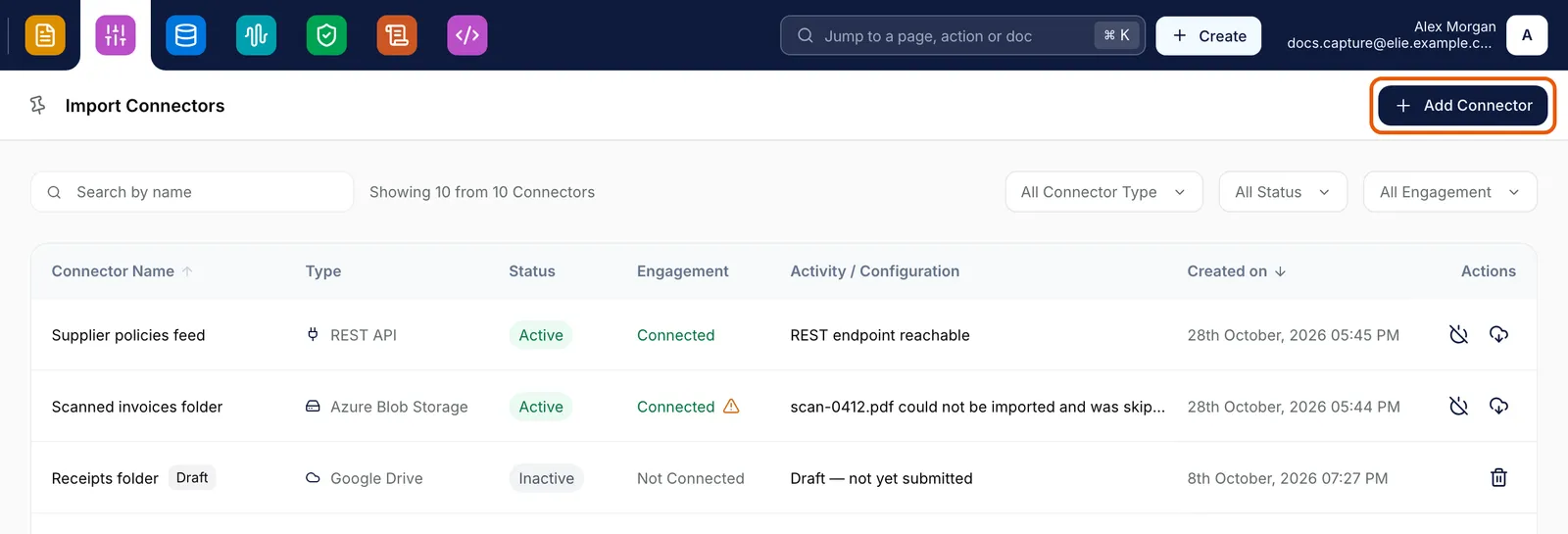
The Import Connectors list with Add Connector ringed at the top right, above Search by name and the All Connector Type, All Status and All Engagement filters. EnlargeName and describe it
Under Add Basic Details, enter a Name of 2-100 characters (letters, numbers, spaces, full stops, apostrophes and hyphens) and a Description. Both are required, and the name must be unique among your import connectors.
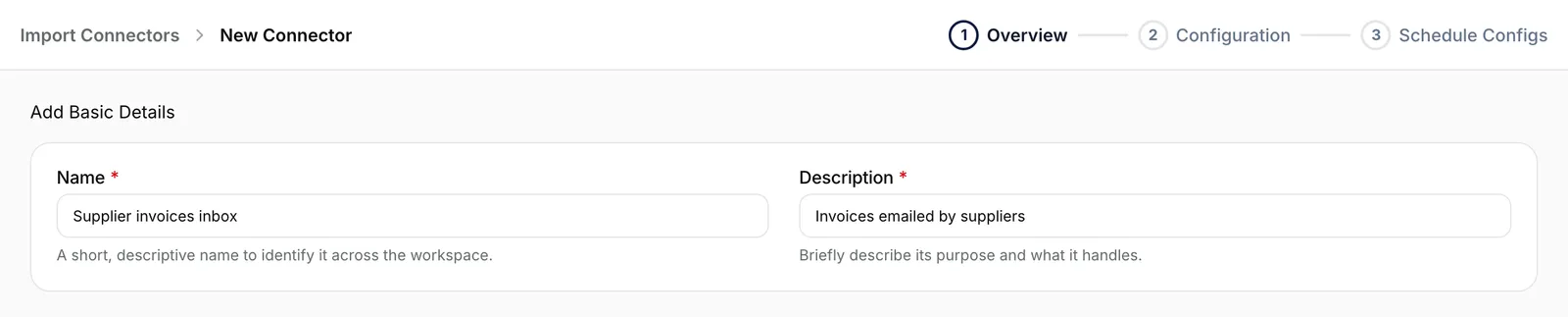
Both fields are required. EnlargeChoose the type
Under Select Connector Type, select a category, then the type card inside it. Categories takes you back. The type can’t be changed later; see Choosing a connector type.

A selected card has a solid border and a filled icon. EnlargeConnect it
Select Continue setting up. Elie saves the connector as a draft and opens Configuration. Fill in the sign-in details and select Test, or Authenticate for a provider sign-in, then Continue setting up again. It moves on only once the connection works. See Configuring an import connector.
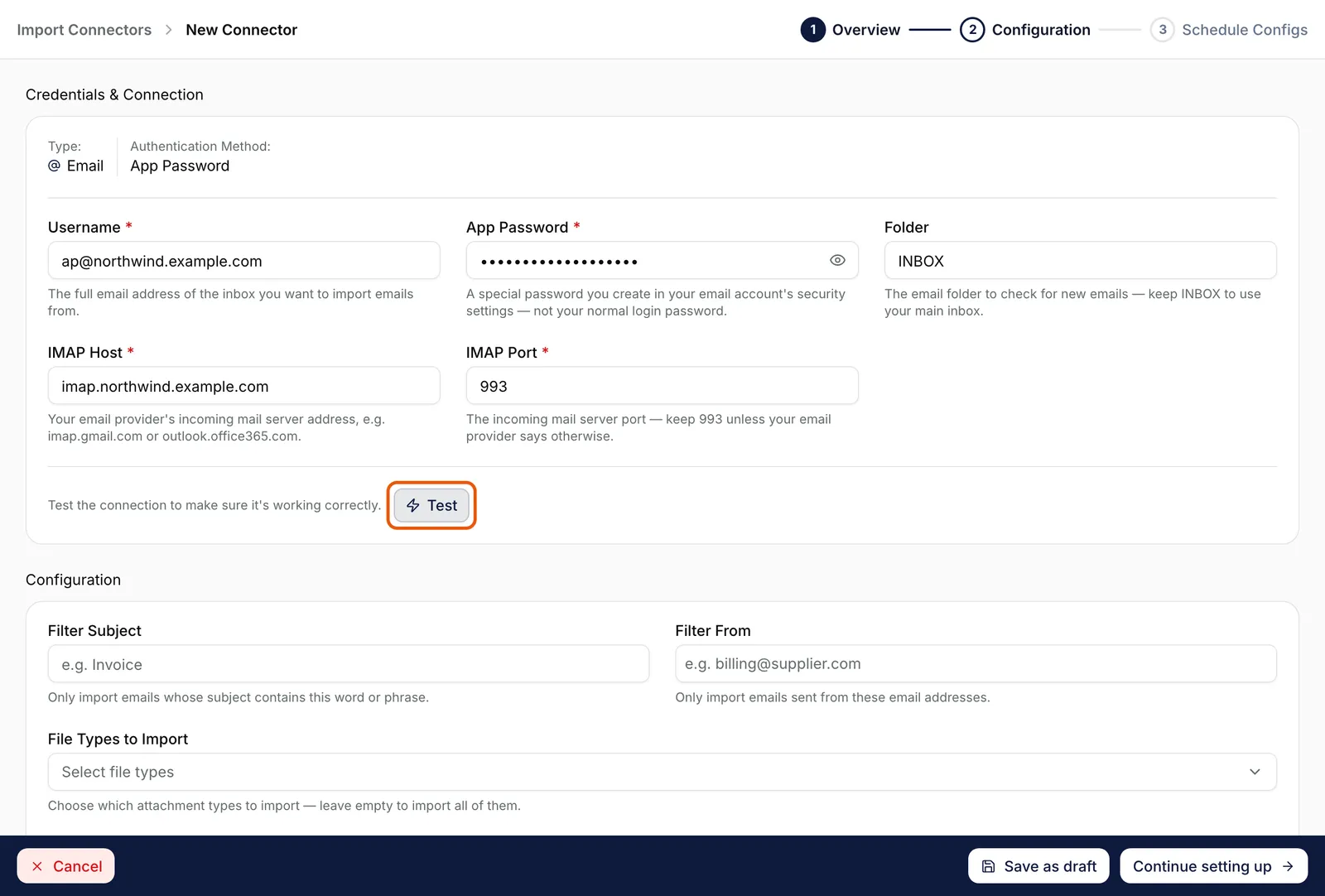
Continue setting up runs the test again and moves on only if it passes. EnlargeSchedule it and finish
Choose how often it checks for new documents (see Setting an import schedule), then select Finish setting up.
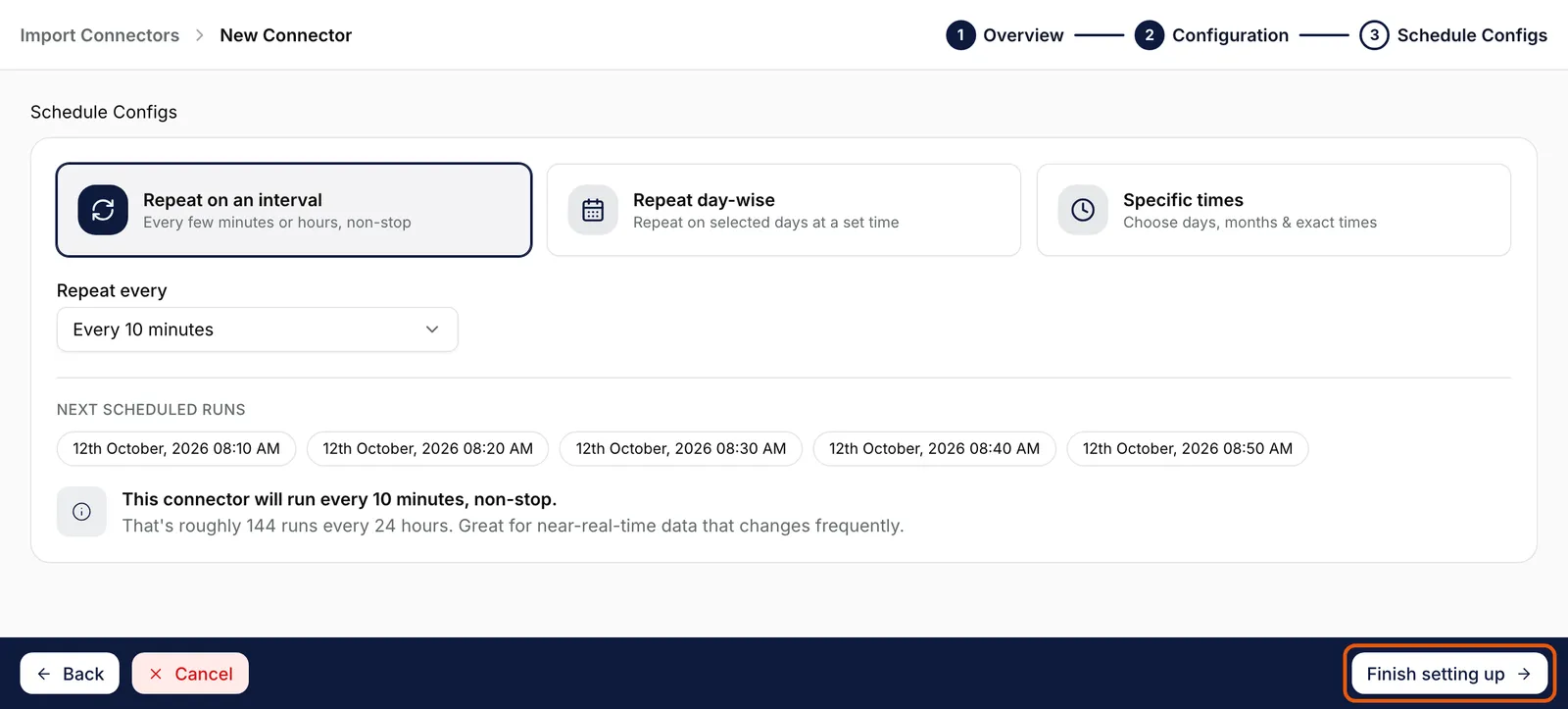
The last step has no Save as draft. Enlarge


Save as draft stops part-way and keeps what is saved so far; finish the connector later from its own tabs. It stays greyed out on the first step until the name, description and type are filled in. Cancel returns to the list and asks before throwing away unsaved changes.
What success looks like

- Connector setup complete appears and the connector opens on its Overview tab.
- Connector Status reads Initialised and Engagement Status reads Connected.
- The connector is a row in Import Connectors, marked Inactive until you enable it.
If something goes wrong
| Symptom | Likely cause | What to do |
|---|---|---|
| Continue setting up stays greyed out on the first step. | A field is empty, the name breaks the rules above, or no type card is selected. | Check the name and pick a card. |
| An error says a connector with that name already exists. | Names are unique per direction. | Choose another name. |
| Continue setting up stays greyed out on Configuration. | A required field is empty, or a provider sign-in hasn't finished. | Read the hint beside Test or Authenticate; it names what is missing. |
| The page reads You can't create import connectors. | Your role lacks IntELIEKonnect · Import - Create. | Ask an administrator, or select Back to Import Connectors. |
| The list reads No Connectors found. | A search or filter excludes everything. | Select Clear in each filter and empty Search by name. |
Next
- Configuring an import connector - the sign-in and filter fields.
- Enabling, disabling and removing - switching it on.
- Binding an import connector to an orchestrator - giving documents somewhere to go.