Enabling, disabling and removing an export connector
Only an Active export connector delivers anything, and only an Active one is offered as an export channel. Disabling it is also how you unlock its settings, because an Active connector can't be edited.
- The IntELIEKonnect app in your top bar.
- These permissions: IntELIEKonnect · Export - Update, IntELIEKonnect · Export - Delete.
- To enable: Engagement Status Connected. To remove: the connector switched off and not bound to anything.
If IntELIEKonnect isn't in your top bar, your role can't view it or your plan doesn't include it. Ask a workspace administrator, or see Permissions and module visibility.
Steps
Enable it
Open the connector from Export Connectors. With Engagement Status at Connected, select Enable. _Connector enabled_ confirms it and Connector Status becomes Active.
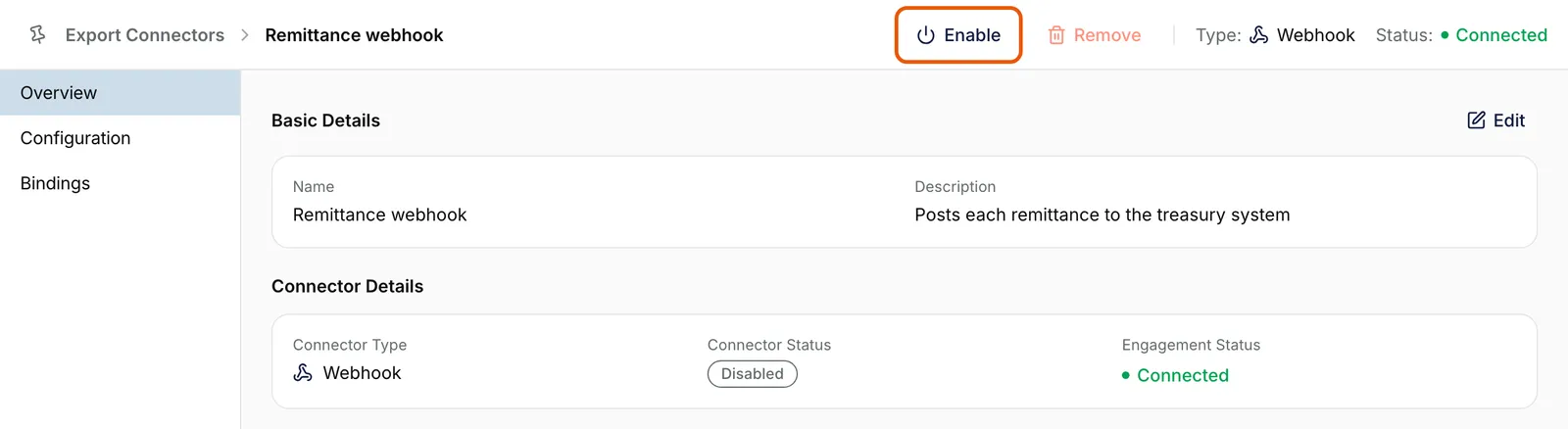
The Overview tab of Remittance webhook, a disabled Webhook export, with Enable ringed at the top and Remove greyed out beside it. Connector Details shows Connector Status Disabled and Engagement Status Connected. EnlargeDisable it
Select Disable. _Connector disabled_ confirms it and the status becomes Disabled. Its configuration, Export Config, schedule and bindings are kept.
Edit while it is disabled
While a connector is Active, a banner above the tabs reads _To edit settings you must first disable the connector, update the settings, then enable the connector._ Disable it, select Edit on the tab, save, then enable it again.
Remove it
Remove appears only while the connector is not Active. Select it, then Yes, Remove in the Remove Connector dialog. If it is greyed out, remove the connector’s bindings on its Bindings tab first.

An export connector needs no schedule to be enabled. An accounting connector does need its organisation and Default GL Account: until they are chosen, Enable is greyed out and its tooltip names them.
What success looks like
- Enable: Connector Status reads Active and the connector can be picked on an orchestrator's Export Channels tab.
- Disable: the status reads Disabled and the tabs offer Edit again.
- Remove: the connector is gone from Export Connectors.
Nothing warns you when exports stop
A document that finishes with no live export channel still reads Completed in IntELIEDocs: nothing is delivered and no error appears. That is what happens while an export connector is disabled. Before removing one, add its replacement to the orchestrator's Export Channels.
If something goes wrong
| Symptom | Likely cause | What to do |
|---|---|---|
| No Enable or Disable at the top. | Engagement Status isn't Connected, or your role lacks Update. | Verify it. See Verifying a connector. |
| Enable is greyed out. | An accounting connector still needs its organisation or Default GL Account. | Choose them on Configuration. |
| No Remove. | The connector is Active, or your role lacks Delete. | Select Disable first. |
| Remove is greyed out. | It is still bound to a module. | Remove the bindings on its Bindings tab. |
| Documents complete but nothing arrives. | The connector is Disabled, or its channel was removed or disconnected. | Check its status, then its export channels. |
Next
- Binding an export connector to an orchestrator - the step after enabling.
- Delivering buffered documents now - proving a batching connector works.
- Connector statuses explained - every status and its badge.