Import and export channels
A channel is an IntELIEKonnect connector attached to an orchestrator. Import Channels bring documents in and Export Channels send finished results out. Both tabs attach a connector that already exists; you create the connector itself in IntELIEKonnect.
- The IntELIEDocs app in your top bar.
- These permissions: IntELIEKonnect · Import - List, IntELIEKonnect · Export - List.
- A connector that is already Active and Connected in IntELIEKonnect, and IntELIEKonnect in your organisation's plan. Each tab needs only its own direction's permission.
If IntELIEDocs isn't in your top bar, your role can't view it or your plan doesn't include it. Ask a workspace administrator, or see Permissions and module visibility.
Steps
Open the channel tab
Open the orchestrator, then select Import Channels or Export Channels in its left rail. All four kinds of orchestrator have both.
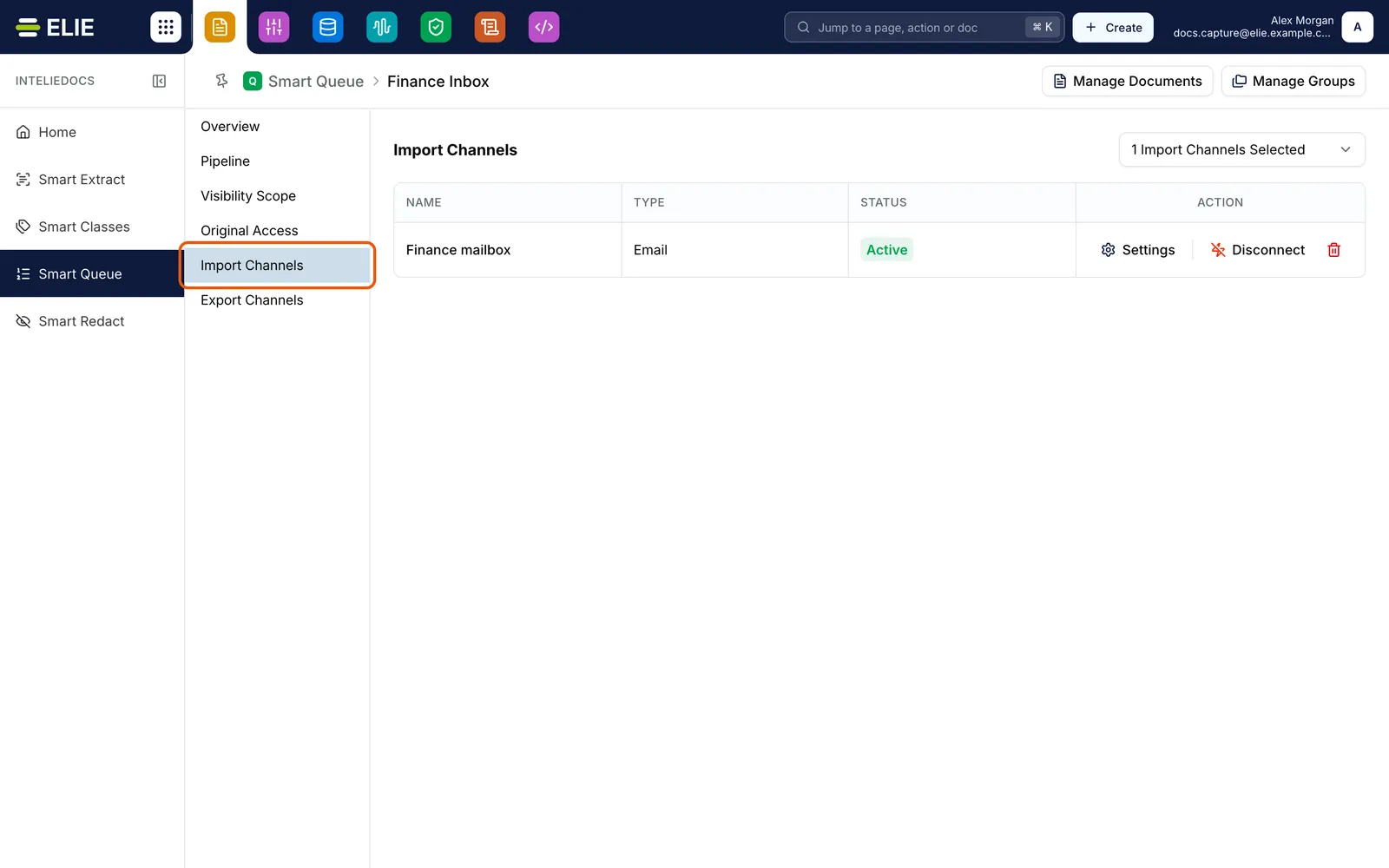
The Finance Inbox queue with the Import Channels tab ringed. One channel is attached: Finance mailbox, an Email connector, Active, with Settings, Disconnect and a trash icon. EnlargeRead what is already attached
The table lists only attached connectors, under NAME, TYPE, STATUS and ACTION. Nothing attached yet reads No import channels found. or No export channels found.
Attach a connector
Open the dropdown, labelled Import Channels Selected or Export Channels Selected with a count. Narrow it with Search by name and tick the connector. The tick attaches it at once; there is no Save button.
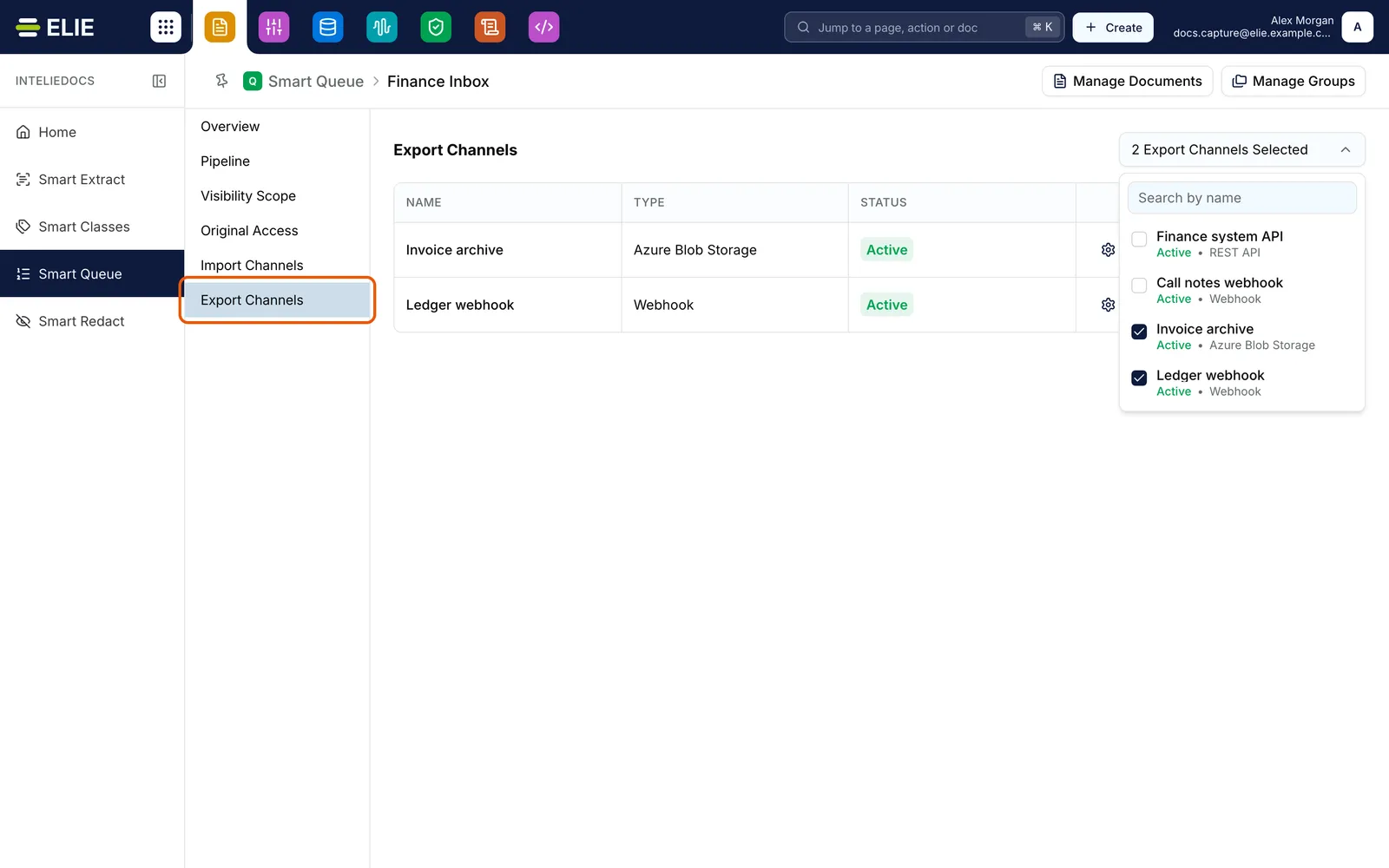
The Export Channels tab of the same queue, ringed, with its dropdown open: Invoice archive (Azure Blob Storage) and Ledger webhook (Webhook) are ticked, both Active, and both are listed in the table. EnlargePause or resume a channel
A channel is live as soon as you tick it, so its ACTION cell reads Disconnect. Select it to pause the channel without removing it; a paused channel reads Connect. STATUS describes the connector, while Connect and Disconnect describe the channel. Settings opens that connector in IntELIEKonnect.
Remove one when you need to
Select the trash icon (Remove), then confirm Remove Import Channels or Remove Export Channels with Yes, Remove. Only the channel is removed; the connector keeps running.


What success looks like
- The connector is a row in the table, with STATUS Active.
- Its ACTION cell offers Disconnect, so the channel is live.
- Documents reach the orchestrator, and its results leave for the destination you chose.
When you cannot attach a connector
- The dropdown leaves it out. Only connectors of that direction that are both Active and Connected are offered; a draft, disabled or never-connected one is hidden with no explanation. Row-based connectors (SQL Database, MongoDB) never appear either, because they feed the knowledge base. On a Smart Classes orchestrator, accounting export connectors are hidden too, because they build their output from extracted fields.
- A note replaces the dropdown. If IntELIEKonnect is not in your plan, the note reads "IntELIEKonnect is not part of your plan" and tells you to ask an administrator about adding it. If your role lacks the permission, it reads "You do not have access to IntELIEKonnect". The orchestrator still accepts documents you upload by hand.
- The orchestrator is a draft. A draft cannot be fed, so on Import Channels the dropdown is replaced by "Save this Smart Extract on its Overview tab before connecting import channels." (naming the kind you are on), and Connect is disabled. Channels attached earlier stay listed and can still be disconnected or removed. Export Channels is not affected.

If something goes wrong
| Symptom | Likely cause | What to do |
|---|---|---|
| The connector is not in the dropdown. | It is not both Active and Connected, or it is not a document connector. | Check it in IntELIEKonnect. See Connector statuses. |
| A row reads Unavailable, its name in red or shown as Connector unavailable. | The connector was deleted, disabled, or needs its credentials reconnecting. The ACTION cell says which, or reads It may have been deleted or disabled. | Fix the connector in IntELIEKonnect, or select Remove to detach the channel. |
| A one-line note sits where the dropdown should be. | IntELIEKonnect is not in your plan or your role, or (on Import Channels only) the orchestrator is still a draft. | The note says which. Ask an administrator, or save the orchestrator on its Overview tab. |
| Couldn't load connectors. Please try again. | The connector list did not load. | Reload the page, then try again. |
| Documents arrive but nothing is delivered. | Only an import channel is attached. | Attach an export connector as well. |
Next
- Binding an import connector to an orchestrator - the import side, step by step.
- Binding an export connector to an orchestrator - the export side.
- Visibility scope - who can see the orchestrator these channels feed.