Reviewing a Smart Queue document
A Smart Queue document shows the route it took and why it stopped for review. If the queue sorted it into the wrong category, you can run the right category's route without uploading the document again.
- The IntELIEDocs app in your top bar.
- These permissions: IntELIEDocs · Document - Read, IntELIEDocs · Document - Update, IntELIEDocs · Document - Execute.
- A Smart Queue document. Running another route needs Execute, a queue that classifies, and a document waiting for review.
If IntELIEDocs isn't in your top bar, your role can't view it or your plan doesn't include it. Ask a workspace administrator, or see Permissions and module visibility.
Steps
Open the document
Select its name in the queue’s documents list. Under the actions, a strip shows each stage in order, such as OCR, Classify, Extract, Find PII and Burn, then Review. The strip starts with Route and the category the document was sorted into.
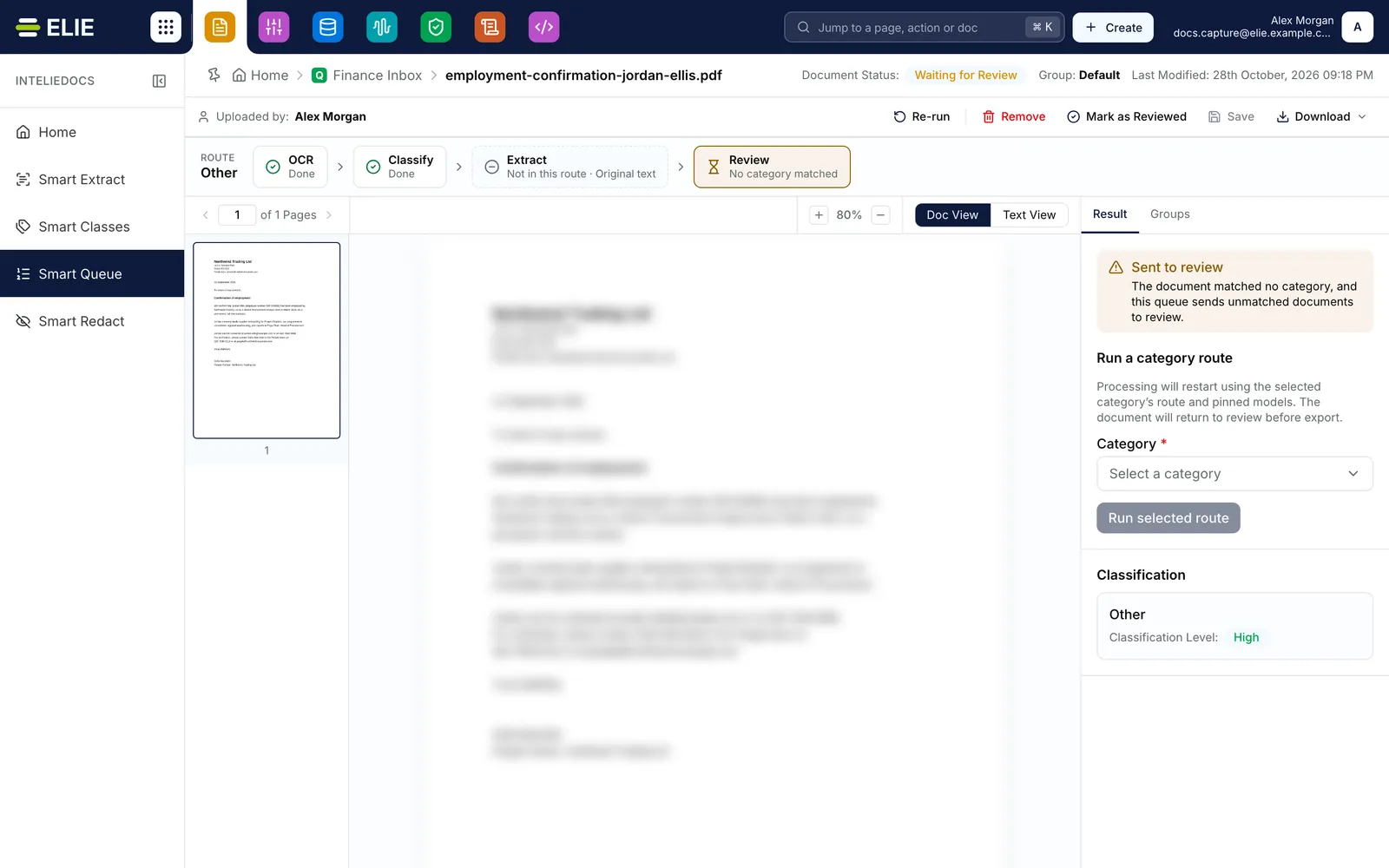
A Smart Queue document waiting for review, its page softened: under the actions, a strip headed Route Other with OCR Done, Classify Done, Extract Not in this route and Review No category matched, and on the right a Sent to review note above the Run a category route card. EnlargeRead the stages
Each stage reads Done, Processing, Not started or Failed with its error code. Not in this route marks a step this category’s route leaves out. An Extract stage also says whether it read the Original text or the Redacted text.
Read why it waits
On Result, the Sent to review note lists the reasons, such as _The document matched no category, and this queue sends unmatched documents to review._
Check the results
Correct fields and select Save as for any document. On a route that also redacts, the redaction results have their own Redactions tab, and fields read from redacted text carry the note Extracted from the redacted text.
Run another route if the category is wrong
Under Run a category route, pick the right Category, then select Run selected route.
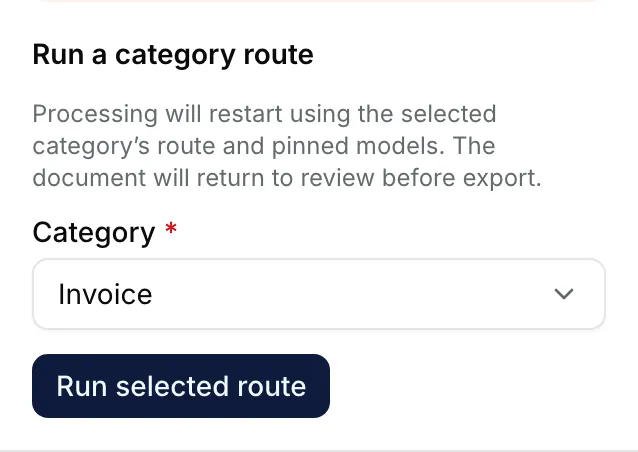
The Run a category route card with its explanation, the Category list set to Invoice, and the Run selected route button. Sign it off
When the values are right, select Mark as Reviewed. See Marking reviewed and re-running.


What success looks like
- After a route change the button reads Processing restarted, and the strip starts again, with Classify reading Selected by reviewer.
- The document comes back to Waiting for Review on the new route.
A route you choose always comes back to you
A route chosen by hand runs with the models the document was first processed with, not the queue's current ones, and the document always returns to review before it is exported, whatever the queue's review setting.
If something goes wrong
| Symptom | Likely cause | What to do |
|---|---|---|
| Run a category route is missing. | The document is not waiting for review, the queue does not classify, or your role lacks IntELIEDocs · Document - Execute. | Check Document Status:, or ask an administrator. |
| Run selected route stays greyed out, with a note to save or discard your changes. | Unsaved field edits, or another action still running. | Select Save, wait for it to finish, then try again. |
| The document changed or cannot restart. and Reload pinned categories | The document moved on since you opened it. | Select Reload pinned categories, then choose again. |
| The viewer reads Not redacted on this route. | The route this document took does not redact it, so there is no redacted copy. | Run a category route that redacts, if it should be redacted. |
| The strip reads Progress unavailable. | Elie cannot show this run's stages. | Go by Document Status: instead. |
Next
- Changing a Smart Queue's pipeline - what each route runs.
- Reviewing extracted fields - correcting values.
- Document statuses - what each badge means.