Reviewing and correcting extracted fields
Open a document, compare what was read against the page, and correct anything wrong. Nothing is stored until you select Save. There is no autosave and no per-field save.
- The IntELIEDocs app in your top bar.
- This permission: IntELIEDocs · Document - Update.
- A processed document in an orchestrator’s documents list. Editable fields exist for Smart Extract and Smart Queue documents.
If IntELIEDocs isn't in your top bar, your role can't view it or your plan doesn't include it. Ask a workspace administrator, or see Permissions and module visibility.
Steps
Open the document
Select the document's name in the orchestrator’s documents list. The right panel opens on Result, with every value under Basic Information and each table in a section of its own.
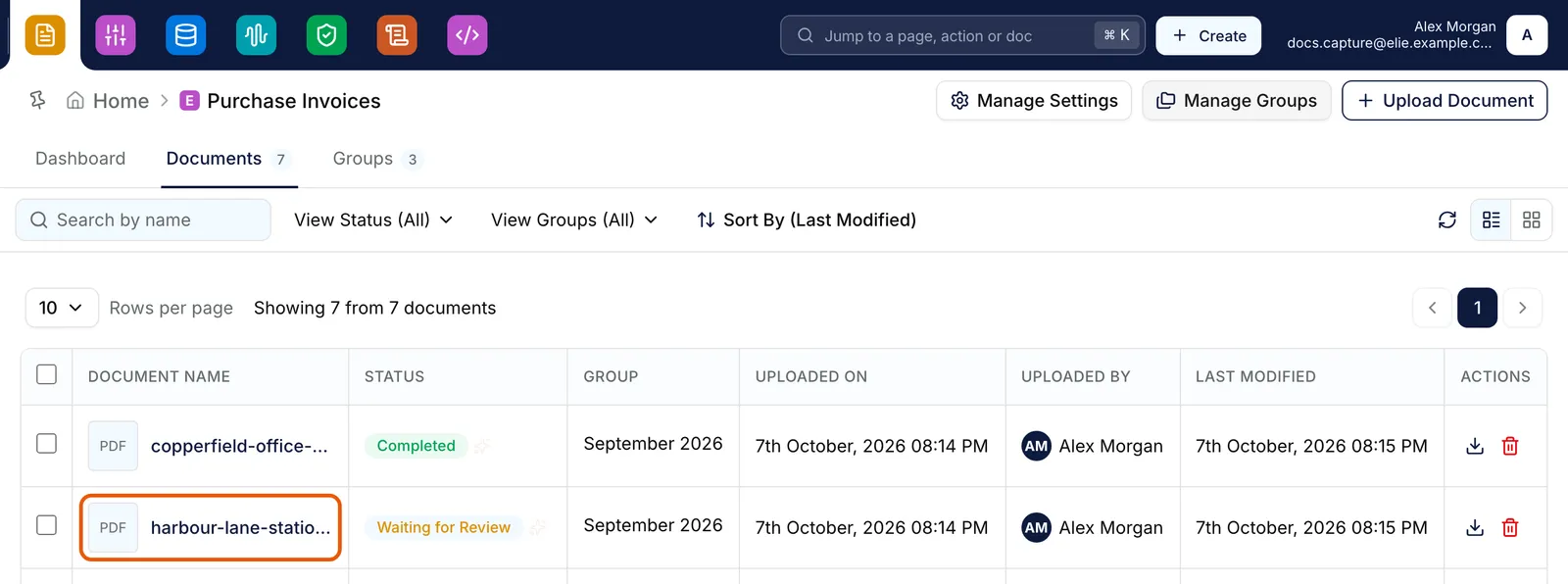
An orchestrator's documents list with one document's name ringed, harbour-lane-stationers, which is Waiting for Review. EnlargeCheck a value against the page
Select a field row. The viewer jumps to that page and pulses the box the value was read from, in the colour of the swatch beside the label. Hover a cut-off label to read its full name.
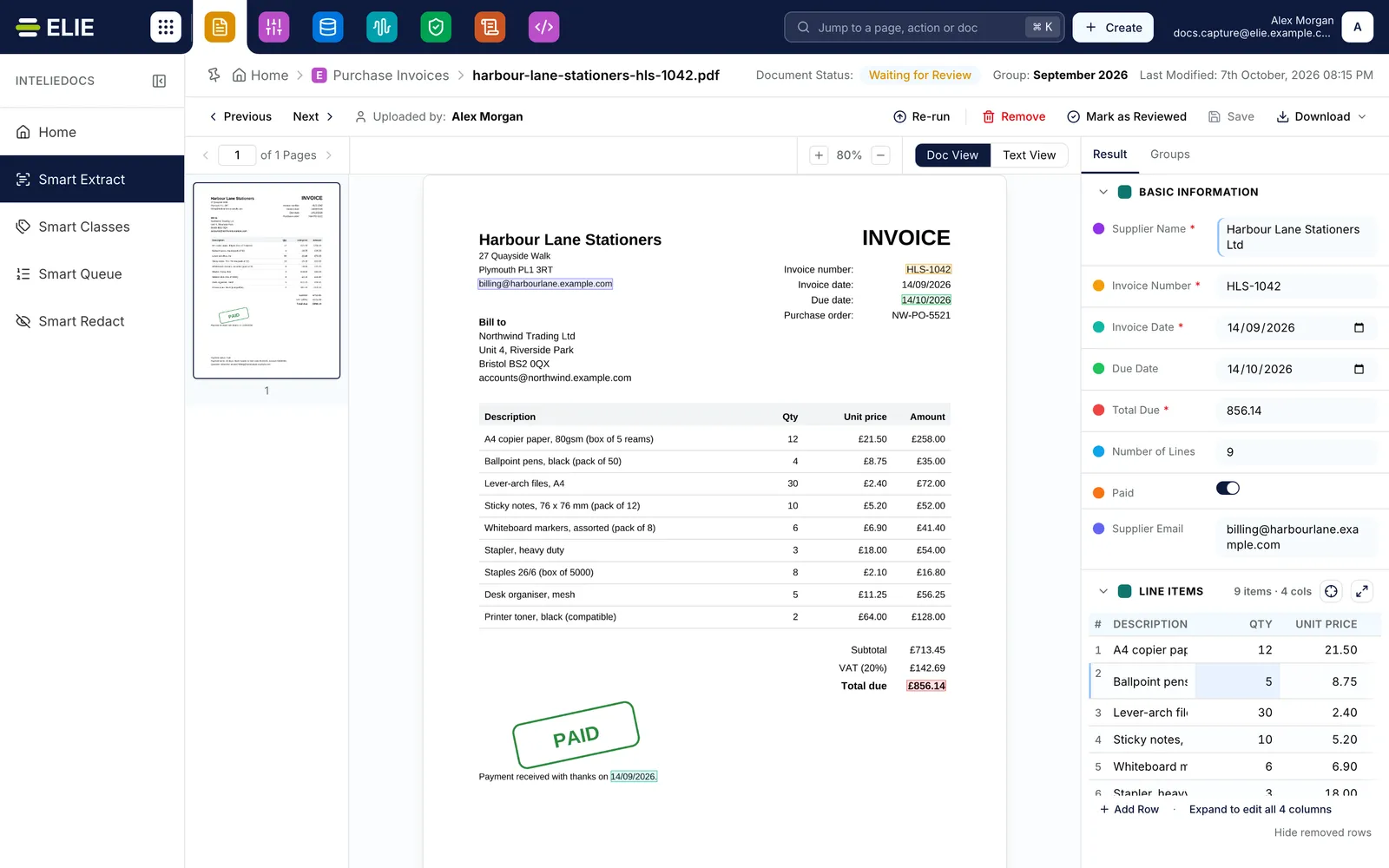
The document workbench: the invoice in the centre and its extracted values in the Result panel on the right. EnlargeCorrect it
Type into the value box. Enter commits the edit; Shift+Enter adds a line. Number fields are text boxes with a numeric keypad, yes/no fields are a switch, and a date field shows a date picker only when its value is already
YYYY-MM-DD. A red*marks a field that cannot be left empty.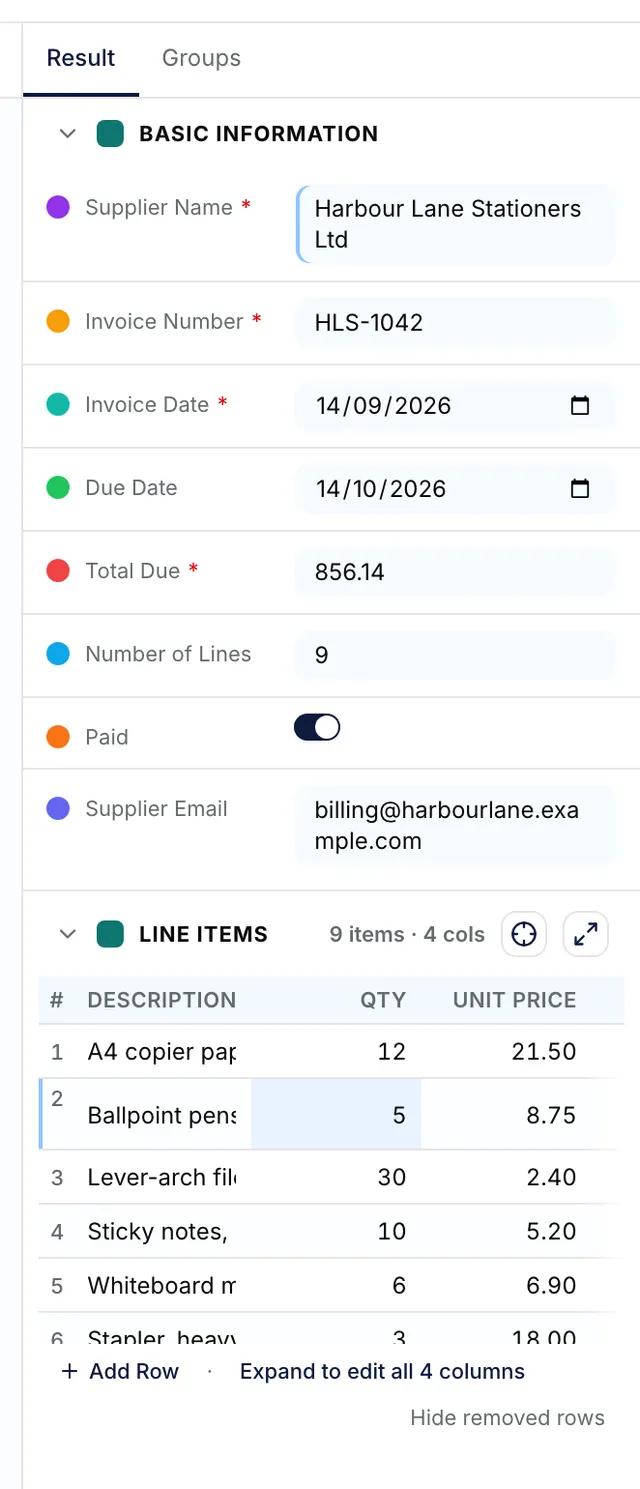
The Result panel: typed inputs for each field, including date pickers and a switch, the corrected Supplier Name marked with a blue edge, and the Line Items table headed 9 items, 4 cols, with its edited and added rows marked. Edit a table
Edit cells in place, select Add Row to append a row, or the bin (Remove row) to delete one. There is no confirmation. Expand table in its header, or Expand to edit all N columns under the rows, opens the full editor, which adds Search line items… above 8 rows and Columns above 4 columns. Highlight table on document lights the whole table on the page.
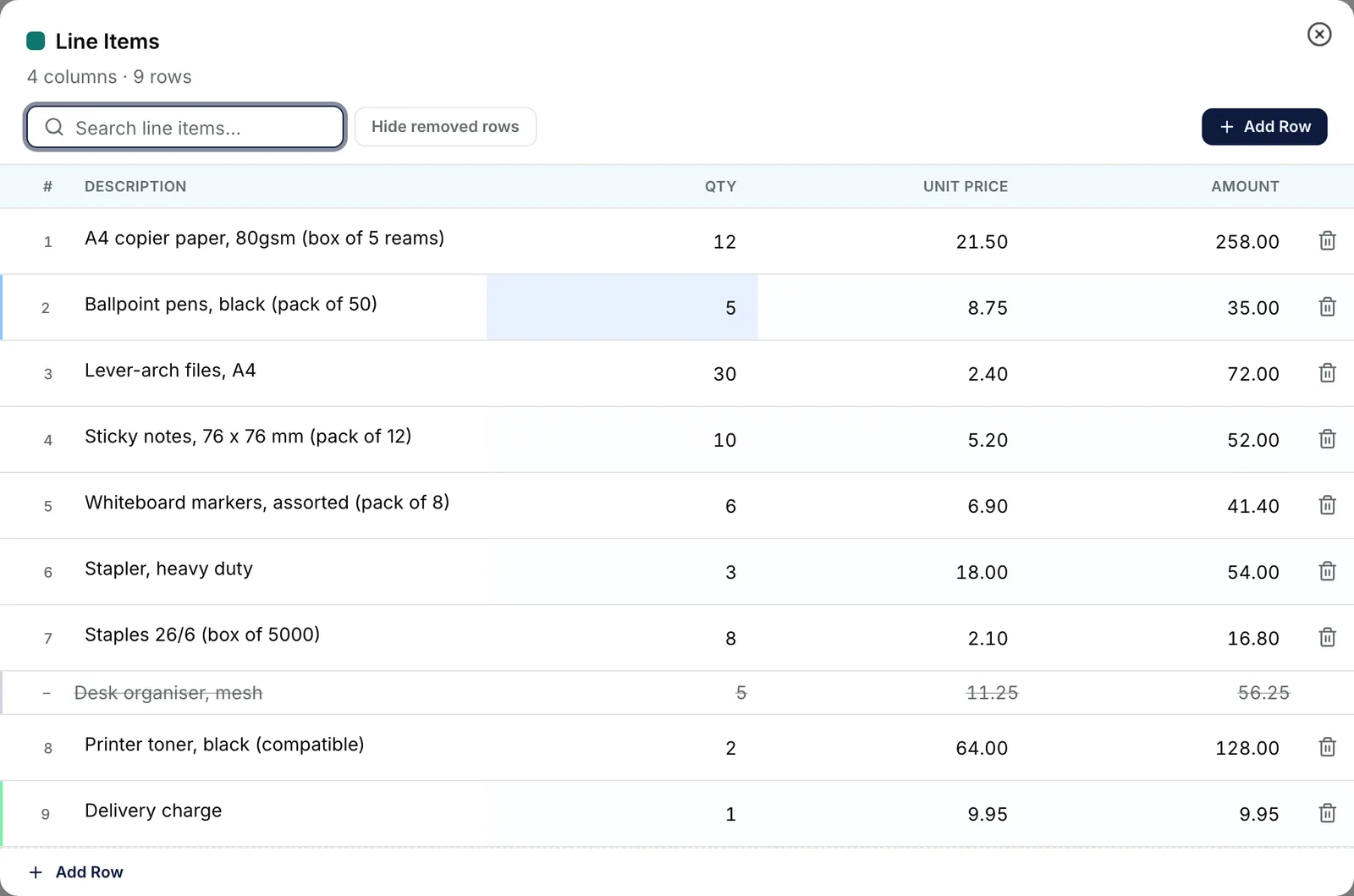
The expanded Line Items table: the edited row tinted, the removed row struck through, and the added Delivery charge row at the end, with Search line items and Hide removed rows above. EnlargeSave
Select Save in the header. It stays greyed out until a value differs from what is stored, and reads Saving… while it works; only the fields you changed are sent. Leaving with unsaved edits raises Unsaved Changes; choose No, Stay to go back and save.


What success looks like
- Your corrected values are still there after the save, and Last Modified: in the breadcrumb bar updates. A successful save shows no message; the panel re-reads the document.
- Each field you corrected now has a thin blue left edge; hover it for Edited by reviewer.
What is flagged, and what is not
There is no per-field confidence score. The only confidence signal is Classification Level: (High, Medium or Low) on a classified document’s Classification card.
Reviewer changes are marked, and stay marked after sign-off. In a table, the row number takes a green edge for Added by reviewer or a blue one for Edited by reviewer, with changed cells tinted and the old values in its tooltip. A deleted row stays, struck through, as Removed by reviewer until you select Hide removed rows. A very large table, or one corrected before original values were kept, shows no row marks.
If something goes wrong
| Symptom | Likely cause | What to do |
|---|---|---|
| Save is greyed out. | Nothing differs from the stored values. With the tooltip You don't have permission to edit this document, your role lacks Update. | Edit a value. For the tooltip, ask an administrator for IntELIEDocs · Document - Update. |
| Please fill in all required fields before saving. | A field marked * is empty. | Fill in each field showing This field is required, please add the value, then save again. |
| A red message under one field after saving, such as Quantity must be a number. | That value cannot be stored as the field’s type. | Correct it (the message clears as you type) and save again. |
| Your edits disappeared. | Switching the panel to Groups discards unsaved edits without asking. | Always save before leaving Result. |
| No results found for this document. | Nothing was extracted: processing failed, or the orchestrator extracts nothing. A document still processing reads Results will appear here once processing completes. instead. | Check Document Status: in the breadcrumb bar. |
Next
- Marking reviewed and re-running - sign the document off once the values are right.
- Re-running with a newer configuration - when the orchestrator has changed since processing.
- Handling an exception - when there is nothing to review.