Drawing a redaction box by hand
When detection misses something, draw the box yourself. It burns exactly like a detected one, and once applied it is permanent.
- The IntELIEDocs app in your top bar.
- These permissions: IntELIEDocs · SmartRedact - Update, IntELIEDocs · SmartRedact - Execute, IntELIEDocs · Original document - View.
- A Smart Redact document, or a Smart Queue document its route redacted, whose redacted version is ready, open on a page. The redaction tools appear only then. Update saves boxes, Execute applies them and recognises text, and Original document - View lets you read the text under a box.
If IntELIEDocs isn't in your top bar, your role can't view it or your plan doesn't include it. Ask a workspace administrator, or see Permissions and module visibility.
Steps
Open the document
Select the document in the redactor’s documents list. The right panel opens on Result; the toolbar adds Original, Redacted, Add redaction box, Undo, Redo, Save regions and Apply redactions.
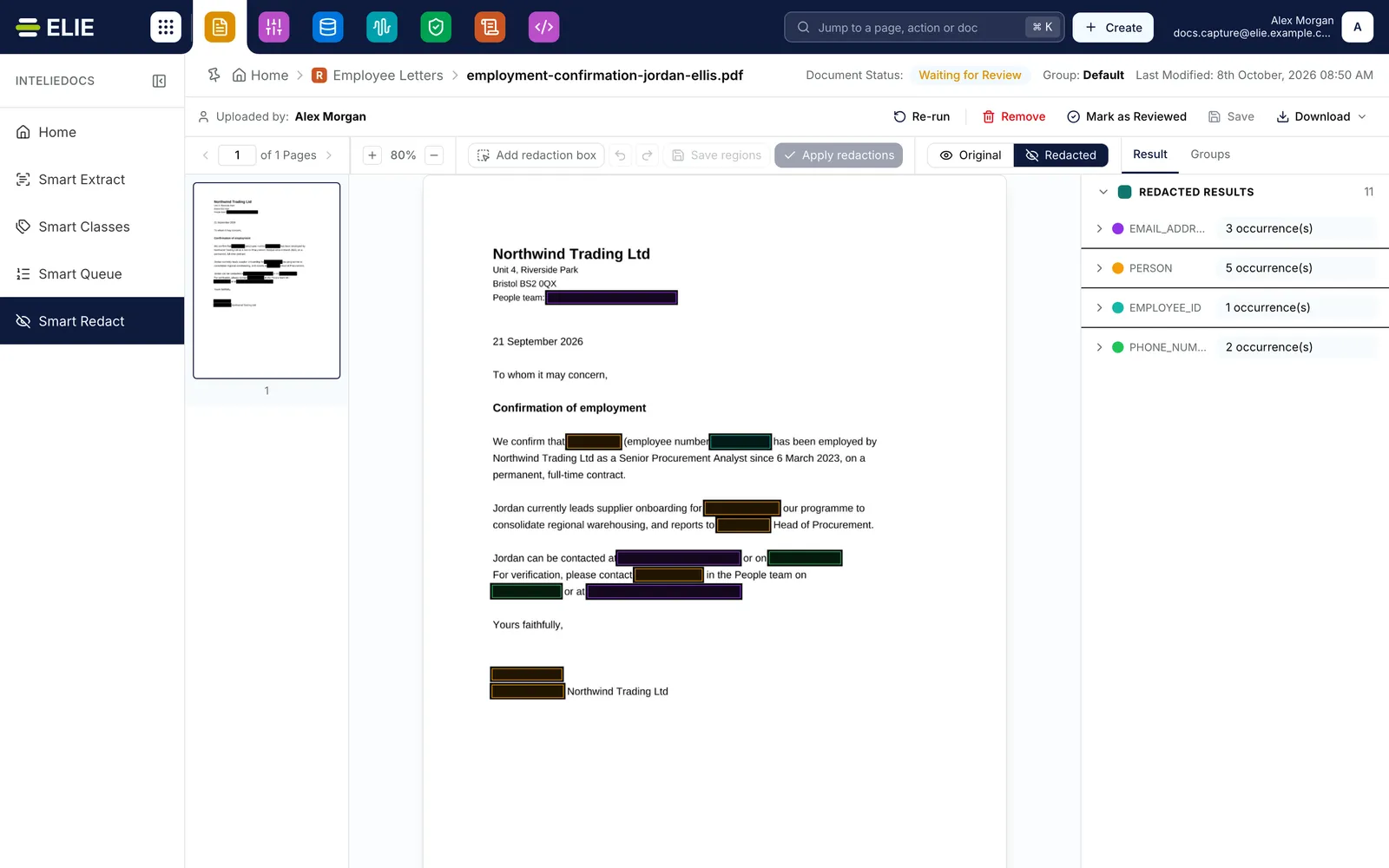
A redacted letter in the workbench, with boxes over names, email addresses and phone numbers, and the Redacted Results panel counting each entity type. EnlargeDraw the box
Select Add redaction box (it stays armed for several boxes), then drag over the content. Escape cancels mid-drag; a box only a few points across is dropped as a stray click.

The redaction toolbar with Add redaction box selected, then Undo, Redo, Save regions, Apply redactions and the Original and Redacted view toggle. Give it a type
Releasing the pointer opens the type picker: filter with Search redaction types, then press Enter. This redactor’s own types come first, the rest under More…. If you dismiss the picker, the box is discarded, because an untyped box is not a region.
Save the set
Select Save regions. Recognition then runs on every box with no text, so the set differs again and Save regions lights a second time. Select it again to store the text.
Check the text
Every box gets a row under Manual regions; hover it for the full type name, select it to page the viewer to that box and light it. An unsaved row reads Draft and has a bin, Remove redaction box. Correct Recovered text in place; it commits when you leave the field. Recognize text in the section header reads every box that has none, unsaved drafts included; a row’s Recognize text again overwrites your correction.
Apply
Select Apply redactions, then answer Apply redactions permanently? with Yes, Apply Permanently. Unsaved boxes are saved first, as one action.


What success looks like
- On the first confirmation the rows switch to Applied · permanent with a padlock, and Apply redactions is disabled. A notice starting Applying redactions appears above the viewer and says the region editor is read-only until this finishes.
- The viewer shows Preparing redacted document… until the redacted copy is rebuilt.
- Redacted Results lists only what detection found. The AI’s finds carry AI detected, one find burned as several boxes shows 3 areas (select it again for Go to next area), and a find with no text, such as a signature, reads Detected by appearance. A document redacted entirely by hand shows No detected redactions, followed by a line saying its redactions were added manually.
Applied boxes are permanent
An applied box cannot be removed, moved or retyped. Its row carries a padlock with a tooltip that starts Locked, and the server refuses any change to it. The refusal names the box and highlights it on its page, and your other edits survive. Re-ingest the document to redact it differently. Only Recovered text stays correctable.
If something goes wrong
| Symptom | Likely cause | What to do |
|---|---|---|
| The box vanishes as you release the pointer. | The type picker was dismissed, or the box was too small. | Draw it again, larger, and choose a type. |
| Couldn't recognize the text under this box. | Nothing legible sat under the box, or your role cannot read originals. | Select Recognize text again, or type it into Recovered text. The box burns either way. |
| A row reads Manual with no text, or Original is greyed out with a padlock and You don't have access to the original. | Recovered text and the original are original-document content, and your role lacks IntELIEDocs · Original document - View. | Draw, save and apply as normal; ask an administrator for the permission to read them. |
| Updated by someone else | Someone else saved or applied regions since you opened the document. | The panel re-reads the stored set. Redraw anything missing, then save again. |
| These redactions have already been applied, with a prompt to save a new version. | This set is already burned in. | Draw the extra boxes, Save regions, then Apply redactions again. |
Next
- Smart Redact specifics - what detection looks for.
- Smart Redact AI detection - where AI detected finds come from.
- Marking reviewed and re-running - finishing the review.