Detecting information with AI
Two Smart Redact settings use an AI model. AI-assisted detection re-reads the entity types you chose, and Custom Entity Types find information you describe in words, such as an internal reference, where no built-in type or regular expression fits.
- The IntELIEDocs app in your top bar.
- This permission: IntELIEDocs · SmartRedact - Update.
- A Smart Redact, or Create on the same row to set these while making one. The rest of its configuration is on Smart Redact specifics.
If IntELIEDocs isn't in your top bar, your role can't view it or your plan doesn't include it. Ask a workspace administrator, or see Permissions and module visibility.
Steps
Open the configuration
Open your Smart Redact from the Smart Redact list, or start one with Add New. Both settings sit under Redaction Configuration.
Switch on AI-assisted detection
In the Entity Types card, set AI-assisted detection to Yes. The entity types you selected are also scanned by an AI model, and its findings are merged with the standard ones. It adds time and a small cost per document.
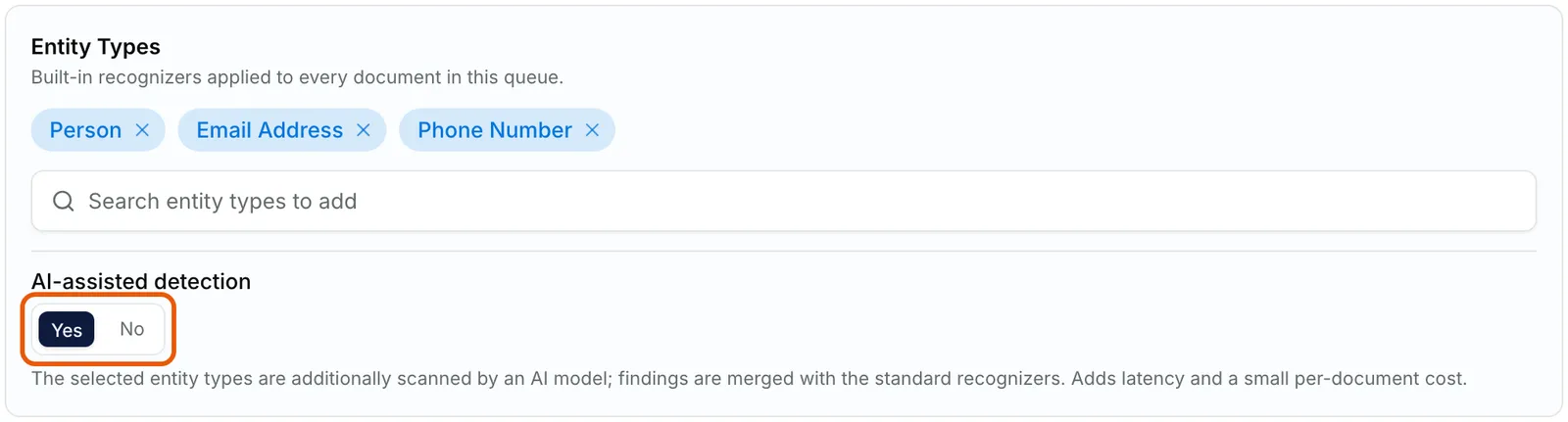
The Entity Types card of a Smart Redact with Person, Email Address and Phone Number chosen, and the AI-assisted detection switch ringed, set to Yes. EnlargeAdd a custom entity type
Under Custom Entity Types, select Add Custom Entity Type. Enter a Name in uppercase letters, digits and underscores, an optional Display label shown in results, and a Description written as you would explain it to a colleague.
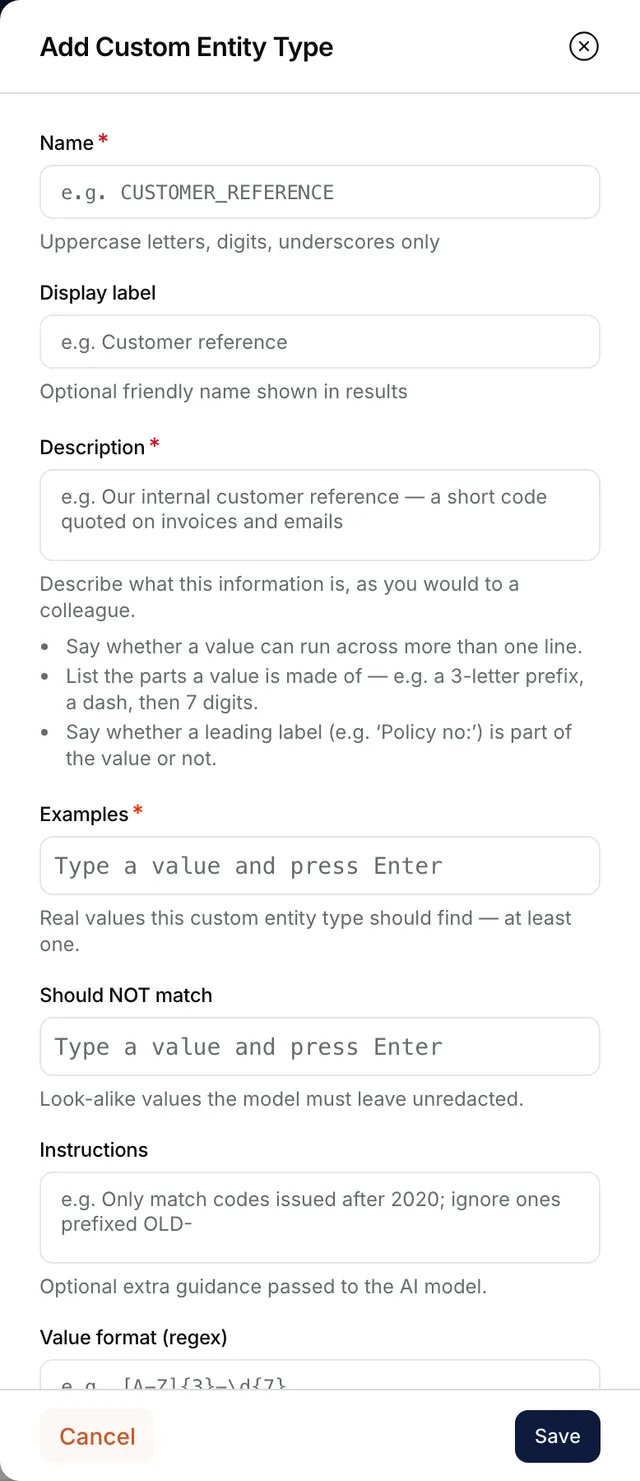
The Add Custom Entity Type panel with the Name, Display label, Description, Examples, Should NOT match, Instructions and Value format fields. Show it what to find
Under Examples, type a real value and press Enter or type a comma to end it. At least one example is required. Should NOT match takes look-alikes to leave alone, Instructions any extra guidance, and Value format (regex) trims a finding to a strict format.
Save
Select Save. On an existing Smart Redact the change is stored at once; while creating one, it is kept until you select Submit or Save as Draft.
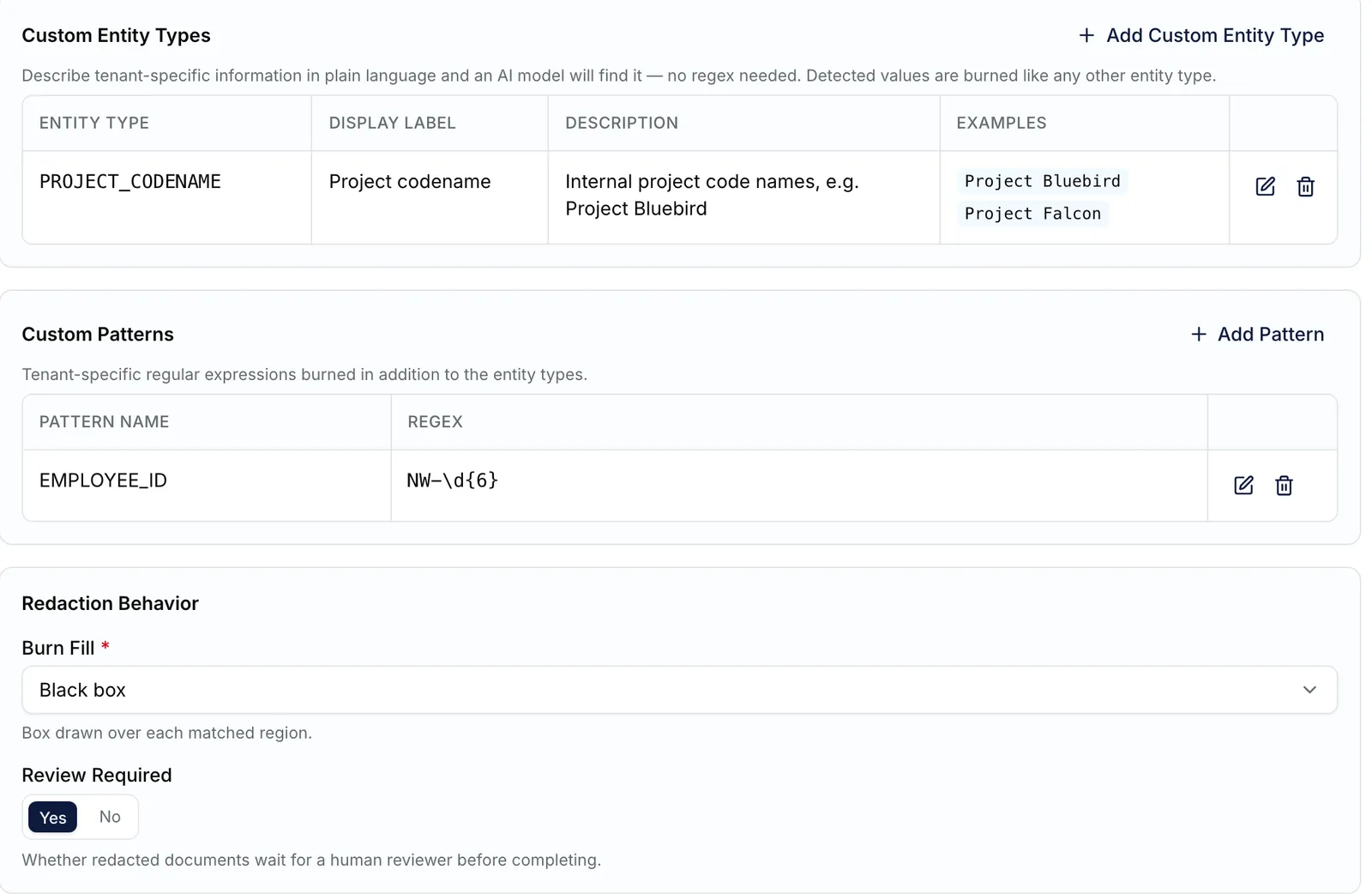
The Custom Entity Types table with one entry, PROJECT_CODENAME, and below it the Custom Patterns table and the Redaction Behavior settings. Enlarge


What success looks like
- The entry appears under Custom Entity Types with its ENTITY TYPE, DISPLAY LABEL, DESCRIPTION and EXAMPLES.
- On an existing Smart Redact, Smart redact updated successfully confirms each change.
- Values it finds are burned like any other entity type. The list's ENTITY TYPES cell does not count custom entity types, so open Overview to see them.
Limits and removal
A Smart Redact holds up to 20 custom entity types, each with up to 20 Examples and 20 Should NOT match values. At the limit, Add Custom Entity Type is greyed out and the card reads "Maximum 20 entries reached". To remove one, select Remove custom entity type on its row and confirm Remove Custom Entity Type with Yes, Remove. A custom entity type on its own is enough for the redactor to save. On an existing redactor, though, you cannot remove the last thing it detects, whatever its kind.
If something goes wrong
| Symptom | Likely cause | What to do |
|---|---|---|
| Add at least one example under Examples. | No example was given. | Type a real value the type should find, then select Save again. |
| "This name is a built-in entity type" or "A custom pattern already uses this name". | The Name clashes with a built-in type or one of your custom patterns. | Choose another name. |
| "Each custom entity type must have a unique name" | Another custom entity type on this redactor uses it. | Rename one. |
| A box also covers the label in front of a value, such as "Policy no:". | The model treated the label as part of the value. | Say in Description whether the label counts, or set Value format (regex) to trim it. |
Next
- Smart Redact specifics - entity types, custom patterns and burn settings.
- Drawing a redaction box by hand - for anything detection still misses.