Smart Redact specifics
A Smart Redact detects sensitive content and burns an unlabelled box over it, so anyone else who opens the document sees the redacted version. The setting unique to this kind is Redaction Configuration, where you choose what to detect and how to burn it.
- The IntELIEDocs app in your top bar.
- These permissions: IntELIEDocs · SmartRedact - Create, IntELIEDocs · SmartRedact - Update.
- Nothing else has to exist first. Who may see unredacted originals is controlled by the IntELIEDocs · Original document permission, granted in Access Control.
If IntELIEDocs isn't in your top bar, your role can't view it or your plan doesn't include it. Ask a workspace administrator, or see Permissions and module visibility.
Steps
Start a redactor
Under All Orchestrators, select Smart Redact, then Add New. Fill in Name and Description, and switch on Is review required to hold every document for a reviewer.
Choose what to detect
Under Entity Types, type in Search entity types to add and select each built-in kind of sensitive data; each becomes a chip you can remove. For information no built-in type covers, see Detecting information with AI.
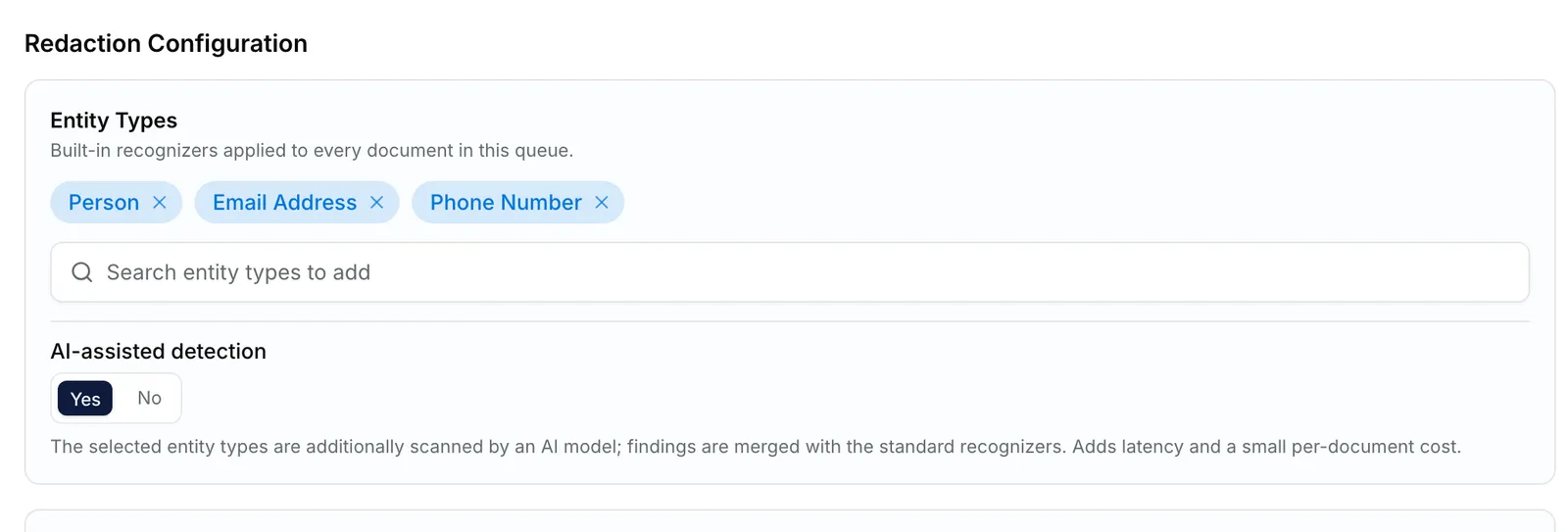
The Redaction Configuration of a Smart Redact: Person, Email Address and Phone Number chosen as entity types, a search box to add more, and AI-assisted detection set to Yes. EnlargeAdd patterns of your own
Optional. Under Custom Patterns, select Add Pattern. In the Custom Pattern panel, enter a Pattern name in uppercase letters, digits and underscores, build the pattern (see below), then select Save.
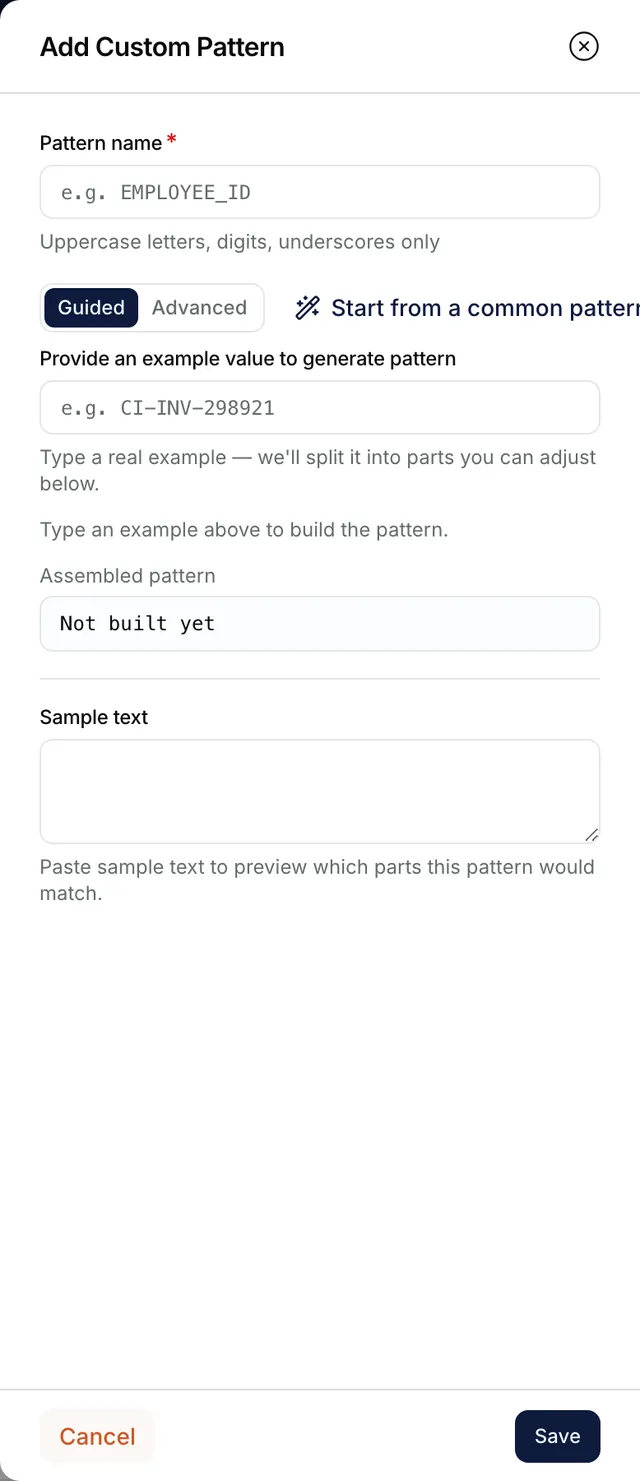
The Add Custom Pattern panel in Guided mode, with the Pattern name field, an example value to build the pattern from, the assembled pattern and a Sample text box. Decide how it burns
Under Redaction Behavior, set Burn Fill to Black box or White box. Review Required here is the same setting as Is review required.
Save it
Select Submit or Save as Draft. Submit needs at least one entity type, custom entity type or custom pattern. Then set who can open the redactor on the Visibility Scope tab.


What success looks like
- Smart redact created successfully appears and the row is on the list. Its ENTITY TYPES cell counts entity types and custom patterns, but not custom entity types.
- On Overview, every later change saves as you make it, with no Save button. Smart redact updated successfully confirms each one.
- A redacted document opens on Redacted. Download Redacted saves it as
name.redacted.pdffor PDF and Word files,.jpgfor a JPEG, and.pngfor other images.
Building a pattern without regex
The Custom Pattern panel opens on Guided, so you need not write a regular expression. Start from a common pattern offers ready-made formats and fills a blank Pattern name. Or type a real value into Provide an example value to generate pattern: each run of letters or digits becomes a part with a Type (Fixed text, Letters, Digits or Letters or Digits), a Min length and Max length, and Match any case. Punctuation stays fixed. Assembled pattern previews the result; paste into Sample text to see matches highlighted. Advanced takes a raw Regular expression instead, and a saved pattern reopens there.
If something goes wrong
| Symptom | Likely cause | What to do |
|---|---|---|
| "Add at least one entity type, custom entity type, or custom pattern", and your change is undone. | You removed the last thing the redactor detects. | Add the replacement first, then remove the old one. |
| "Each custom pattern must have a unique name" under Pattern name. | Another pattern on this redactor uses it. | Rename one. |
| "Fix the highlighted redaction settings before saving" | Another saved pattern or custom entity type is no longer valid. | Open each, fix what its panel flags, then save again. |
| Original is greyed out with a lock: "You don't have access to the original". | Originals need the IntELIEDocs · Original document permission. | Ask an administrator. See Permissions. |
| "scan.bmp is not a supported file type" on upload. | A Smart Redact takes only PDF, DOCX, ODT, PNG, JPG, JPEG, TIF and TIFF. | Convert the file first. |
Next
- Detecting information with AI - describe information in words.
- Drawing a redaction box by hand - for what detection misses.
- Orchestrator basics - the shared tabs and lifecycle.