Changing a Smart Queue's pipeline
A Smart Queue's Pipeline tab holds everything it does to a document: whether it classifies, the route each category takes, and when a person reviews. Nothing is stored until you select Save changes.
- The IntELIEDocs app in your top bar.
- These permissions: IntELIEDocs · SmartQueue - Read, IntELIEDocs · SmartQueue - Update.
- A Smart Queue, and the published Smart Class, Smart Extract and Smart Redact orchestrators its routes will use.
If IntELIEDocs isn't in your top bar, your role can't view it or your plan doesn't include it. Ask a workspace administrator, or see Permissions and module visibility.
Steps
Open the Pipeline tab
Open the queue from the Smart Queue list and select Pipeline in its tabs. The heading reads Draft, or Published with the version number.
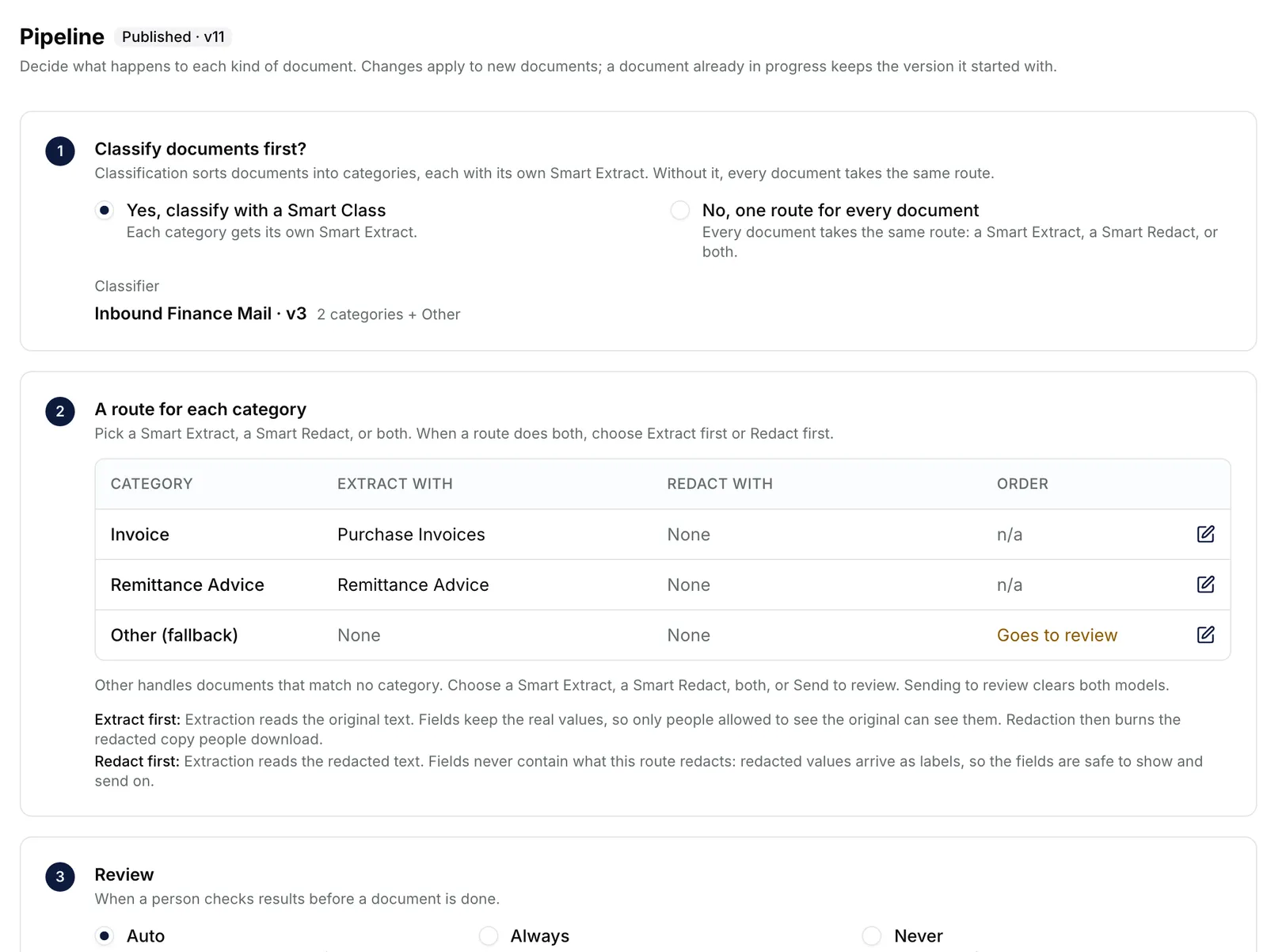
The Pipeline tab of the Finance Inbox queue: classification on with the Inbound Finance Mail classifier, a routes table for Invoice, Remittance Advice and Other (fallback), and the review choices Auto, Always and Never. EnlargeDecide whether to classify
Under Classify documents first?, choose Yes, classify with a Smart Class and pick one in Select Classifier, or No, one route for every document. Once a classified queue is published, its classifier is fixed.
Edit a route
Select the edit icon at the end of a route’s row. Switch on Extract, Redact or both, and pick a model for each. With both on, choose Extract first or Redact first under What extraction reads. Select Apply to route.
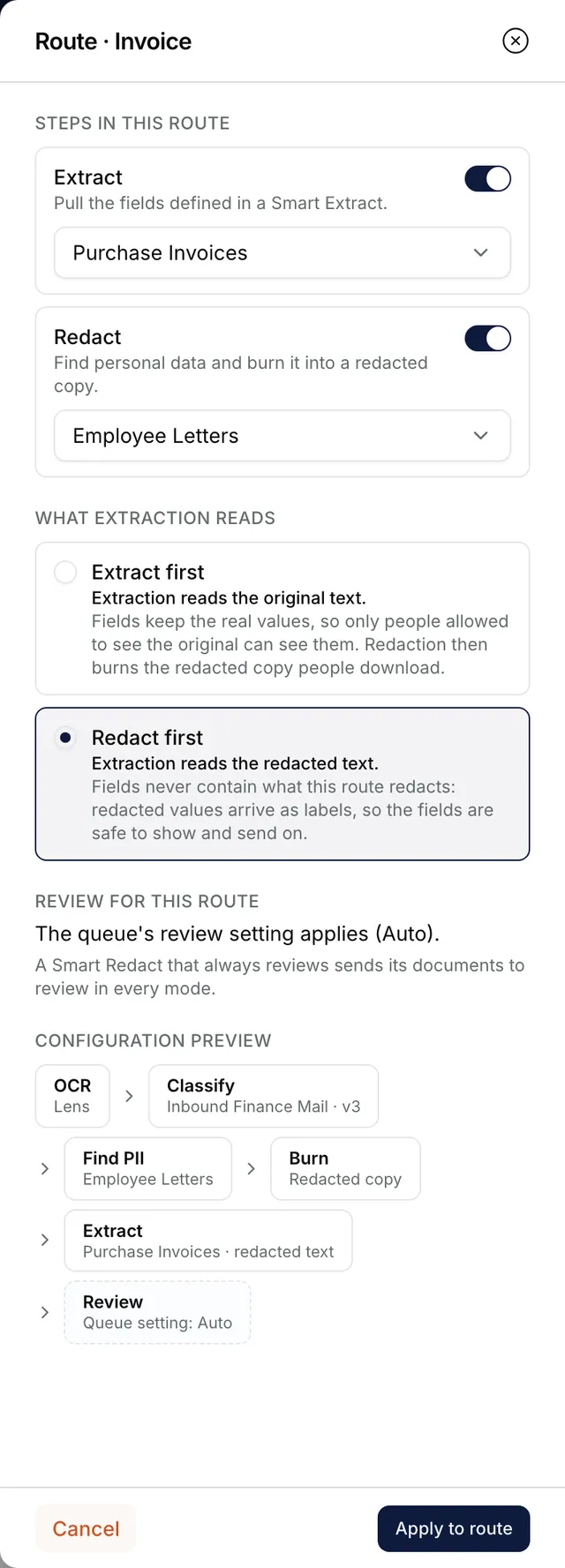
The Route panel for the Invoice category with Extract and Redact both switched on, a Smart Extract and a Smart Redact chosen, Redact first selected under What extraction reads, and a configuration preview. Route what matches nothing
With classification on, Other (fallback) takes documents that match no category. Give it a model, or switch on Send to review.
Set review
Under Review, choose Auto, Always or Never. In every mode, an empty required field, low confidence or a Smart Redact that requires review still sends a document to review. A queue that only redacts follows its Smart Redact’s own setting instead.
Save
Check Preview · what a document goes through, then select Save changes at the top. Discard changes puts everything back.


What success looks like
- Smart queue updated successfully appears, and a published queue's version goes up.
- Each row of the routes table names its model under EXTRACT WITH and REDACT WITH, and its ORDER.
- New documents take the new pipeline. A document already in progress keeps the version it started with.
Extract first or Redact first
With Extract first, extraction reads the original text, so fields hold the real values and only people allowed to see the original can see them. With Redact first, extraction reads the redacted text: redacted values arrive as labels, so the fields are safe to show and send on. Any route that redacts adds the notice This queue redacts documents. Its originals are then limited by Original Access, and uploads take only PDF, DOCX, ODT, PNG, JPG, JPEG, TIF and TIFF.
If something goes wrong
| Symptom | Likely cause | What to do |
|---|---|---|
| Choose a route for Other: extract, redact, both, or send to review | Other (fallback) has nothing to do. | Edit it and pick a model, or switch on Send to review. |
| ORDER reads Choose… and saving fails. | A route both extracts and redacts but has no order. | Edit the route and choose under What extraction reads. |
| A Smart Extract is greyed out in a route's list. | Another category already uses it. | Choose another, or create a new Smart Extract. |
| A route's Smart Redact shows Update available with a version. | The redactor was published again; the route stays on its version. | Save or discard other changes, then select Use latest version in the route panel. |
| A message says someone else saved the queue while you were editing. | Another person saved first. Your changes are kept but not saved. | Select Discard changes to load theirs, then apply yours again. |
Next
- Creating a Smart Queue - the four-step set-up.
- Who can see a Smart Queue's originals - for a queue that redacts.
- Reviewing a Smart Queue document - what the pipeline looks like on a document.