Smart Extract views
A view decides which of a Smart Extract's fields a set of people see when they open a document. Elie still extracts every field; a view only filters what each person is shown.
- The IntELIEDocs app in your top bar.
- These permissions: IntELIEDocs · SmartExtract - Read, IntELIEDocs · SmartExtract - Update.
- A Smart Extract with its fields defined. To fill the scope pickers, your role must also be able to list roles, departments or users in Access Control.
If IntELIEDocs isn't in your top bar, your role can't view it or your plan doesn't include it. Ask a workspace administrator, or see Permissions and module visibility.
Steps
Open the Views tab
Select Smart Extract under All Orchestrators and open your extract, then select Views in the tabs on the left.
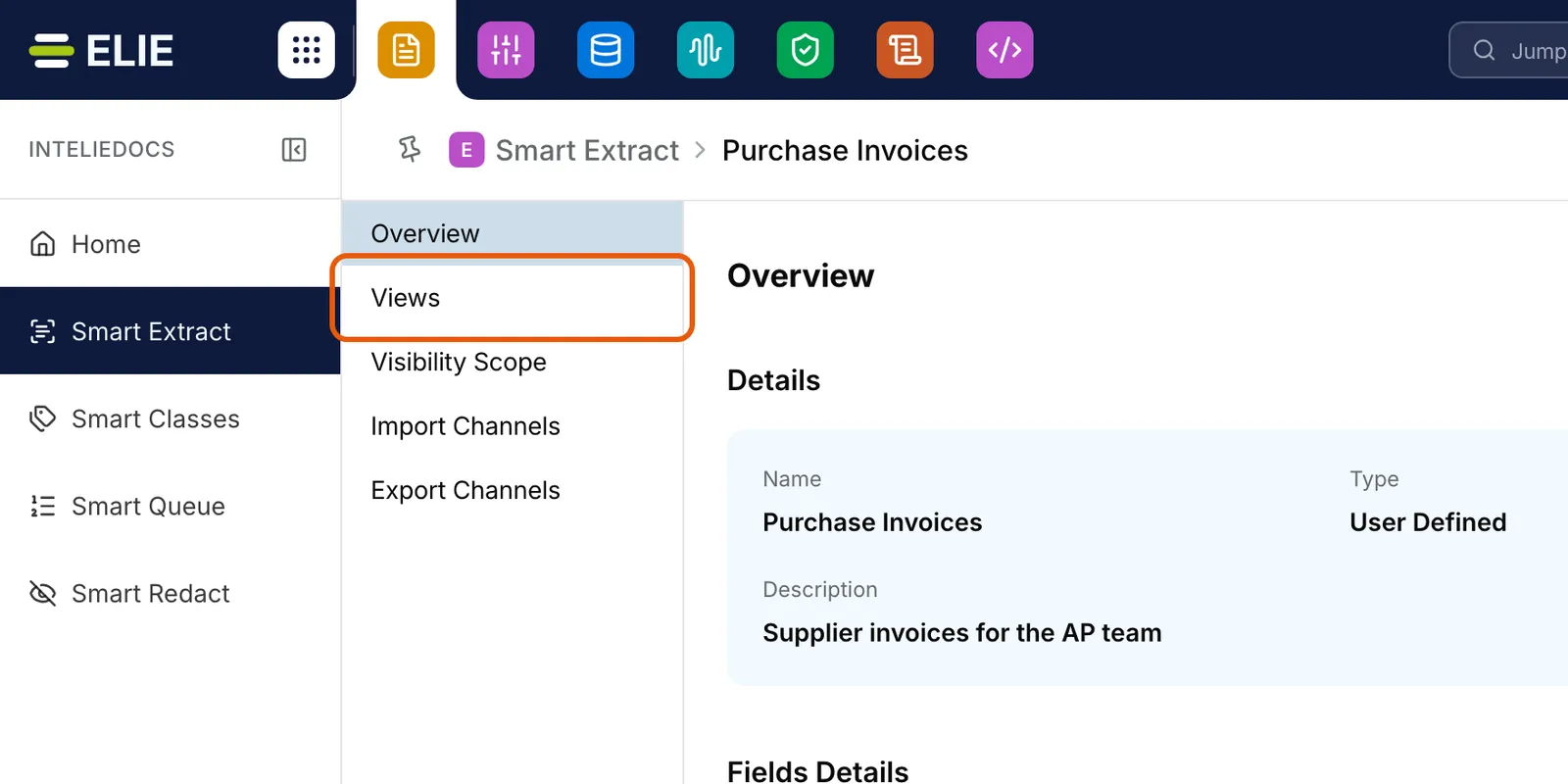
An extract open on Overview, with the Views tab ringed in the list of tabs on the left. EnlargeStart a view
Each row shows who a view is for and, under FIELDS, how many fields it shows. Select Add View to open Create New View.
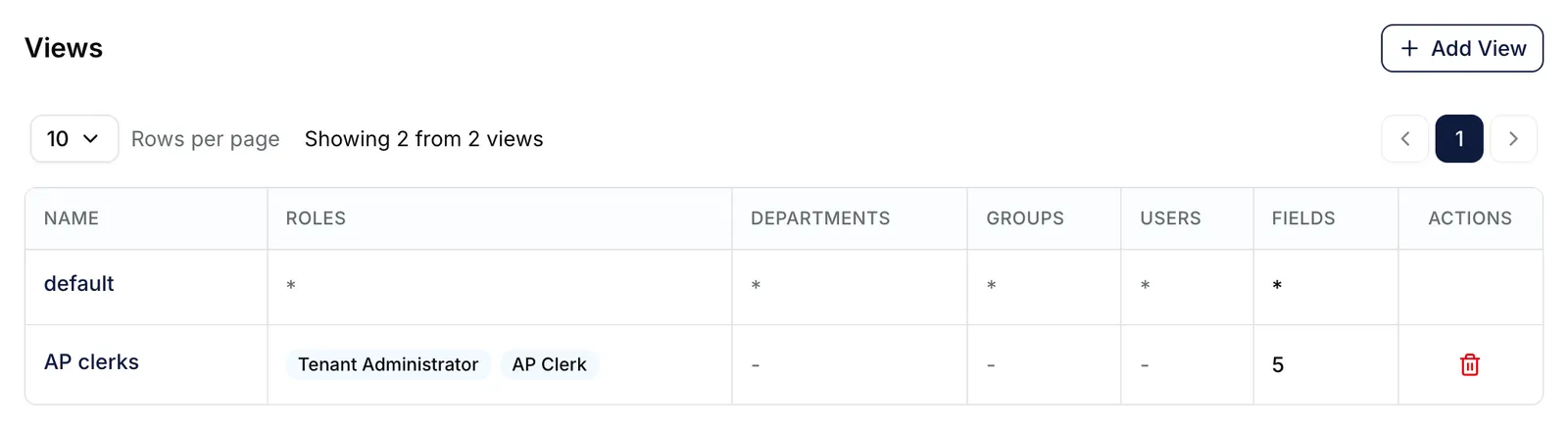
The Views tab of the Purchase Invoices extract with two rows: default, with * under every scope column and under FIELDS, and AP clerks, for the Tenant Administrator and AP Clerk roles, with 5 under FIELDS and a remove icon. EnlargeName it and choose its fields
On DETAILS, enter a Name of 2-100 characters (letters, digits and single spaces) and a Description; both are required, and Is review required is optional. Then open Select fields under Fields Details and tick the fields the view should show. Each appears as a chip; select its cross to drop it. A view needs at least one field.
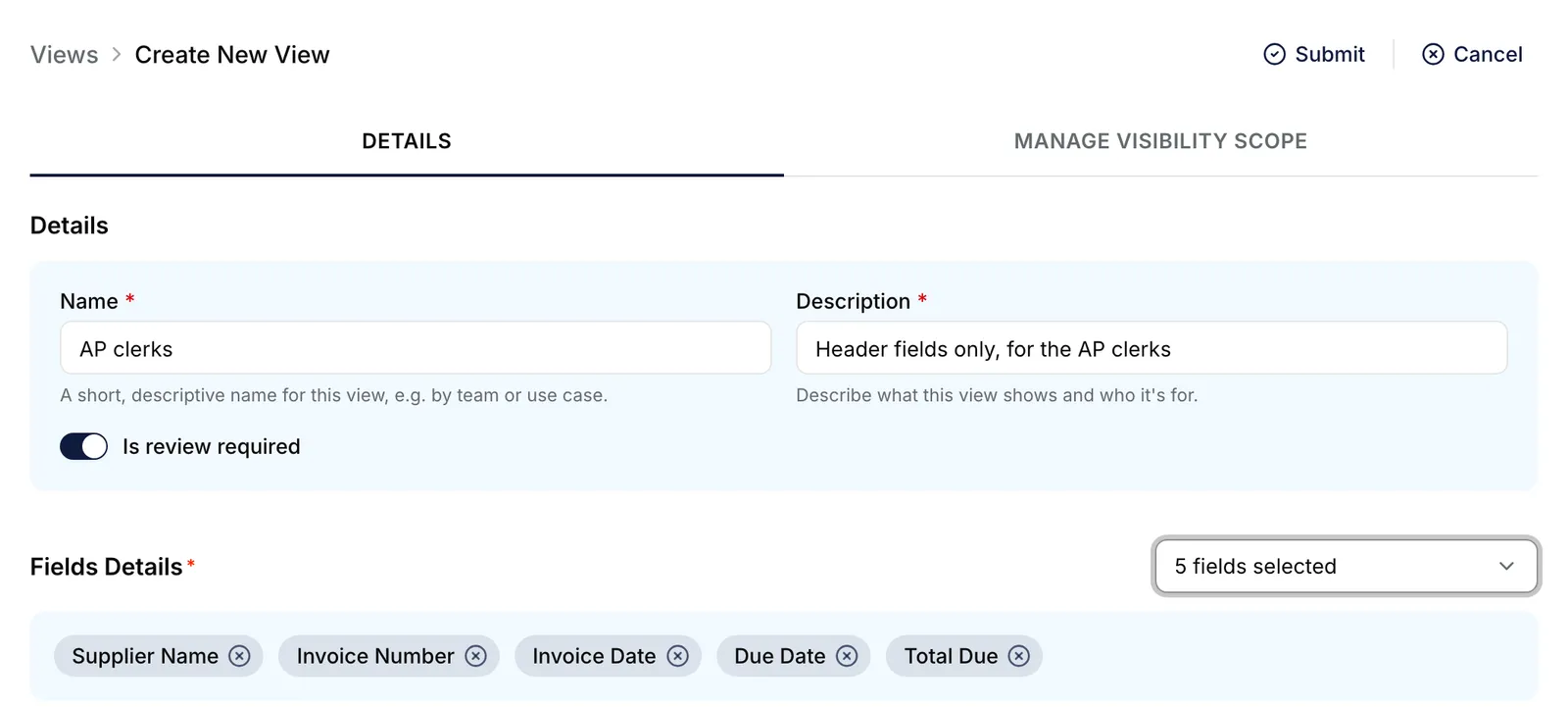
The Create New View page on its DETAILS tab: Name reads AP clerks, a description is filled in, Is review required is on, and Fields Details shows five fields: Supplier Name, Invoice Number, Invoice Date, Due Date and Total Due. EnlargeChoose who sees it
Select MANAGE VISIBILITY SCOPE and add Roles, Departments, Groups or Users; matching one entry is enough. The lists offer only what the extract's own Visibility Scope admits. Add nobody and the view applies to everyone. Select Submit.
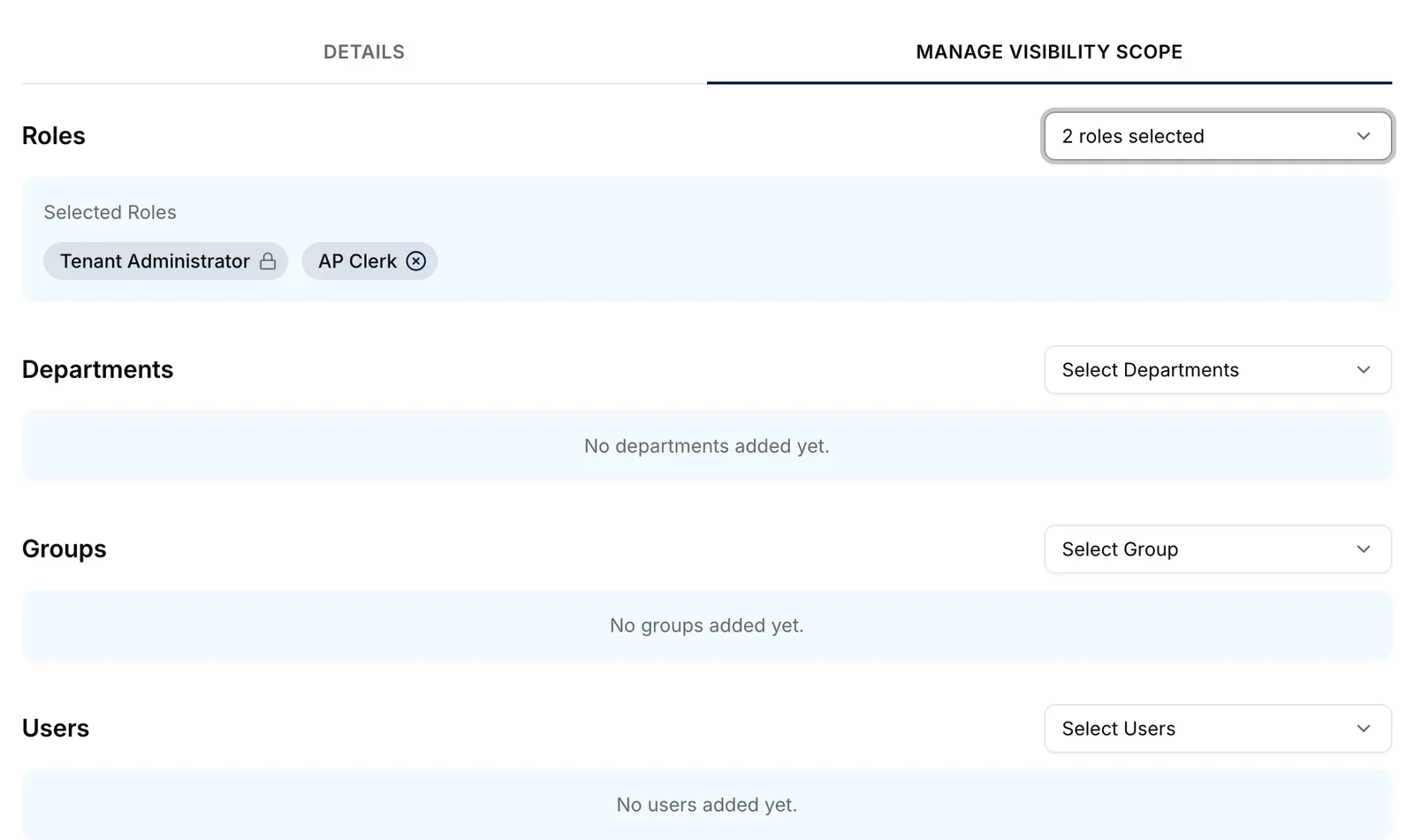
The MANAGE VISIBILITY SCOPE tab of a new view: Roles holds Tenant Administrator, locked with a padlock, and AP Clerk, while Departments, Groups and Users have nothing added yet. EnlargeChange a view
Select a view's name under NAME. On its page, changes to Fields and MANAGE VISIBILITY SCOPE save straight away. For its Name, Description or Review Required, select Edit Settings, then Update.
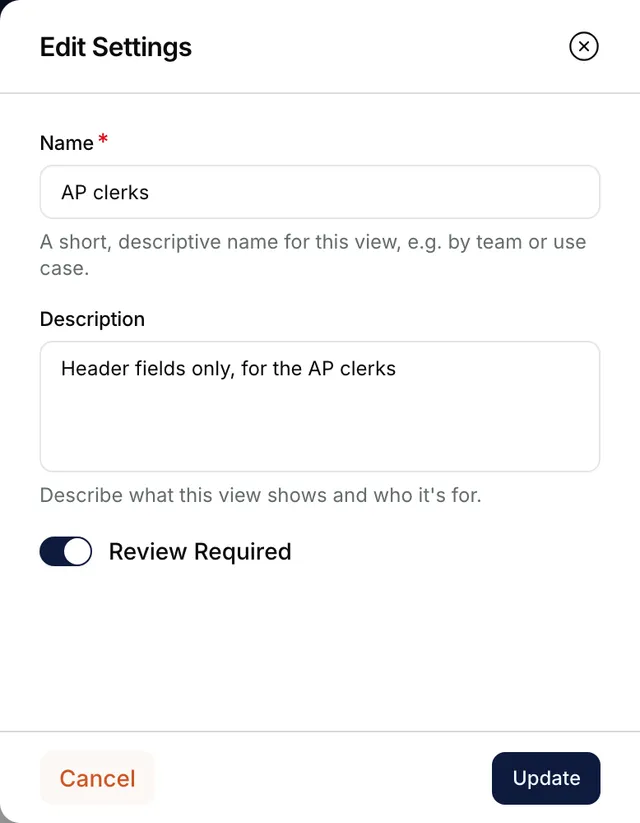
The Edit Settings panel for the AP clerks view, showing its Name, its Description and the Review Required switch turned on, with Cancel and Update buttons. Remove a view
Select Remove under ACTIONS, or Remove View on the view's page, then Yes, Remove. The default view has neither.


What success looks like
- View created appears, and the view is a new row on Views with its field count under FIELDS.
- On a view's page, each change confirms itself: Fields updated, View updated or Role added to visibility scope.
- Someone in the view's scope opens a document and sees only that view's fields.
Who sees which fields
Someone who matches several of your views sees the fields of all of them. Someone who matches
none gets the view called default, which shows every field. It has * in each column, and its
name, fields and scope cannot be changed. Tenant administrators always see every field.
Review Required is saved with each view, but whether documents wait for a reviewer is set by the extract's own Review Required, under Edit Settings on Overview.
If something goes wrong
| Symptom | Likely cause | What to do |
|---|---|---|
| Add View is greyed out: You don't have permission to add a view. | Adding a view changes the extract, so it needs IntELIEDocs · SmartExtract - Update. | Ask an administrator. See Permissions. |
| Submit stays disabled. | The name breaks the rule shown under Name, Description is empty, or no field is picked. | Fix the name and description. Fields Details reads Add at least one field until you pick one. |
| A scope list is empty or lacks someone. | A view can only name people the extract's Visibility Scope admits, and a new extract admits only tenant administrators and its creator. A warning about Access Control means your role cannot list them. | Widen the extract's visibility scope first, or ask an administrator for access. |
| After Submit, an error says the view name is duplicated. | Another view on this extract has that name. The default view is already called default. | Choose a different name. |
| Changing or removing a view shows 403 and Access Forbidden. | Your role lacks Update. Unlike Add View, these controls are not greyed out. | Select Go Back, then ask an administrator. |
Next
- Smart Extract fields - the fields a view chooses from.
- Visibility scope - who can open the extract, which bounds every view.
- Reviewing extracted fields - where a view's fields appear.