Smart Extract fields
A Smart Extract's fields are the values Elie reads off every document. You define them on the extract's Overview and give each one a type. To choose which fields each team sees, add a view.
- The IntELIEDocs app in your top bar.
- These permissions: IntELIEDocs · SmartExtract - Read, IntELIEDocs · SmartExtract - Update.
- A Smart Extract orchestrator.
If IntELIEDocs isn't in your top bar, your role can't view it or your plan doesn't include it. Ask a workspace administrator, or see Permissions and module visibility.
Steps
Open the extract
Select Smart Extract under All Orchestrators, then your extract by name.
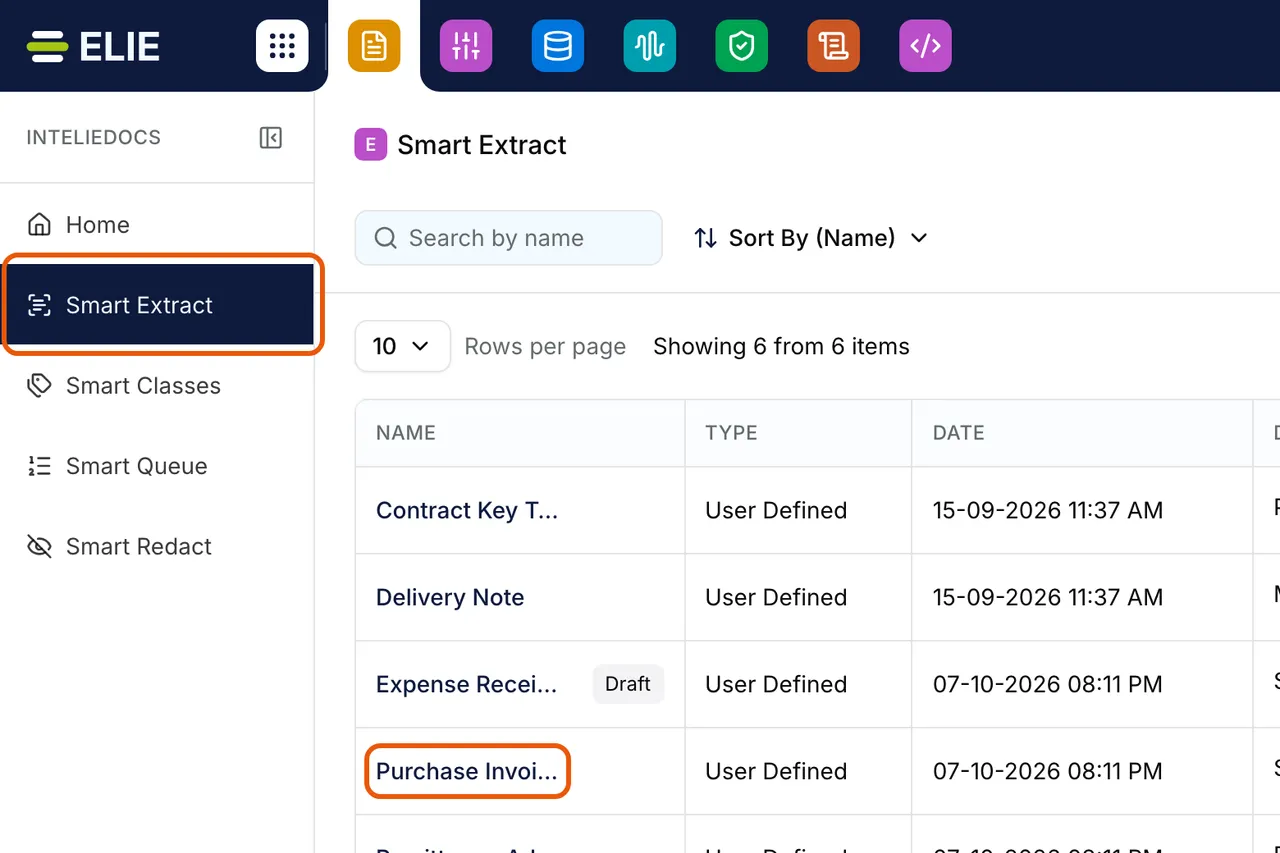
The Smart Extract list, with Smart Extract ringed in the module sidebar and Purchase Invoices ringed in the list. Read its fields
The extract opens on Overview: Details first, then Fields Details and Special Instructions.
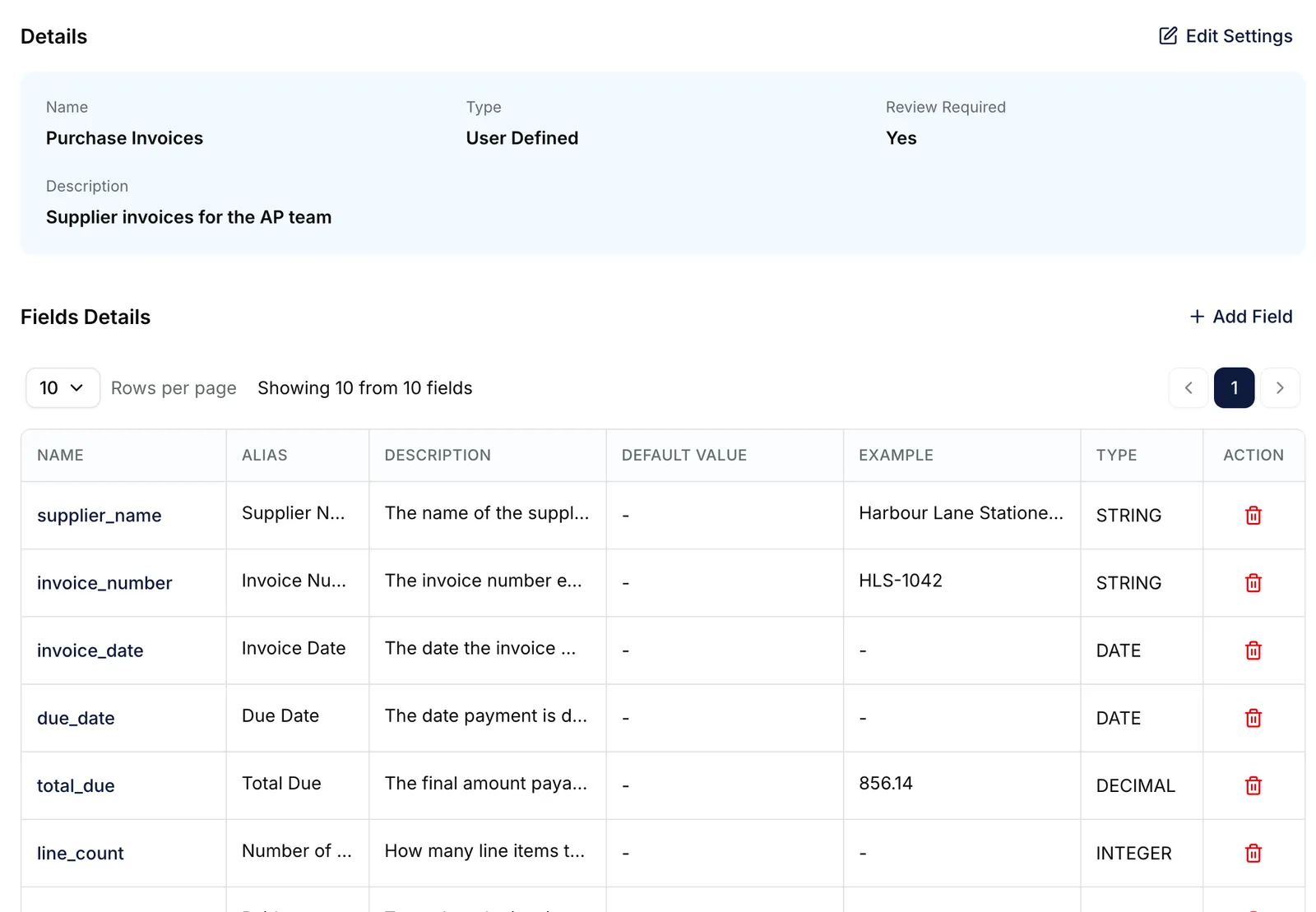
The Overview tab of a Smart Extract: its Details, and the Fields Details table listing each field's name, alias, description, example and type. EnlargeAdd a field
In Fields Details, select Add Field. Name is the key the value is stored under: 2-50 characters, starting with a lowercase letter. Alias is the label shown in the UI and in exports, and Description tells the model what to look for. All three are required. Switch on Required for a field every document must carry.
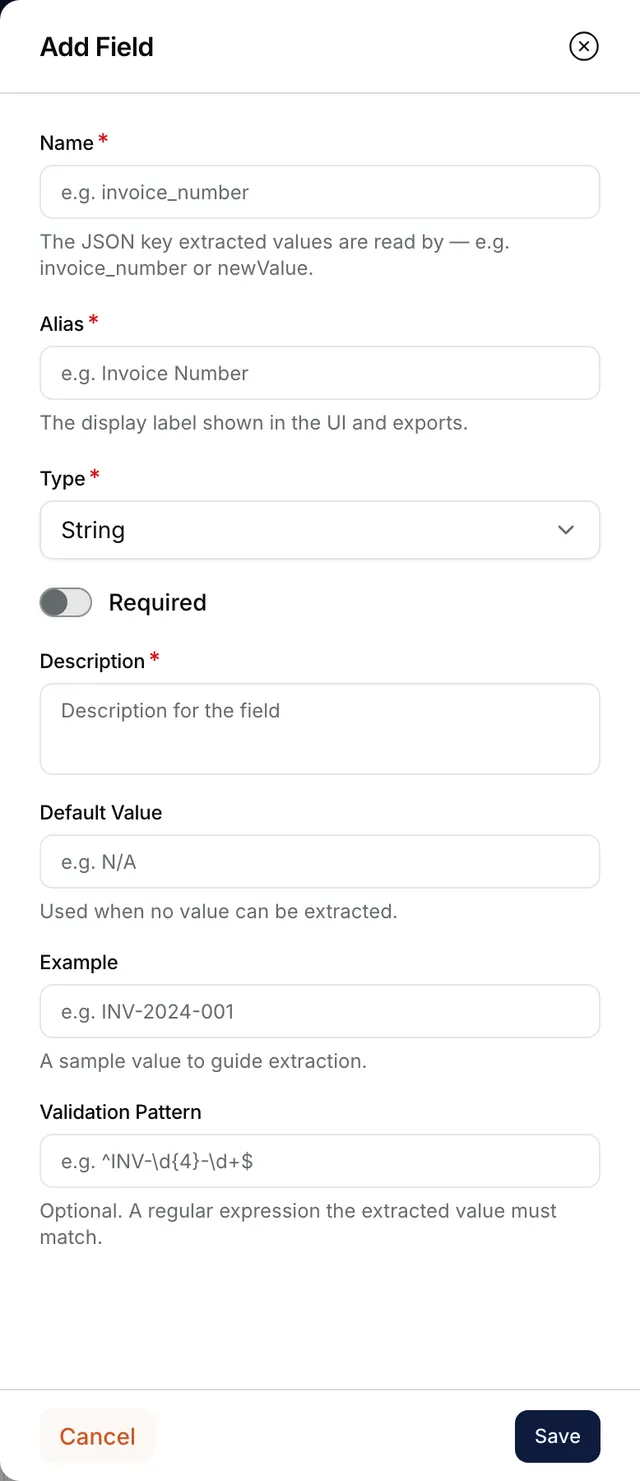
The Add Field panel with the Name, Alias, Type, Required, Description, Default Value, Example and Validation Pattern fields. Give it a type
Pick a Type: String, Integer, Decimal, Boolean, Date, Email, URL or Table. Table hides Default Value and Example. Validation Pattern is an optional regular expression the value must match, up to 500 characters. Select Save, or on a new extract Save & add another.


What success looks like
- Each field is a row in Fields Details with its TYPE. Select a field's name under NAME to edit it.
- On a saved extract, Field added appears when you add a field, and Smart Extract updated successfully when you edit one.
If something goes wrong
| Symptom | Likely cause | What to do |
|---|---|---|
| Submit stays disabled on a new extract. | Something is missing. | Focus Submit. Its tooltip names the first gap: a name of 2-100 characters, a description, at least one field, or field names that are all different. |
| Default Value and Example vanish. | Type is set to Table. | Expected. Change the type if you need them. |
| Pattern is too long under Validation Pattern. | It is over 500 characters. | Shorten it, or clear it, since it is optional. A pattern the server cannot read is refused when you save. |
| Removing a field fails with a message that it is still referenced by a view. | A view on this extract shows that field. | Take the field off that view on Views, then remove it. |
Next
- Orchestrator basics - the shared tabs.
- Visibility scope - who sees the extract.
- Reviewing extracted fields - what came out.