Smart Classes specifics
A Smart Class is the set of document types your documents are sorted into. You describe each type in words, and a Smart Queue uses the Smart Class to sort documents. It only recognises documents and extracts no fields.
- The IntELIEDocs app in your top bar.
- These permissions: IntELIEDocs · SmartClass - View, IntELIEDocs · SmartClass - Create, IntELIEDocs · SmartClass - Update.
- Nothing else has to exist first. Without View on the SmartClass row, Smart Classes is missing from the IntELIEDocs sidebar.
If IntELIEDocs isn't in your top bar, your role can't view it or your plan doesn't include it. Ask a workspace administrator, or see Permissions and module visibility.
Steps
Start a new one
Select Smart Classes in the IntELIEDocs sidebar, then Add New.
Name it
Under Details, give it a Name and a Description. Both are required.
Add a class per document type
In Class Details, select Add Class: give it a Name, a Definition of that document type, an optional Instruction on recognising it, and Example entries via Add. Save & add another keeps the panel open for the next type.
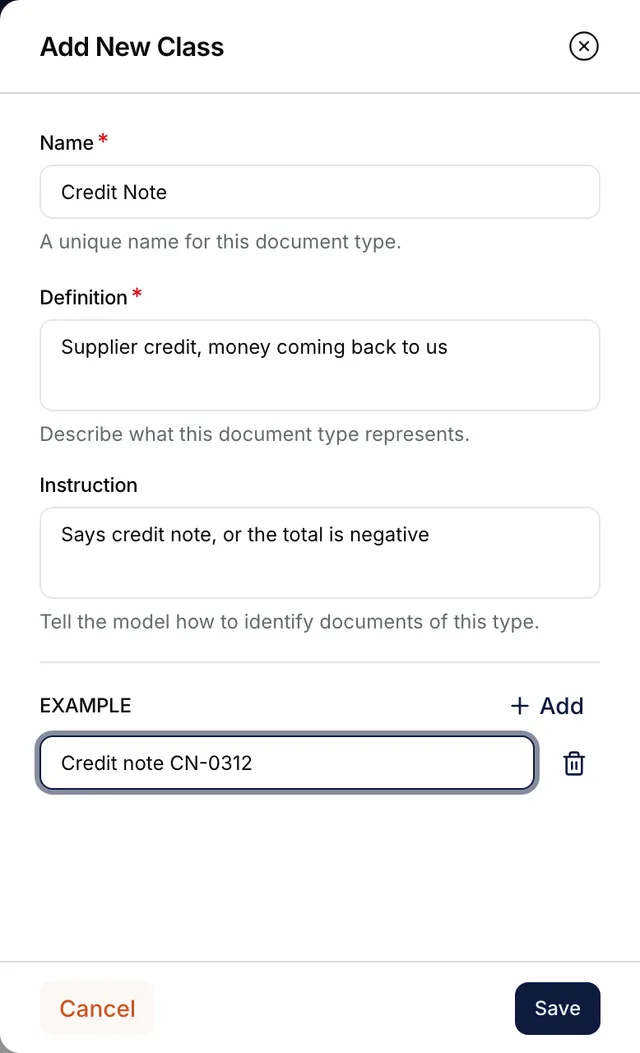
The Add New Class panel filled in for a credit note: Name reads Credit Note, Definition Supplier credit, money coming back to us, Instruction Says credit note, or the total is negative, and one example, Credit note CN-0312, above Cancel and Save. Add guidance that spans the set
Optional. An instruction added with Add Instruction under Special Instructions applies to the whole set of classes.
Save it
Select Submit or Save as Draft. Submit stays disabled until at least one class exists.
Change it later
Edit Class Details on Overview; Edit Settings holds Description and Review Required. A draft publishes with Save Changes, then Yes, Save.
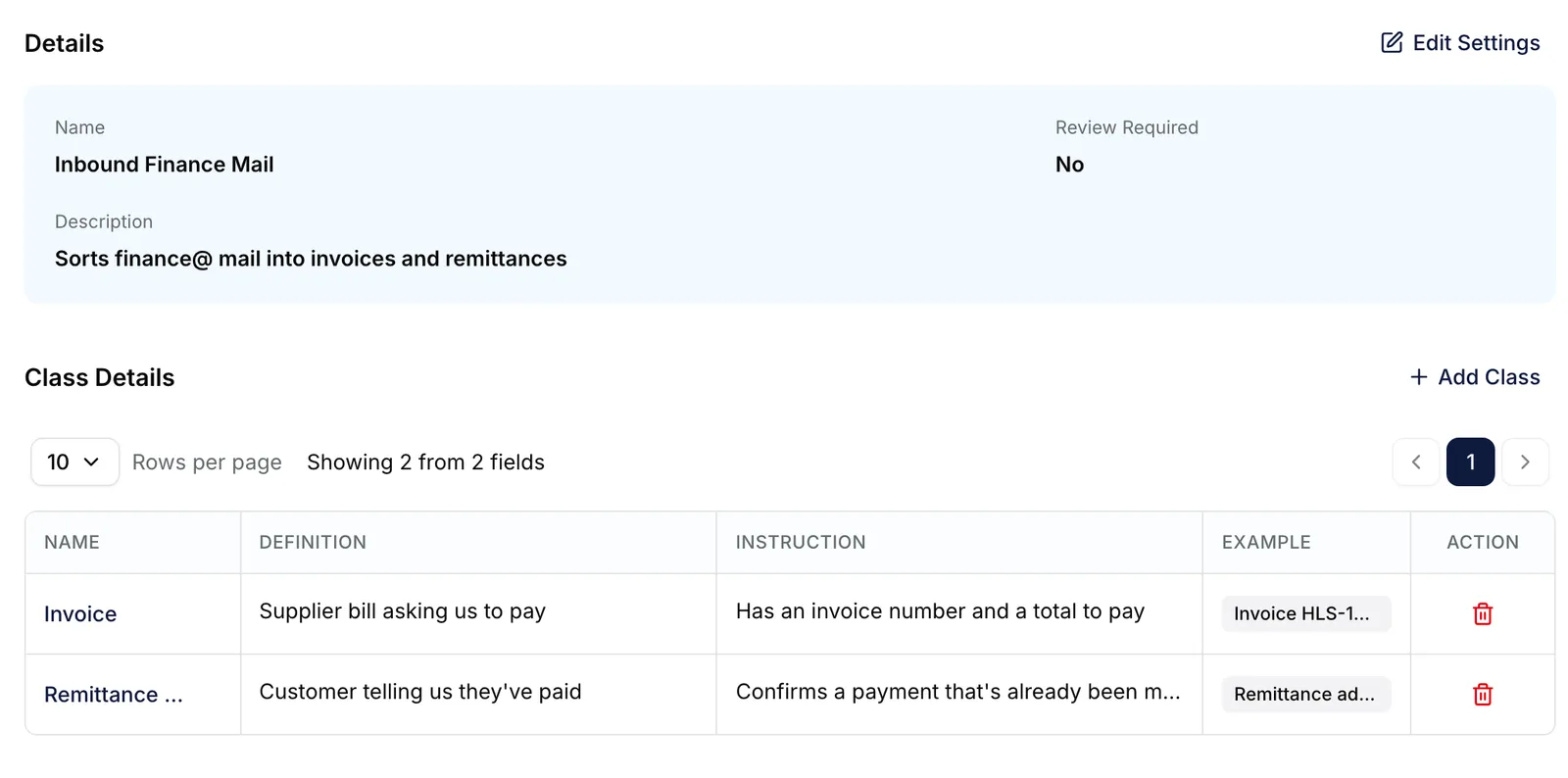
The Overview of a Smart Class with two classes, Invoice and Remittance Advice, each with a definition, an instruction and an example. Enlarge


What success looks like
- A Smart class submitted message appears, or Saved as draft for a draft.
- The row appears in the Smart Classes list, with its class count in the CLASS column.
- Overview lists one row per class under Class Details.
A published Smart Class keeps at least one class
A published Smart Class cannot be emptied: when only one class is left, the row-delete control in Class Details disappears. To replace that class, add the new one first, then delete the old row. Drafts are exempt.
If something goes wrong
| Symptom | Likely cause | What to do |
|---|---|---|
| Submit stays disabled, with nothing to explain why. | No class added, or Name / Description empty. | Add a class, and fill both fields under Details. |
| Add New is greyed out: "You don't have permission to create a Smart Class." | Your role lacks Create on the SmartClass row. | Ask an administrator. See Permissions. |
| Documents land in the wrong class. | Two definitions overlap, or one is vague. | Sharpen each Definition; add Example values. |
| Roles, Departments or Groups offer nothing on Visibility Scope. | Your role cannot read them; the pickers stay empty rather than showing an error. | Ask an administrator for read access to roles, departments and groups. |
| An export connector is missing from Export Channels. | Accounting export connectors are hidden here, because a Smart Class extracts no fields for them to post. | Bind it to an orchestrator that does: see channels. |
Next
- Smart Queue - where a Smart Class is put to work.
- Orchestrator basics - the shared tabs and lifecycle.