Orchestrator basics
You find, create and read all four kinds the same way. This page covers that shared ground; each kind's own page covers what differs.
- The IntELIEDocs app in your top bar.
- These permissions: IntELIEDocs · SmartExtract - View, IntELIEDocs · SmartExtract - Create.
- Shown for Smart Extract. Each kind has its own row in a role: SmartClass, SmartQueue and SmartRedact. Nothing else has to exist first. The orchestrator comes before any document, since a document can only go into one that already exists.
If IntELIEDocs isn't in your top bar, your role can't view it or your plan doesn't include it. Ask a workspace administrator, or see Permissions and module visibility.
Finding one
Select the IntELIEDocs icon in the top bar. Below Home, the module sidebar lists only the kinds your role can open; select one to open its list.

Every list shows NAME, DATE, DESCRIPTION and a column of its own; Smart Queue and Smart Redact add STATUS (Active or Passive). ACTIONS holds Remove, and appears only if your role can delete that kind. A Draft chip marks an unpublished record. Search by name narrows the list; sort by Name or Date in a fixed direction. There is no filter. Refresh reloads the list, and Rows per page sets its length.
Home shows every kind as cards, sorted by Updated At or Created At. Its View Orchestrator (All) filter only narrows the list when exactly one kind is ticked. Select a card to open its Dashboard, or its documents if your role cannot see dashboards. Its Settings gear opens its Overview.
Creating one
Open the right list
Choose the kind in the module sidebar, then select Add New. The header Create menu offers the same four under INTELIEDOCS.

The Smart Extract list, with Smart Extract ringed in the module sidebar and the Add New button ringed at the top right. EnlargeName it
Fill in Name (2-100 characters: letters, digits, spaces,
_and-) and Description. Both are required, even for a draft. Only Description stays editable after publishing.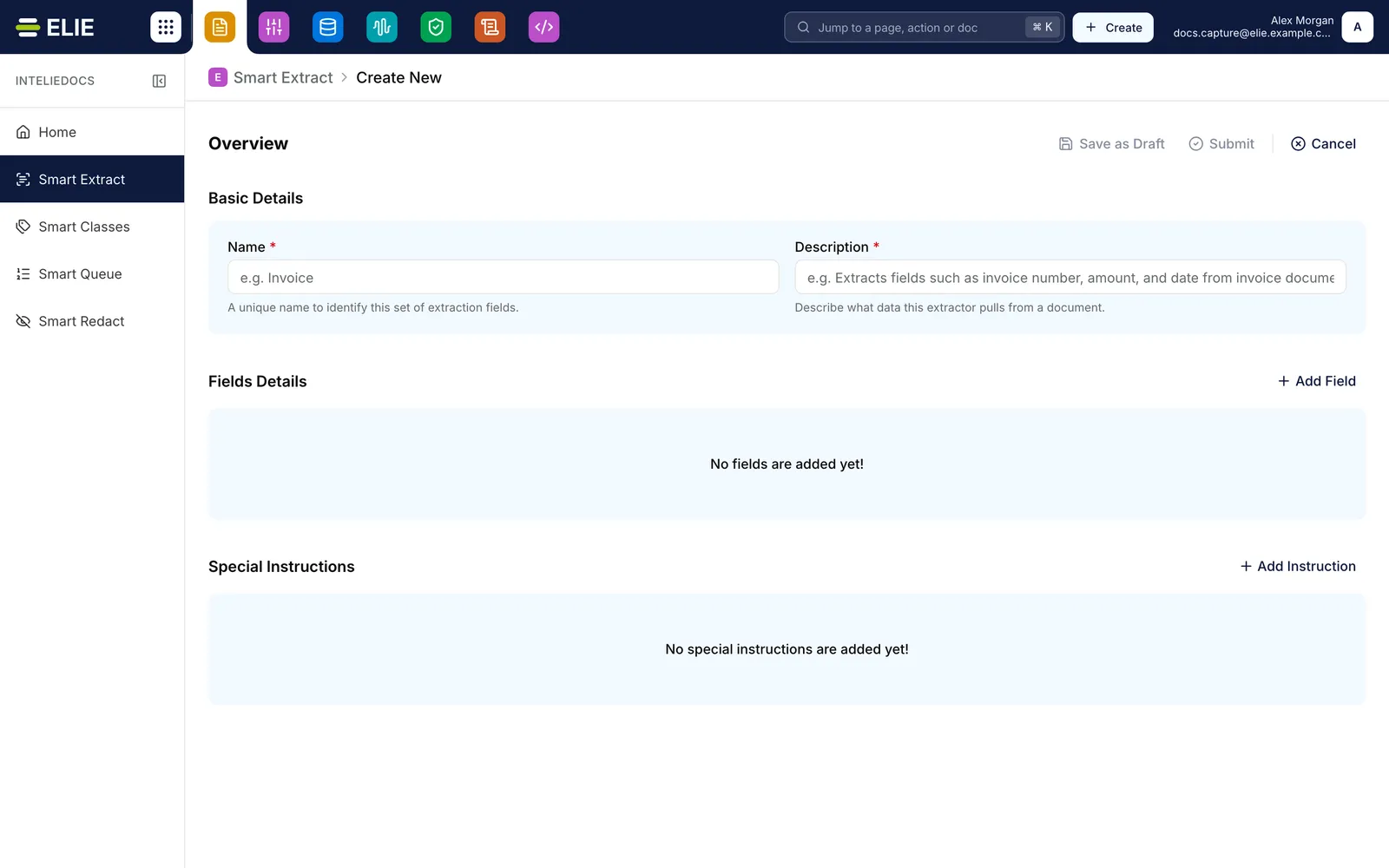
The Create New page for a Smart Extract, with the Name and Description fields, an empty Fields Details section and the Save as Draft, Submit and Cancel actions. EnlargeSet up the kind
Complete the section beneath with the fields, classes or redaction configuration this kind needs. A Smart Queue takes you through four steps instead. Each kind’s own page explains what to enter.
Save or submit
Select Save as Draft to finish later, or Submit to publish. If you leave part-way through, Unsaved Changes asks you to choose Yes, Leave or No, Stay.


What success looks like
- A confirmation appears and you land on the list. A new Smart Extract opens on its Overview instead.
- A draft's row carries a Draft chip.
Reading the Overview tab
Overview opens with a Details card showing the name and description, plus Type on a Smart Extract and Review Required on every kind except Smart Queue. Edit Settings changes them. Only a Smart Redact and a Smart Queue ask about review while you create them; a Smart Queue keeps that setting on its Pipeline tab. While the orchestrator is a draft, a Draft chip sits by the heading and Save Changes publishes it after a confirmation. Publishing cannot be undone.
The header carries Manage Documents and Manage Groups; the tab rail carries Visibility Scope plus Import Channels and Export Channels. A Smart Queue adds Pipeline and Original Access.
If something goes wrong
| Symptom | Likely cause | What to do |
|---|---|---|
| No items found. when you know some exist. | A failed load looks like an empty list. | Select Refresh, or reload the page. |
| A kind is missing, or Add New is greyed out: "You don't have permission to create a Smart Extract." | Your role lacks View or Create for that kind. Opening a create page by its address sends you back to the list. | Ask an administrator. See Permissions. |
| Name is greyed out in Edit Settings. | The orchestrator is published. | Only a draft can be renamed. |
| Submit stays disabled. | This kind's requirements are not met. | See its page. Smart Extract and Smart Queue explain why, on hover. |
| "3 document(s) are still linked to this item. Remove them first." | Documents are still attached. | Remove them from Manage Documents, then Remove again. |
Next
- Smart Extract, Smart Classes, Smart Queue and Smart Redact - what each kind needs.
- Visibility scope - who can open an orchestrator.