Uploading an email
An email saved as an .eml file uploads like any other document. Elie reads its subject,
sender, recipients, date, body and attachments as one document, so an invoice that arrives
attached to an email can be processed without saving the attachment first.
- The IntELIEDocs app in your top bar.
- This permission: IntELIEDocs · Document - Create.
- An orchestrator that accepts email: a Smart Extract, a Smart Class, or a Smart Queue with no route that redacts. A Smart Redact refuses .eml files.
If IntELIEDocs isn't in your top bar, your role can't view it or your plan doesn't include it. Ask a workspace administrator, or see Permissions and module visibility.
Steps
Save the email as a file
In your mail program, save or drag the message out as a file. It must end in
.eml; a forwarded copy or a printed PDF is not the same thing.Open the upload page
Open the orchestrator and select Upload Document. Under the drop zone, the size hint reads Up to 5 MB per file (40 MB for .eml).
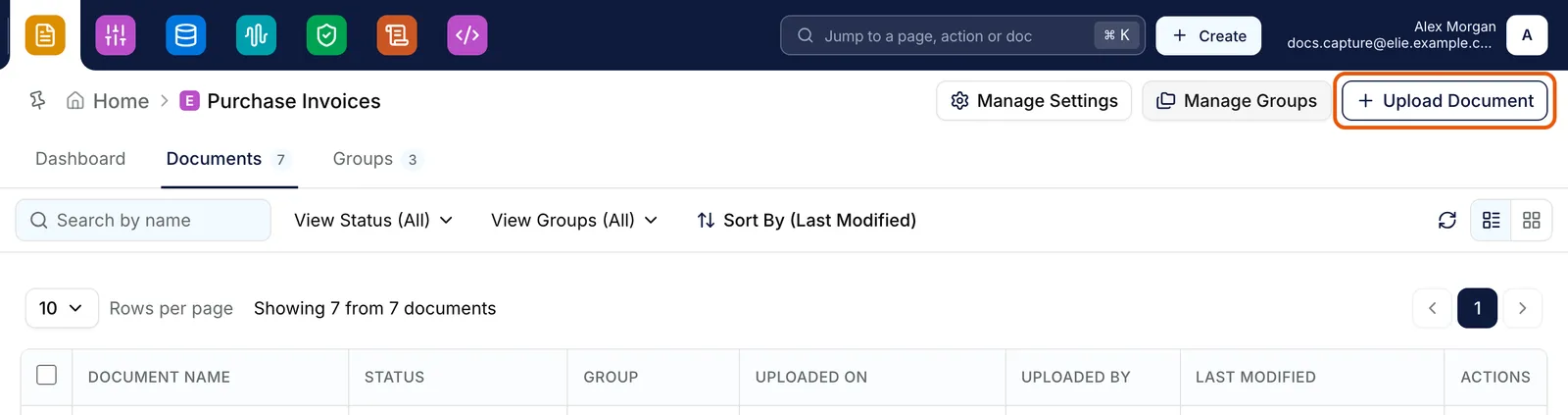
An orchestrator's documents list with the Upload Document button ringed at the top right. EnlargeAdd the email
Select Choose a file or drag it here, or drop the
.emlonto it. An email may be up to 40 MB, because it carries its attachments.Check the preview
Select the file under Documents. The viewer shows the email’s source as plain text; for a large email it shows only the first 256 KB and says so. Open in new tab shows all of it.
Save it
Set a group under Settings if you need one, then select Save All Documents.

What success looks like
- The email appears in the documents list at Processing, under its file name.
- Once processed it opens in Text View, not as pages: the headers first, then the body, then a list of the attachments and each one’s text under its own heading.
Long emails
An email’s text includes the text of every attachment, so it can be long. Text View then shows the first part with a line such as Showing the first 262,144 of 900,000 characters of extracted text. Select Show all text for the rest. Selecting an extracted field whose value sits past that point shows the whole text for you.
If something goes wrong
| Symptom | Likely cause | What to do |
|---|---|---|
| A warning ends is not a supported file type. | The orchestrator redacts, so it takes only page formats. | Upload the email into a Smart Extract, a Smart Class or a Smart Queue that does not redact. |
| A warning ends exceeds the 40 MB limit. | The email and its attachments are too big. | Save the attachments and upload them on their own. |
| Doc View shows encoded lines rather than the message. | Doc View previews the file exactly as saved; the decoded text is in Text View. | Select Text View. |
| Text View reads No text available for this document. | Nothing could be read from the email. | Check Document Status:, then see Handling an exception. |
Next
- Uploading documents - the rest of the upload page.
- Finding and reading a document - Doc View and Text View.