Opening a password-protected PDF
Elie cannot read a locked PDF, so the document stops at Password Required and waits for you. Give it the password and it processes the document from the start.
- The IntELIEDocs app in your top bar.
- This permission: IntELIEDocs · Document - Read.
- A document showing Password Required, and any one of IntELIEDocs · Document - Create, Update or Execute.
If IntELIEDocs isn't in your top bar, your role can't view it or your plan doesn't include it. Ask a workspace administrator, or see Permissions and module visibility.
Steps
Find the document
On the orchestrator’s list, set View Status (All) to Password Required, then open the document. Document Status: reads Password Required.
Open the prompt
Select Enter Password in the action bar. The Password Required dialog opens.
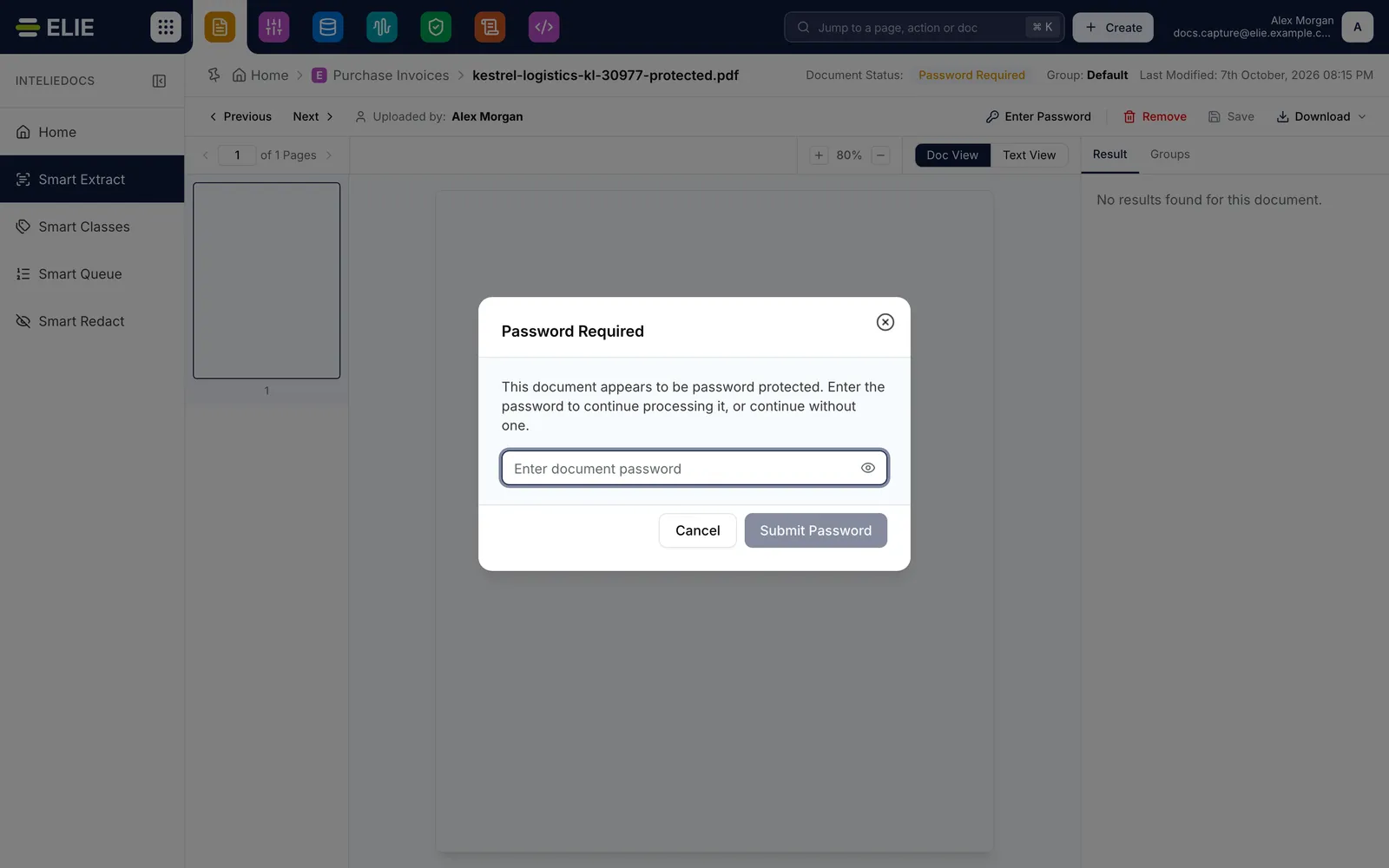
A locked PDF's detail page with the Password Required dialog open over it: a password field and the Cancel and Submit Password buttons. EnlargeEnter the password
Type it into Enter document password. Show password reveals what you typed.
Submit it
Select Submit Password. It reads Submitting…, then the dialog closes.

What success looks like
- A toast starting Password submitted tells you reprocessing has started.
- Document Status: moves to Processing, and the open page follows it without a refresh.
- The document then reaches its usual outcome, such as Waiting for Review or Completed.
Giving the password at upload
If you know a PDF is locked, enter its password in PDF Password: on the upload page's Settings before you save. If the password is right, the document never stops at Password Required. The field appears only for a PDF and is set per file: Apply to all documents does not copy it. See Uploading documents.
If something goes wrong
| Symptom | Likely cause | What to do |
|---|---|---|
| The document returns to Password Required. | The password was wrong. Elie tried it and stopped again. | Select Enter Password and try again. |
| Failed to submit the password. | Your role has none of the three permissions above, or the document has already moved on. | Reload to check the status; if it still reads Password Required, ask an administrator. |
| Submit Password stays greyed out. | The field is empty. | Type the password first. |
| You selected Cancel and nothing changed. | Cancel sends nothing; the document keeps waiting. | Select Enter Password when you have it, or remove the document. |
Next
- Uploading documents - the PDF Password: field.
- Document statuses - where Password Required sits.
- Handling an exception - when a document fails for another reason.