Document groups
A group keeps related documents together, such as one month's invoices. Each orchestrator has its own groups: you set them up on Manage Groups, pick one for each file as you upload, and then filter the documents list by group or export a whole group to one file.
- The IntELIEDocs app in your top bar.
- These permissions: IntELIEDocs · Group - List, IntELIEDocs · Group - Create, IntELIEDocs · Group - Update, IntELIEDocs · Group - Delete, IntELIEDocs · Document - Create.
- An orchestrator. Uploading into a group needs Document - Create; exporting a group also needs IntELIEDocs · Document - Execute.
If IntELIEDocs isn't in your top bar, your role can't view it or your plan doesn't include it. Ask a workspace administrator, or see Permissions and module visibility.
Set up and manage groups
Open Manage Groups
On the orchestrator’s documents list, select Manage Groups, or the Groups tab under the header. The table shows Group Name, No. of Documents, Description and Actions; Search by name narrows it.
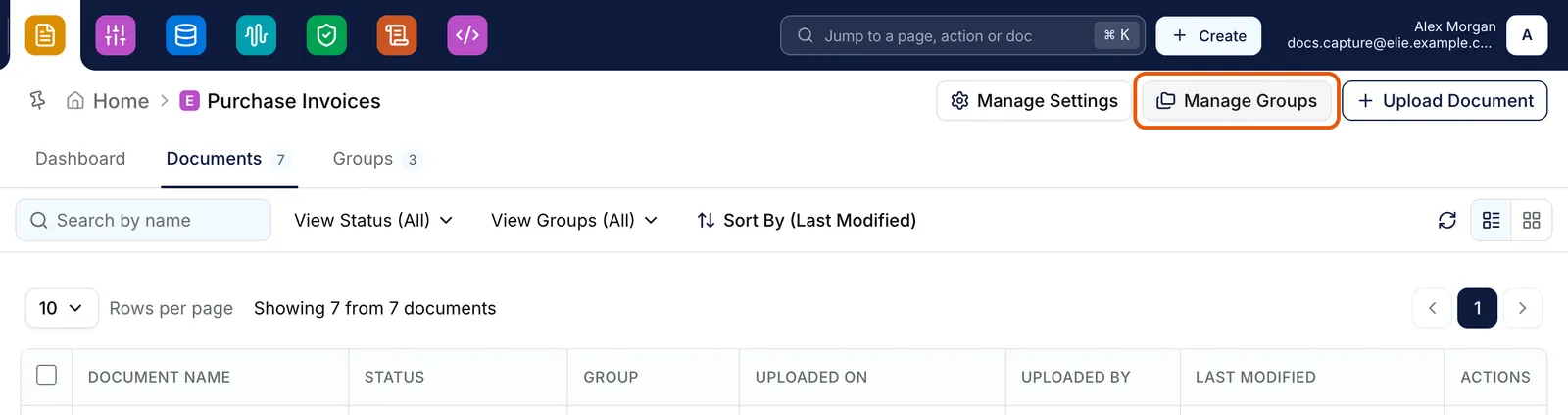
An orchestrator's documents list with the Manage Groups button ringed at the top right, between Manage Settings and Upload Document. EnlargeAdd a group
Select Add Group. In the side panel, enter a Group Name of 2-100 characters that no other group here uses, and an optional Description. Select Save.
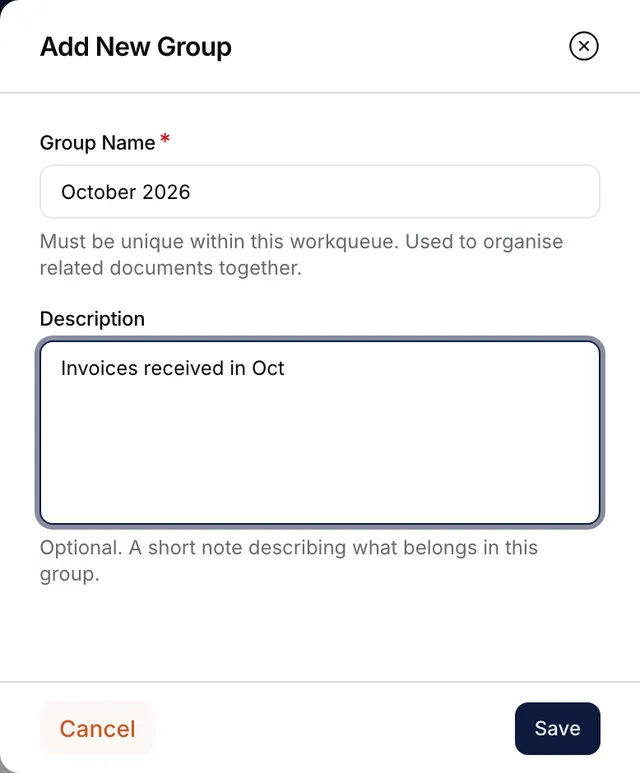
The Add New Group panel with Group Name reading October 2026 and Description reading Invoices received in Oct, above Cancel and Save. Edit a group
Select a group’s name to reopen the panel with its details, change them, then select Save. The Default group keeps its name; only its description can change.
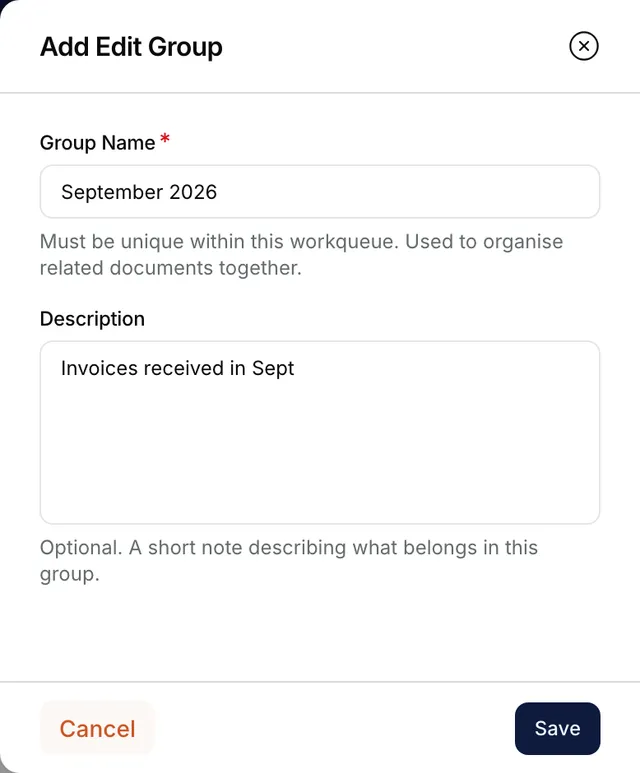
The group panel opened from the September 2026 group, filled in with its name and its description, Invoices received in Sept. Export a group
Under Actions, select Download, then Download CSV or Download Excel. The file is named after the group and holds one row per document in it.
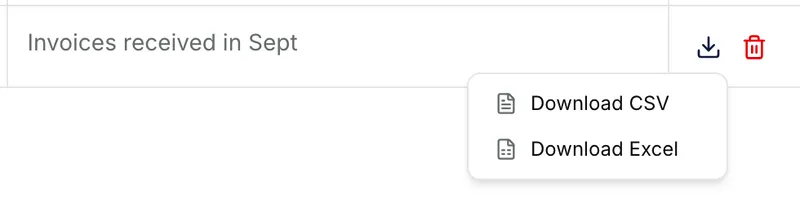
The September 2026 row with its Download menu open, offering Download CSV and Download Excel. Remove a group
Under Actions, select Remove, then Yes, Remove in the Remove Group dialog. The Default group has no Remove, and a group that still holds documents cannot be removed (see below).
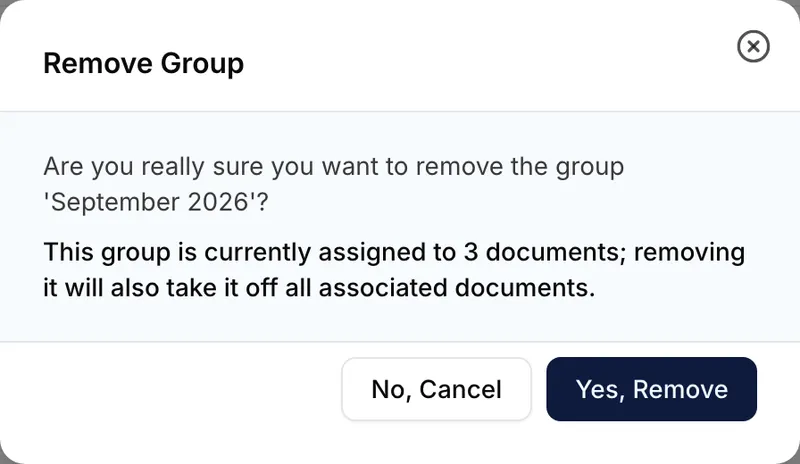
The Remove Group dialog asking whether to remove September 2026, warning that it is assigned to 3 documents, with No, Cancel and Yes, Remove.


Put documents in a group as you upload
Stage your files
On the documents list, select Upload Document and add files with Choose a file or drag it here. Then select a file under Documents: Settings stays greyed out until one is selected, and it edits that file only.
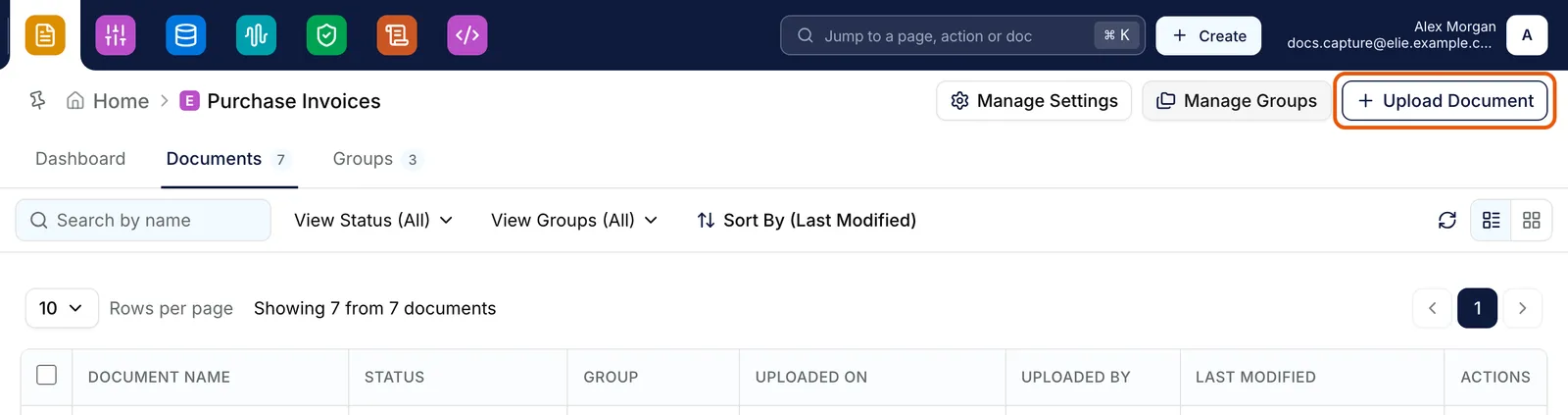
An orchestrator's documents list with the Upload Document button ringed at the top right, next to Manage Settings and Manage Groups. EnlargeChoose the group
Under Add to Group:, open the list and pick a group. A new file starts in the Default group.
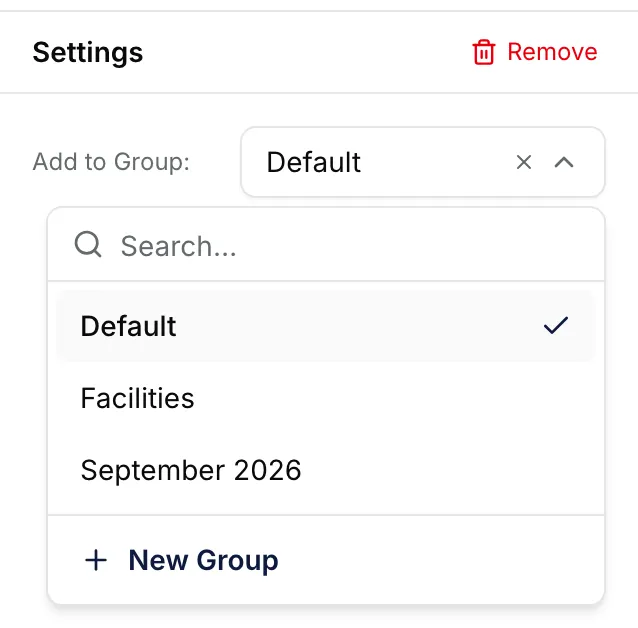
The Settings panel of a staged file with the Add to Group list open: a search box, the groups Default, Facilities and September 2026, and New Group at the bottom. Or create one
Select New Group, type a name into Enter group name and press Enter. Group created successfully! confirms it, and the new group is selected.
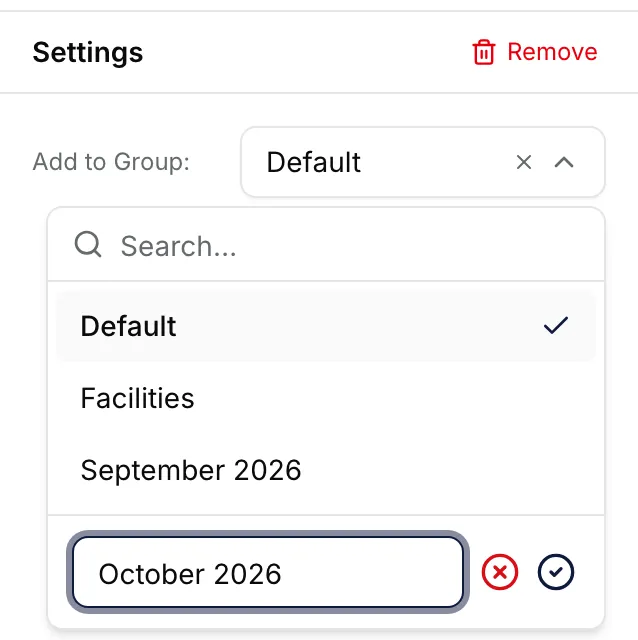
The same list with New Group selected: a name box reading October 2026, with buttons to cancel or confirm it. Cover the rest of the batch
With two or more files still to upload, select Apply to all documents. A toast says how many files took the group (for example, Applied Invoices to all 5 documents). Only the group is copied, never a PDF password.
Upload
Select Save All Documents. Back on the list, the Group column shows the name.


Find documents by group
View Groups (All) on the documents list filters by group and shows how many documents each one holds. On an open document, the breadcrumb reads Group: and the Groups tab lists the other documents in the same group; select one to open it.


On a document, Result and Groups share one panel, so switching to Groups throws away unsaved field edits. Select Save first.
What success looks like
- Group created successfully!, Group updated successfully! or Group removed successfully! appears, and the Manage Groups table updates.
- The Group column on the documents list shows each file's group.
- View Groups (All) lists the group with its document count.
A group with documents cannot be removed
The Remove Group dialog warns that removing a group takes it off its documents, but Elie refuses while any document is still in it: This group cannot be removed because it has documents. Remove all documents from the group first. A document's group cannot be changed after upload, so the only way to empty a group is to remove its documents. See Removing documents.
If something goes wrong
| Symptom | Likely cause | What to do |
|---|---|---|
| Group Name reads A group with this name already exists. | Another group in this orchestrator has that name. Default is always taken. | Choose a different name. |
| Add Group is greyed out; its tooltip reads You don't have permission to create a folder. | Your role lacks IntELIEDocs · Group - Create. | Ask a workspace administrator. |
| Failed to update group. Please try again. or Group cannot be removed at this time, please try again. | Your role lacks the update or delete permission, or you tried to rename the Default group. | Ask an administrator for access; rename only groups you created. |
| A file landed in the Default group. | Files start in the Default group, including ones staged before the group list loads. | Set Add to Group: per file before you save. |
| Apply to all documents is missing or greyed out. | It appears only with two or more files left to upload, and stays greyed out until the selected file has a group. | Pick a group for the selected file first. |
| A group is missing from View Groups (All) or from Manage Groups. | Both load only the first 20 groups, and Search by name searches those alone. | It still appears under Add to Group: on the upload page, and on its documents' Groups tab. |
| The Groups tab reads This document is not assigned to any group. | It was uploaded without one. | A group can only be chosen at upload, so upload the file again into the group you want. |
| Failed to download CSV or Failed to download Excel. | Exporting needs IntELIEDocs · Document - Execute. | Ask an administrator. An empty group's download icon is greyed out instead. |
Next
- Uploading documents - the rest of the upload page.
- Downloading and exporting documents - single and bulk exports.
- Removing documents - emptying a group before you remove it.