Downloading and exporting documents
Downloading gives you the file itself. Exporting gives you what Elie read from it as a CSV or Excel spreadsheet, and you can export one document, the rows you tick, or a whole group.
- The IntELIEDocs app in your top bar.
- These permissions: IntELIEDocs · Document - Read, IntELIEDocs · Document - Execute, IntELIEDocs · Original document - View.
- A processed document. Exporting needs the Execute permission; the last one matters only for the original of a redacted document.
If IntELIEDocs isn't in your top bar, your role can't view it or your plan doesn't include it. Ask a workspace administrator, or see Permissions and module visibility.
Steps
Open the Download menu
Open the document and select Download at the end of its action bar.
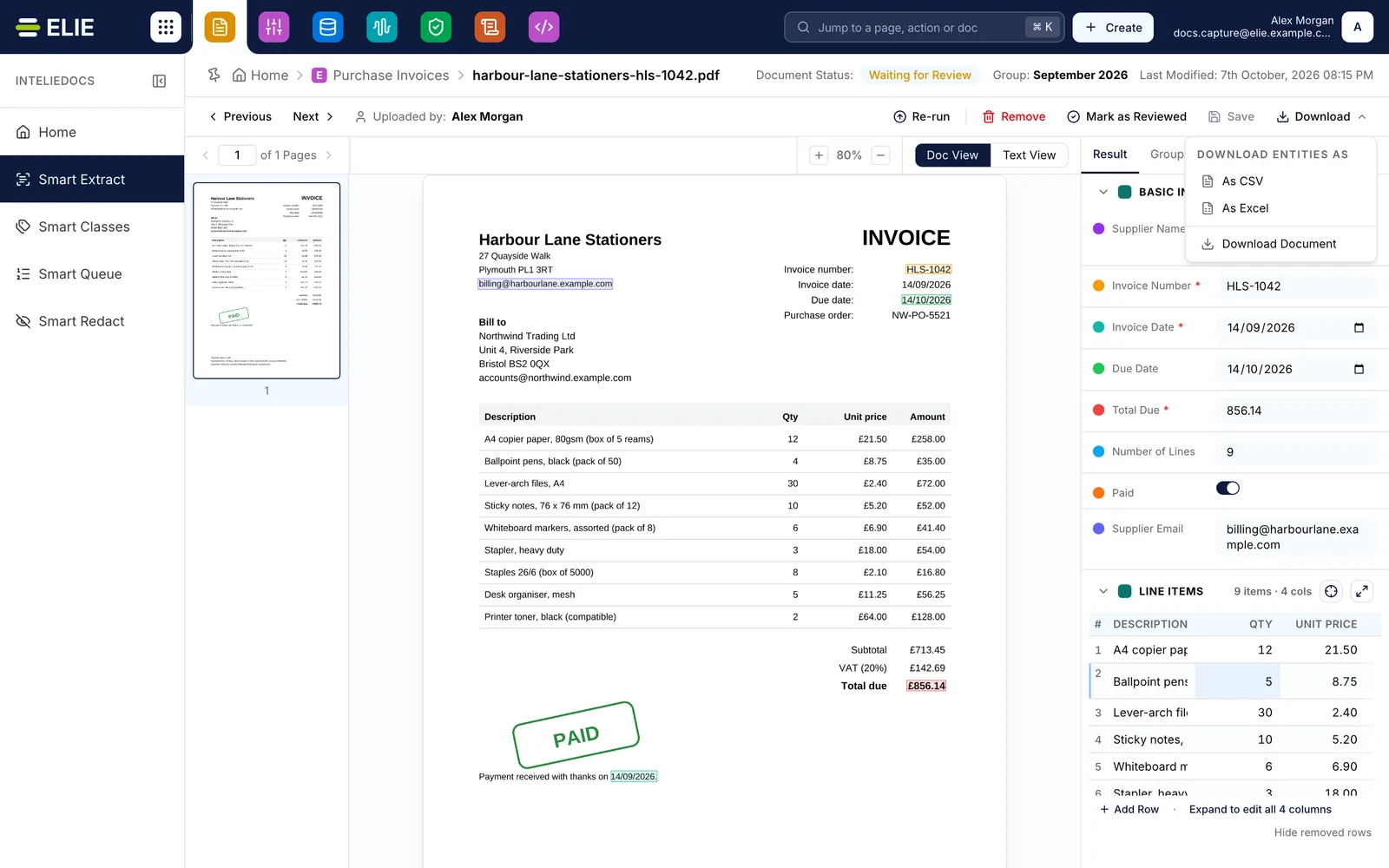
A document open on its detail page with the Download menu open at the top right, offering Download Entities As CSV or Excel, and Download Document. EnlargeExport the extracted data
Under Download Entities As, select As CSV or As Excel. The file takes the document’s name, so
invoice.pdfsaves asinvoice.csv.Download the file itself
Select Download Document for the file as uploaded. On a redacted document, from a Smart Redact or a Smart Queue route that redacts, select Download Redacted or Download Original. The redacted copy saves as
invoice.redacted.pdf, or as.jpgor.pngfor an image.Export from the list
On the orchestrator’s list, select a row’s download icon under Actions, then Download CSV or Download Excel. To export several, tick their rows and use Download in the toolbar; that file saves as
documents.csvordocuments.xlsx.Export a whole group
On Manage Groups, select a group’s download icon under Actions, then Download CSV or Download Excel. The file is named after the group.

What success looks like
- Your browser saves the file under the names above.
- An export opens with one row per document.
What an export contains
Each row starts with the document's name, status and group name, followed by one column per extracted field. Exporting several documents merges their fields, so a column a document lacks is left empty for it. A Smart Redact export adds a column per kind of redacted entity; the matched text appears only if you hold IntELIEDocs · Original document - View.
If something goes wrong
| Symptom | Likely cause | What to do |
|---|---|---|
| Download Entities As and the row and toolbar exports are missing. | Your role lacks IntELIEDocs · Document - Execute. | Ask a workspace administrator. A group export is not hidden; it fails with Failed to download CSV or Failed to download Excel instead. |
| Download Original is missing on a redacted document. | Your role lacks IntELIEDocs · Original document - View, or a Smart Queue's Original Access leaves you out. | Ask an administrator, or use Download Redacted. |
| Download Redacted is missing. | The redacted copy is not ready yet. | Wait for the document page to finish preparing it, then open the menu again. |
| Document not available for download or Failed to download document. | The document's download link is missing or has expired. Links are short-lived. | Reload the page and download again. |
Next
- Finding and reading a document - selecting rows on the list.
- Document groups - exporting a whole group.
- Smart Redact specifics - redacted and original copies.