Accepting an invitation
You join Elie by invitation; there is no sign-up page. Opening the link in the invitation email creates your account and gives you a temporary password for your first sign-in. The address the email went to is the one you sign in with.
Steps
Open the invitation email
Look for an email with the subject _You have been invited to join the platform_. It says which organisation invited you and how many days the invitation lasts: 7.
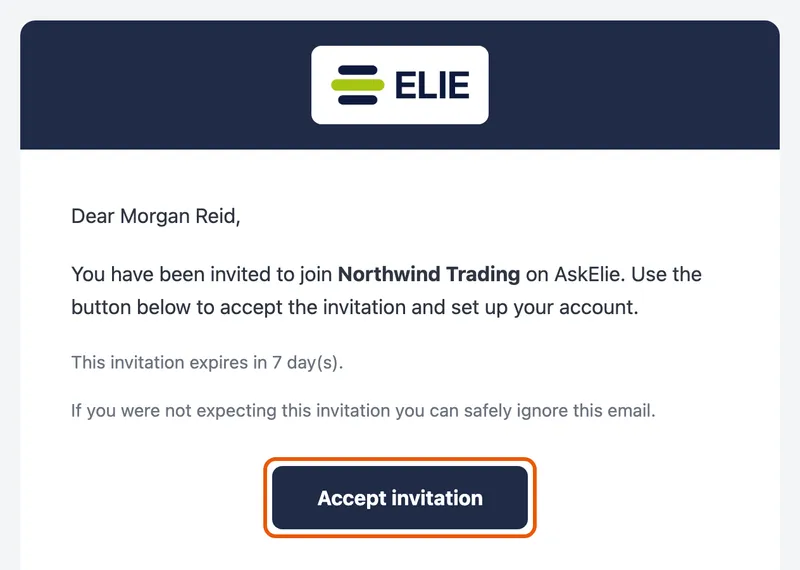
The invitation email to Morgan Reid, saying they have been invited to join Northwind Trading and the invitation expires in 7 days, with the Accept invitation button ringed. Accept it
Select Accept invitation in the email. The page that opens accepts the invitation straight away; there is nothing else to press, and the link works only once.
Copy the password and go to sign-in
The Invitation accepted page shows your Temporary password. Select Copy and sign in: Elie copies the password and takes you to the sign-in page. The copy button beside the password copies it without leaving.
Sign in with the temporary password
Type the address the invitation was sent to in Enter email, paste the password into Password and select Login. See Signing in.
Set your own password
A Reset Password page follows, which you cannot skip. It lists the rules your password must meet. Fill in New password and Re-enter password, then select Set Password; it stays greyed out until both boxes match and every rule is met.

What success looks like
- The Invitation accepted page appears with a Temporary password.
- Copied to clipboard confirms the copy.
- After Set Password, your dashboard opens with your name in the top bar.
The link and the password work once
The invitation is accepted as the page loads, so the link is spent on the first visit. Opening it again shows Invitation could not be accepted, even though your account exists. The temporary password is shown once and cannot be fetched again, so copy it before you leave the page, and avoid accepting an invitation on a shared screen.
If you are already signed in to Elie in the same browser, the link takes you to the dashboard without accepting anything. Sign out first, then open the link again.
If something goes wrong
| Symptom | Likely cause | What to do |
|---|---|---|
| Invitation could not be accepted, with invitation expired | The invitation was older than its time limit. Opening the link again after this shows the next message instead. | Ask your administrator for a new invitation. |
| Invitation could not be accepted, with no pending invitation matches the supplied token | The link was used already, the invitation was withdrawn, or it expired on an earlier attempt. | Ask your administrator for a new invitation. |
| This invitation link is missing a token. Open the link from your invitation email. | Your email program cut the link short. | Copy the whole link from the email into your browser's address bar. |
| Could not copy the password, and you stay on the page. | Your browser blocked access to the clipboard. | Select the password in its box, copy it by hand, then open your Elie address and sign in. |
| You left the page without the password. | It is shown once only. | Ask your administrator for a new invitation. |
| The sign-in page will not accept the temporary password. | A stray space came with it, or the email address is not the invited one. | Paste the password again with nothing around it, and use the exact address the invitation went to. |
Next
- Signing in - every time after the first.
- Resetting your password - if you forget it later.
- A tour of your workspace - where things are.