Your dashboard
The dashboard is where you land after signing in, and where ELIE in the top bar takes you. It shows where you were, what is waiting for you and what has gone wrong. Everyone has one and no permission is needed, but each panel only covers the apps your role and your organisation's plan include.

What the Overview tab shows
Recent Activity lists what you opened and did lately, newest first, up to 20 items. Each row shows the app under Type and when under Last opened; All Activity opens the full list. Before you have any history, the table reads No recent activity yet and offers shortcuts to your apps under Get started with.
Below it, a tile for each app you can use gives three headline counts. The IntELIEDocs tile, for example, counts documents to review, documents in flight and documents exported. The arrow at a tile's top right opens the app. A dash in place of a number means that count could not be loaded; hovering it says This number could not be loaded.
Required Attention, on the right, has one card for each app with something that needs you, and the number of issues. Select a card, or its View all, to see the list, with a tab for each app. Each row names the problem, such as Export failed, Password required, Waiting for review, Authentication failed or Indexing failed, and opens the item that has it. There is no dismiss button: a row goes away once the problem is fixed. The refresh icon checks again. When all is well the panel reads Nothing needs your attention.

Guides and support
Guides & Documentation, the second tab, lists articles from this manual for the apps you can use. Search them or pick an app from All app types; each opens in a new tab. Beside the list, Contact Support sends a message to the Askelie team. Choose a Reason for contact, fill in Subject, Your email and Message, then select Submit. A copy comes to the address you give, and the team usually replies within one working day.
The Useful Links bar along the bottom of the dashboard opens the API reference, Release notes and Service status in a new tab. Its Contact support opens the same form in a dialog.

Pin a page to your dashboard
Open the page you want back
Go to the page you return to most, such as an orchestrator’s document list or a knowledge base.
Pin it
Select the pin icon next to the page title. Its tooltip reads Pin this page; once pinned, the icon fills in and the tooltip changes to Unpin this page.

The title of Purchase Invoices' document list with the pin icon beside it ringed and its tooltip, Pin this page, showing beneath it. Go to the dashboard
Select ELIE at the far left of the top bar. The page is headed Dashboard Overview.
Open it from Pinned Activity
Select Pinned Activity above the activity table, then select the row or its View link. All Pinned lists every pin in a dialog.
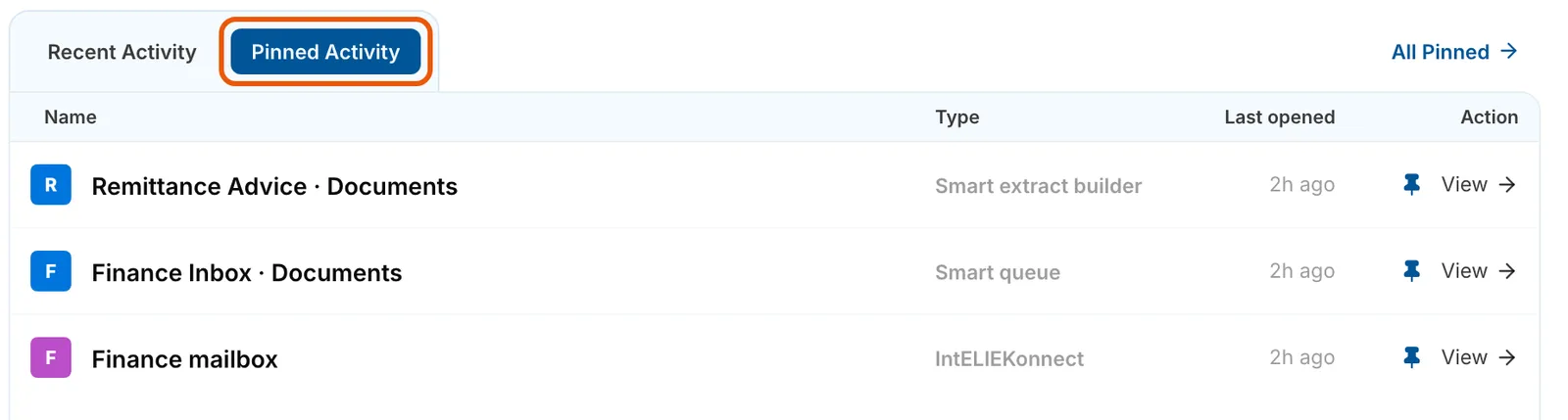
The Pinned Activity tab ringed above three pinned pages, Remittance Advice · Documents, Finance Inbox · Documents and Finance mailbox, each with a filled pin and a View link, and All Pinned at the top right. EnlargeUnpin it when you are done
Select the filled pin icon on the row, or on the page itself.


What success looks like
- The page is a row under Pinned Activity. Type names its app, or, for an IntELIEDocs page, the kind of orchestrator.
- Its pin icon is filled in wherever you see it.
If something goes wrong
| Symptom | Likely cause | What to do |
|---|---|---|
| A panel reads Couldn't load this list. | The data behind it did not load. | Select Retry. If it keeps failing, reload the page. |
| Required Attention still lists something you fixed. | The panel was checked before your fix. | Select the refresh icon at its top right. |
| An app has no tile and no card. | Required Attention only shows apps that have problems. If the tile is missing too, your role or plan does not include the app. | See What your role can see. |
| No apps to check yet or No products on your plan yet. | Your role, or your organisation's plan, includes none of IntELIEDocs, IntELIEKonnect, Knowledge Base or Voice IntELIEgence. | Ask a workspace administrator. |
| Submit on Contact Support shows a note under a field. | A field is empty or too short; the message needs a sentence or two. | Fill in the field the note points to, then select Submit again. |
Next
- A tour of your workspace - the top bar, search and the Create menu.
- What your role can see - why an app is missing.
- Document statuses explained - what the IntELIEDocs problems mean.