Build your first workflow
One workflow, start to finish: an import connector brings documents in, a Smart Extract reads them, a person checks what it found, and an export connector delivers the result. Build it in this order, because a document can only arrive in an orchestrator that already exists.
- The IntELIEDocs app in your top bar.
- These permissions: IntELIEDocs · SmartExtract - Create, IntELIEDocs · Document - Execute, IntELIEKonnect · Import - Create, IntELIEKonnect · Export - Create.
- IntELIEKonnect as well, with Update and Execute in both directions, since the workflow spans the two apps. You also need the sign-in details for the system documents come from and for the one they go to.
If IntELIEDocs isn't in your top bar, your role can't view it or your plan doesn't include it. Ask a workspace administrator, or see Permissions and module visibility.
Steps
Create the orchestrator
In IntELIEDocs, select Smart Extract under All Orchestrators, then Add New. Fill in Name and Description, add your fields with Add Field under Fields Details, and select Submit. On its Overview, select Edit Settings and switch on Review Required so each document waits for a person. See Smart Extract.

The Smart Extract list in IntELIEDocs, with Smart Extract ringed under All Orchestrators and the Add New button ringed at the top right. EnlargeSet up the import connector
In IntELIEKonnect, open Import Connectors and select Add Connector, then pick the system your documents live in. Work through the setup steps. On Configuration, select Test, or Authenticate for a service you sign in to, until the connection works. When Engagement Status reads Connected, select Enable. See Import connector basics.
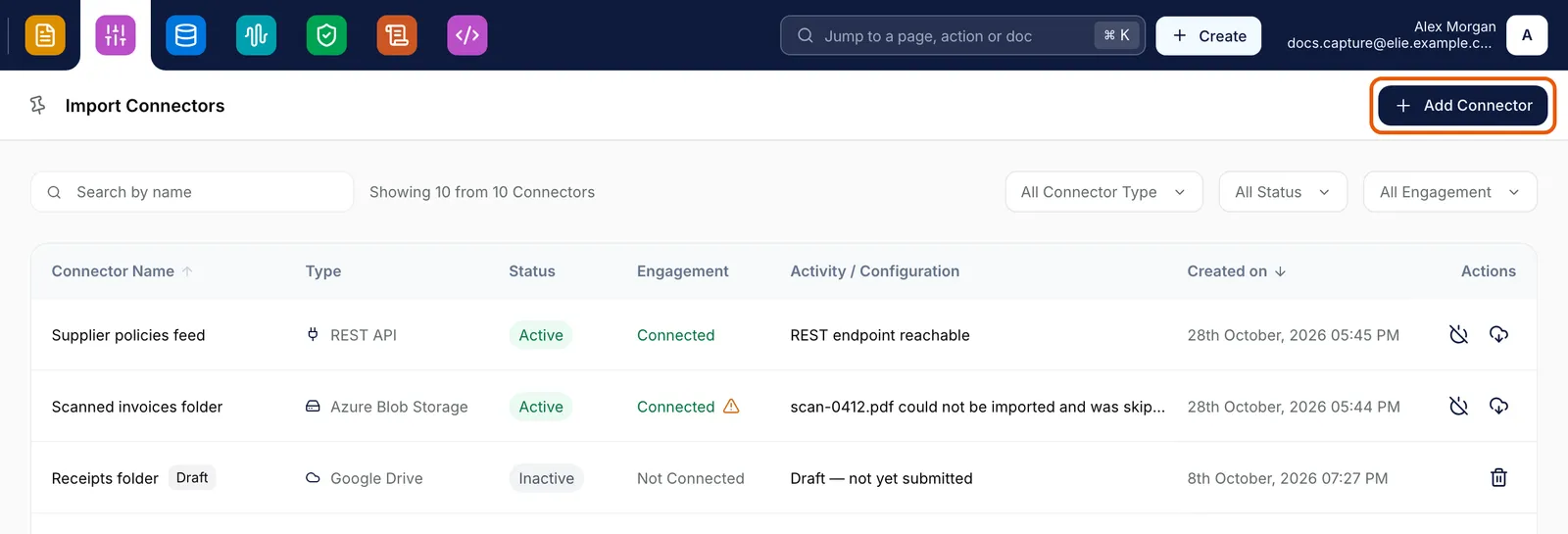
The Import Connectors list in IntELIEKonnect with the Add Connector button ringed at the top right. EnlargeSet up the export connector
Do the same on Export Connectors for the destination. A connector that drops files has an Export Config step for file names and formats, and Schedule Configs sets Group Export to Scheduled Batch or Immediate Delivery. Settle these before you select Enable: an Active connector cannot be edited. See Export connector basics.
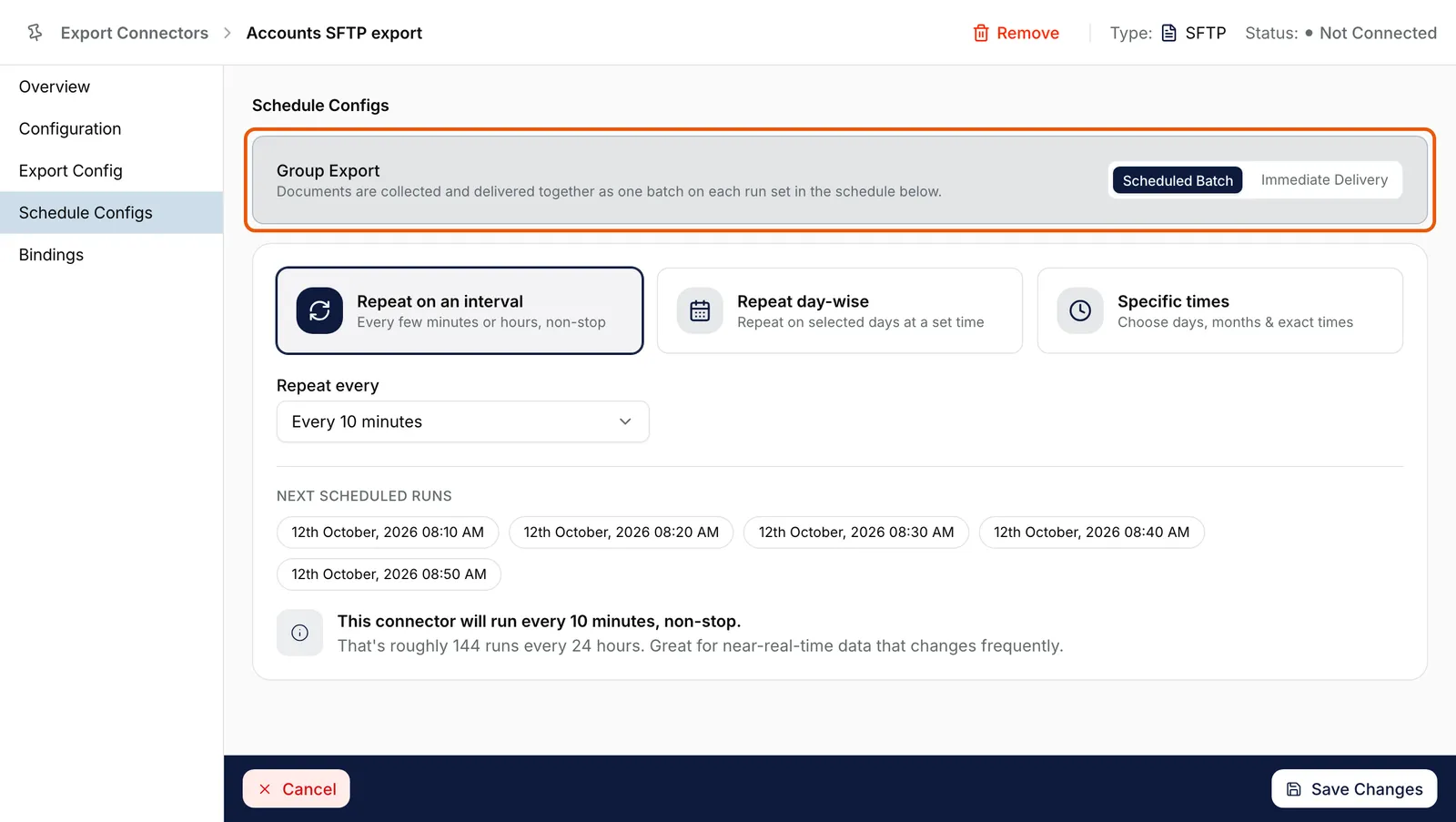
The Schedule Configs tab of the Accounts SFTP export connector, with Group Export ringed and its choice of Scheduled Batch or Immediate Delivery. EnlargeAttach both to the orchestrator
Back on the orchestrator, select Import Channels in its left rail and tick your connector in Import Channels Selected. Select Connect in its ACTION cell; the channel is live when the cell reads Disconnect. Do the same on Export Channels. See Import and export channels.
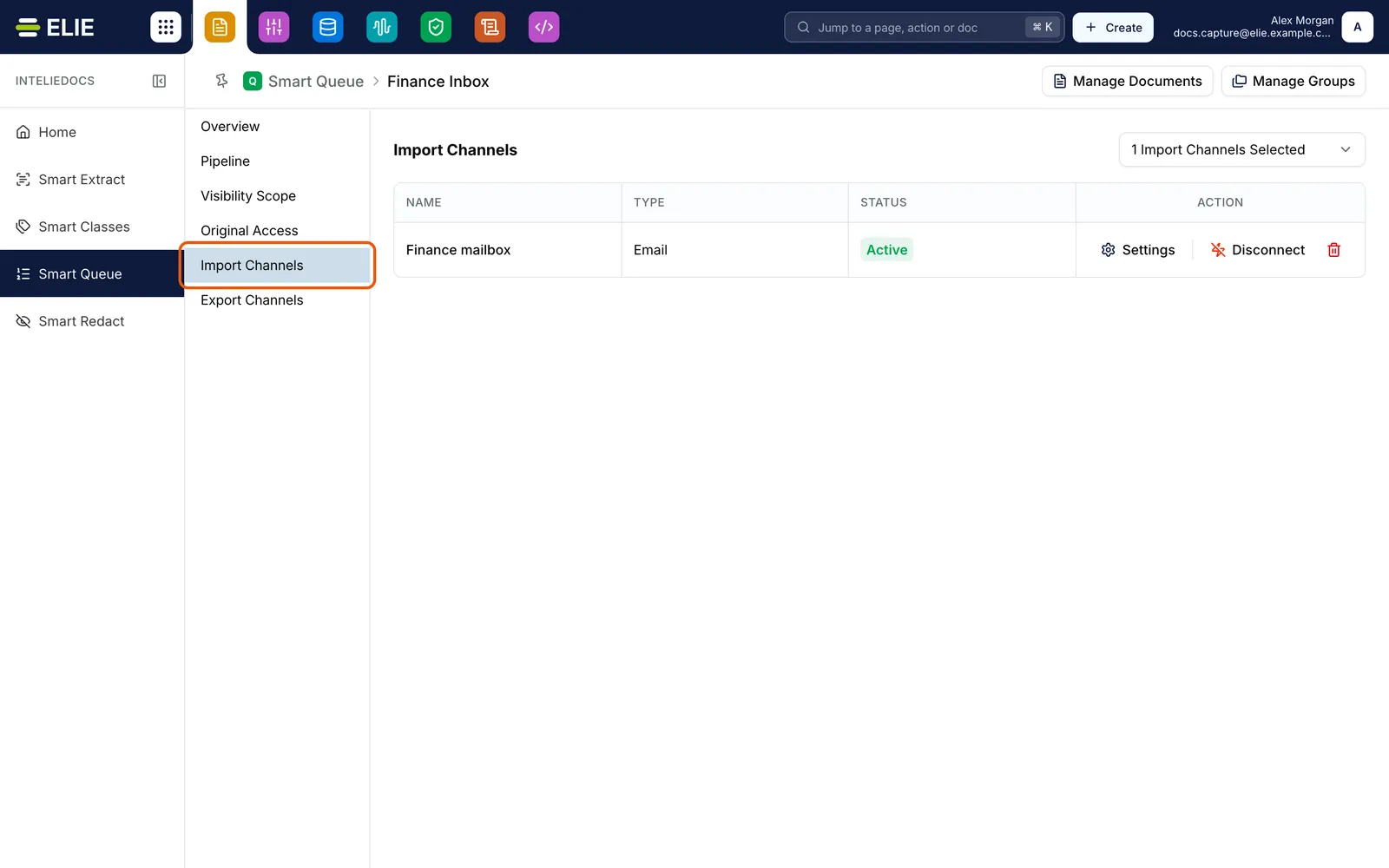
The Finance Inbox orchestrator's Import Channels tab, ringed in its left rail, with Finance mailbox attached, Active, and Disconnect in its ACTION cell. EnlargeBring the first documents in
On the import connector, select Fetch now rather than waiting for the schedule; Fetch started confirms it. Then open the orchestrator and select Manage Documents. New documents arrive on Processing, and the list does not refresh itself, so select Refresh.
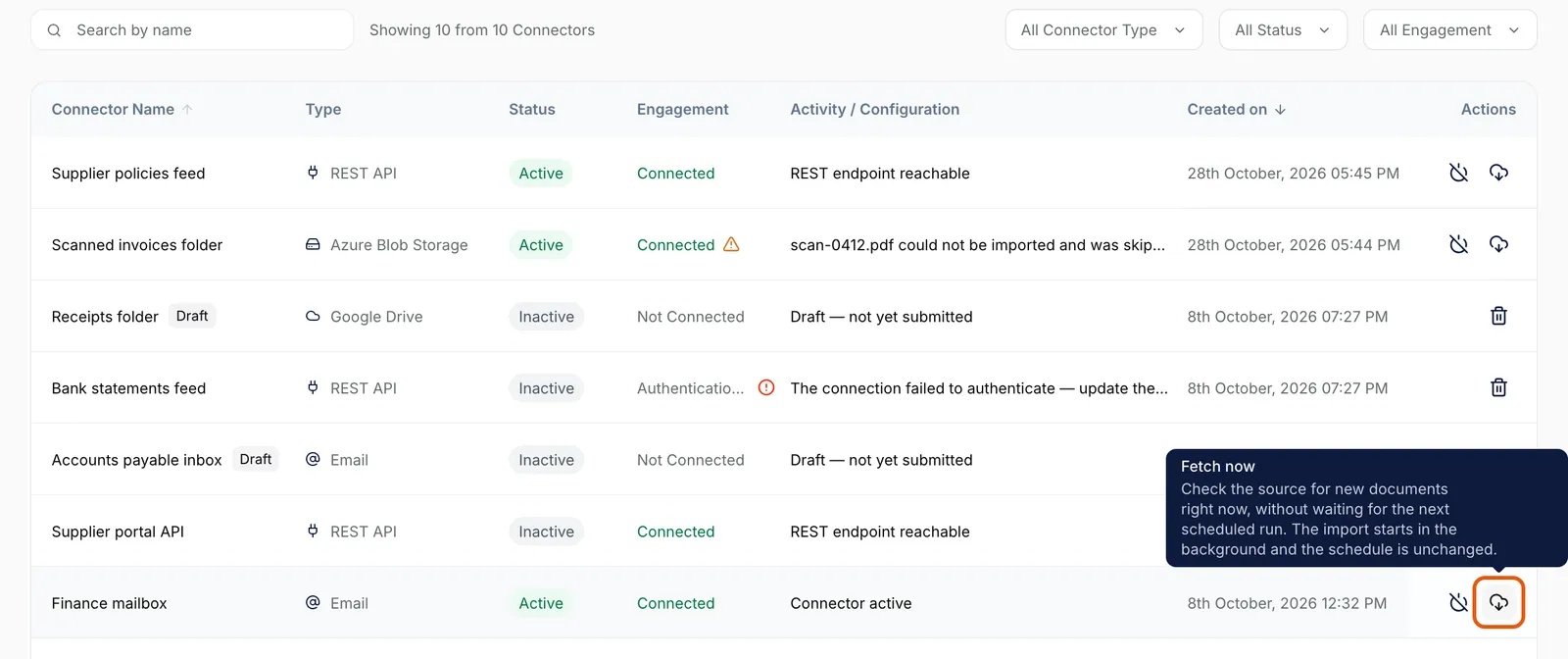
The Import Connectors list with the Fetch now button on the Finance mailbox row ringed and its tooltip showing. EnlargeReview a document and let it go
Open a document on Waiting for Review, correct anything wrong under Basic Information, select Save, then Mark as Reviewed. It moves to Completed and on to the export connector: straight away with Immediate Delivery, or with the next batch on Scheduled Batch. See Reviewing extracted fields.


What success looks like
- Both connectors show Status Active and Engagement Status Connected.
- Each is a row on the orchestrator's Import Channels or Export Channels tab, with Disconnect in its ACTION cell.
- Fetched documents are listed under Manage Documents and move past Processing when you select Refresh.
- Document marked as reviewed confirms your sign-off. The document then shows Exporting or Queued for Export, and finally Exported.
If something goes wrong
| Symptom | Likely cause | What to do |
|---|---|---|
| Nothing arrives, though the import connector is Active. | It has no schedule yet, or the channel still reads Connect. | Select Connect on the channel, and check Schedules. |
| A connector is missing from Import Channels Selected. | It is not both Active and Connected. Others are left out, not greyed out. | Finish setting it up. See Verifying a connector. |
| Documents stop at Completed. | No export channel is live, so the document finishes without one and no error appears. | Attach an export connector. See Binding an export connector. |
| Queued for Export never becomes Exported. | The export connector delivers on Scheduled Batch and is waiting for its next run. | Wait, or select Deliver now on the connector. See Delivering now. |
| Mark as Reviewed is greyed out. | A required field is empty, or the document is on Exception. | Fill in the field and select Save. See Signing off and re-running. |
Next
- Connecting the pieces - each join, and how to tell it is live.
- Watching a workflow run - following one document through.
- When a workflow stalls - finding the step that stopped.