Managing roles
A role is a named set of permissions, and the only thing in Elie that grants any. This page covers creating, renaming and removing roles; choosing what a role allows has a page of its own.
- The Access Control app in your top bar.
- These permissions: Roles & Permissions · Role - Create, Roles & Permissions · Role - Update, Roles & Permissions · Role - Delete.
- Seeing the list needs Roles & Permissions · Role - List. Moving people to another role while you remove one also needs Roles & Permissions · Role - Execute.
If Access Control isn't in your top bar, your role can't view it or your plan doesn't include it. Ask a workspace administrator, or see Permissions and module visibility.
Steps
Open Roles
In Access Control, select Roles in the rail. Each row shows NAME, TYPE (CUSTOM or SYSTEM), KEY and how many PERMISSIONS it holds. Search by role name, Filter By (its Type tab) and Sort By (Name, Key or Permissions) narrow and order it.
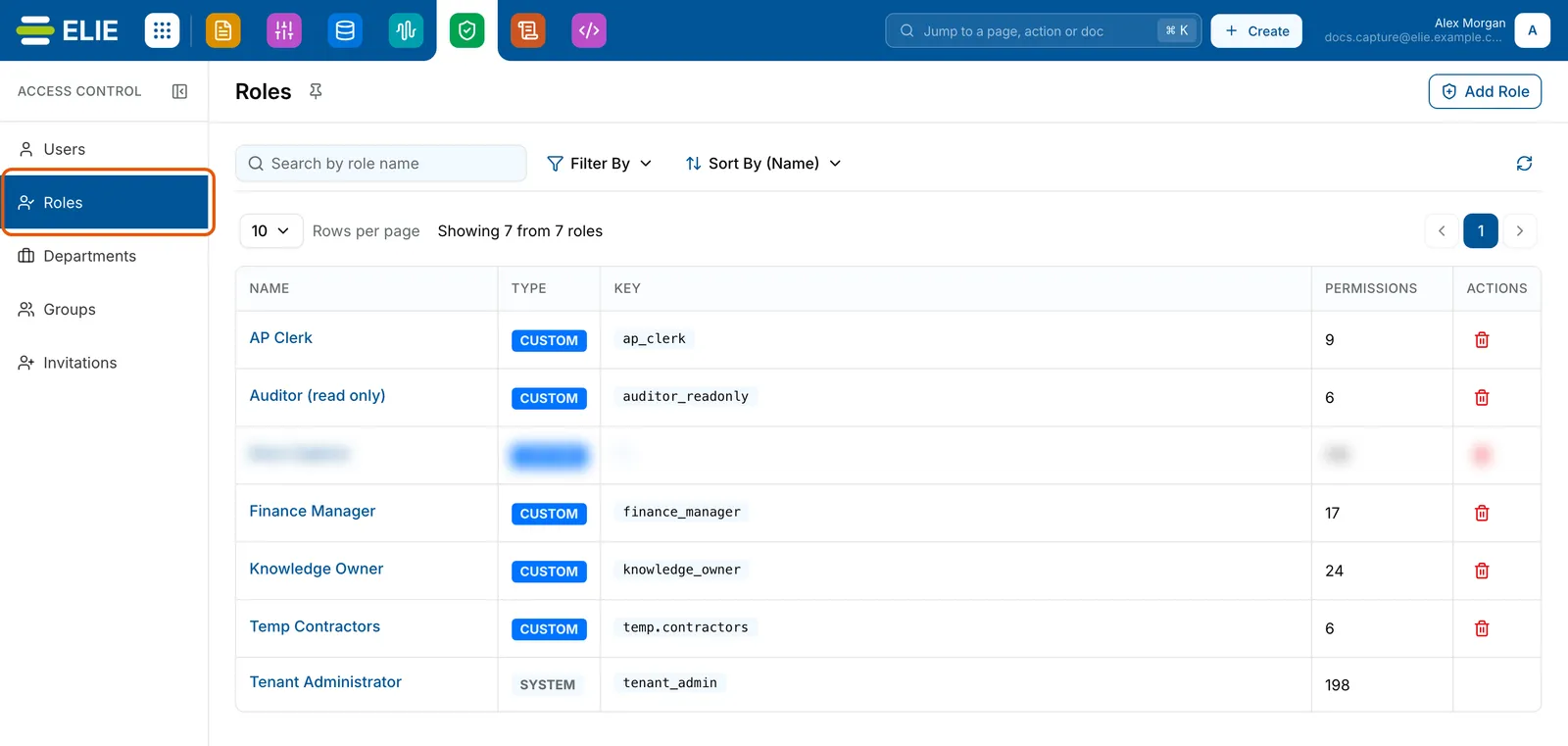
The Roles page with Roles ringed in the rail, listing AP Clerk, Auditor (read only), Finance Manager, Knowledge Owner and Temp Contractors as CUSTOM roles and Tenant Administrator as SYSTEM, each with its key and permission count. One row is blurred. EnlargeCreate the role
Select Add Role. Enter a Role Name; Role Key fills itself from the name in lower case with dots, and you can edit it before saving but never after. Add a Description if it helps, then select Create.
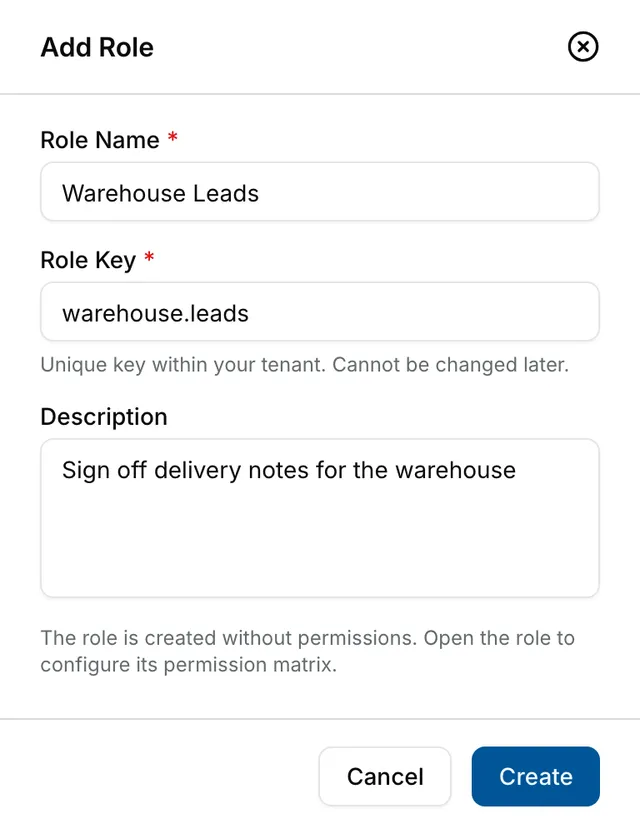
The Add Role panel with Role Name Warehouse Leads, Role Key filled in as warehouse.leads, and Description Sign off delivery notes for the warehouse, above the note that the role is created without permissions and Cancel and Create. Choose its permissions
The new role starts with none, and its page opens. Tick what it may do; see Choosing a role's permissions.
Rename it later
Open the role from NAME, select Edit Basic Details, change Role Name or Description in Basic Details, and select Update.
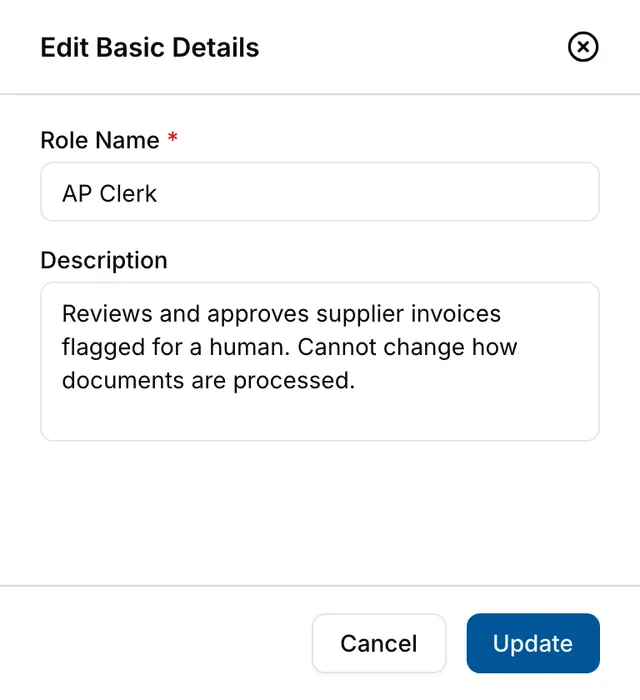
The Edit Basic Details panel for AP Clerk, with its Role Name and Description filled in, and Cancel and Update. Remove it
Select Remove under ACTIONS. If nobody holds the role, Remove Role? only asks you to confirm. If people do, it lists them: pick a new role on each row, or pick one in the box at the top and select Apply to All. Then select Yes, Remove.
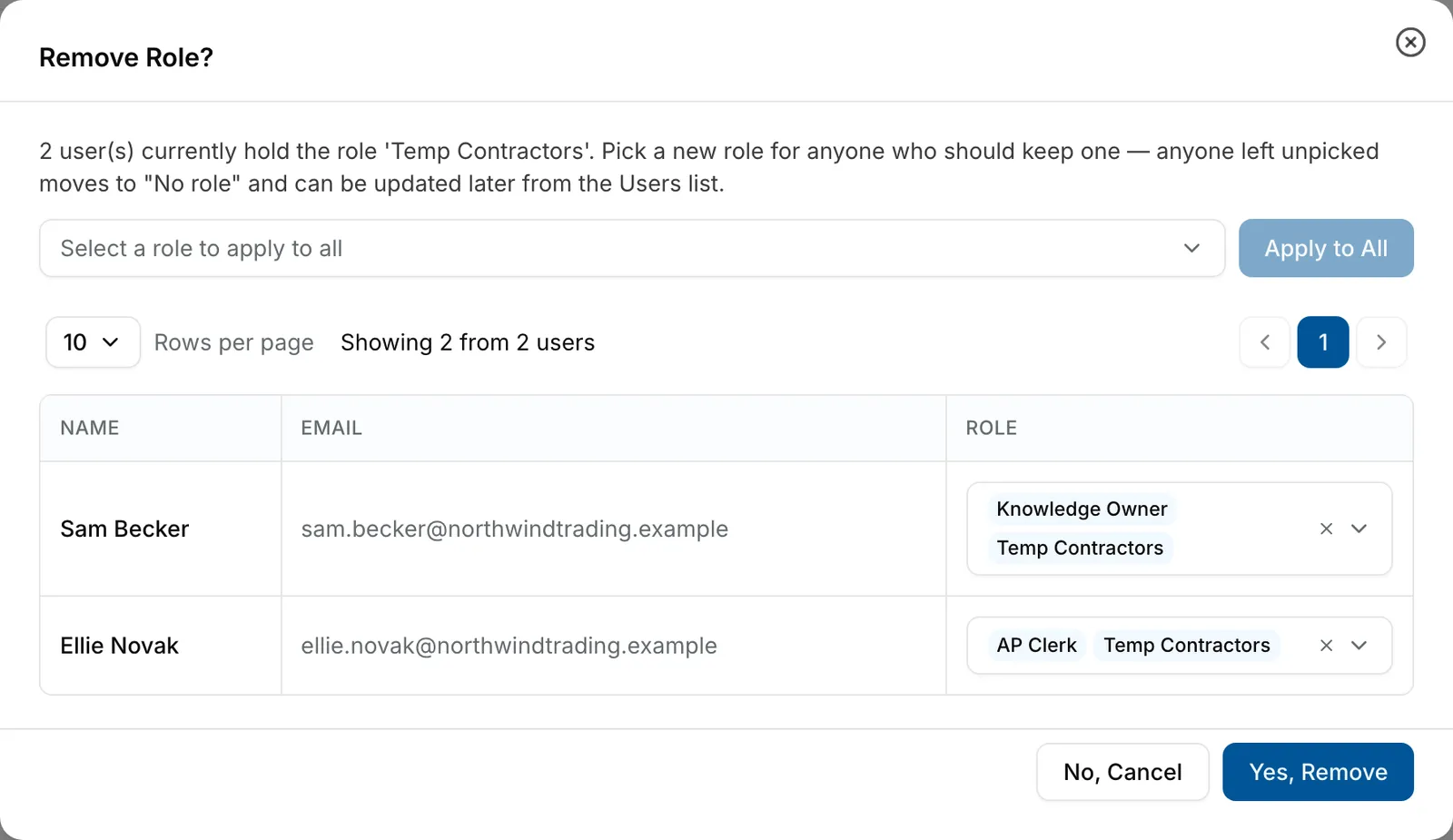
The Remove Role? dialog for Temp Contractors, saying 2 users hold it, with a box to pick a role for everyone and Apply to All, then Sam Becker and Ellie Novak each with a role picker, and No, Cancel and Yes, Remove. Enlarge


What success looks like
- Role created successfully! appears and the role's own page opens.
- Changes saved successfully! appears after a rename.
- Role removed successfully! appears, the row is gone, and everyone you gave a new role holds it.
Anyone you leave without a pick in Remove Role? loses that role. If it was their only one, they end up with none: find them with No role under Filter By on Users.
The system roles
Every workspace starts with five roles badged SYSTEM: Tenant Administrator, Developer, Viewer, Member and Auditor. None of them can be removed, and their names and descriptions cannot change.
You can change the permissions of the last four. Once you do, the platform stops updating that role's permissions for you when new features arrive. Tenant Administrator is locked: its page reads This is a locked system role and cannot be modified., every box is inactive, and Edit Basic Details is not offered. To build a variation of any system role, create your own.
If something goes wrong
| Symptom | Likely cause | What to do |
|---|---|---|
| A role has no Remove icon. | It is a SYSTEM role. | Only a CUSTOM role can be removed. |
| A message says the role key already exists. | Another role in your workspace uses that Role Key. | Choose a different key. |
| Update on a system role is refused with a message about it being a system role. | System role names and descriptions are fixed. | Create your own role with the name you want. |
| A message says some role reassignments failed and the role was not removed. | Some of the new roles could not be given out. | The role stays. Select Remove again; only the failed moves are retried. |
| The page is replaced by 403 and Access Forbidden. | Your role lacks the permission for that change. | Select Go Back and ask an administrator. See Permissions. |
Next
- Choosing a role's permissions - what a role allows.
- Managing users - giving someone a role after they join.
- Inviting a user - giving a role to someone new.