Managing departments
A department is a named list of people that mirrors how your organisation is arranged. It grants no permissions, but other modules let you scope who sees what by department.
- The Access Control app in your top bar.
- These permissions: Identity & Users · Department - Create, Identity & Users · Department - Update, Identity & Users · Department - Delete.
- Seeing the list needs Identity & Users · Department - List. Adding and removing members needs Identity & Users · Department - Update.
If Access Control isn't in your top bar, your role can't view it or your plan doesn't include it. Ask a workspace administrator, or see Permissions and module visibility.
Steps
Open Departments
In Access Control, select Departments in the rail. Each row shows DEPARTMENT NAME, a MEMBERS count, DESCRIPTION and CREATED. Search by department name, Filter By (its Members tab) and Sort By (Name, Members or Created Date) narrow and order it.
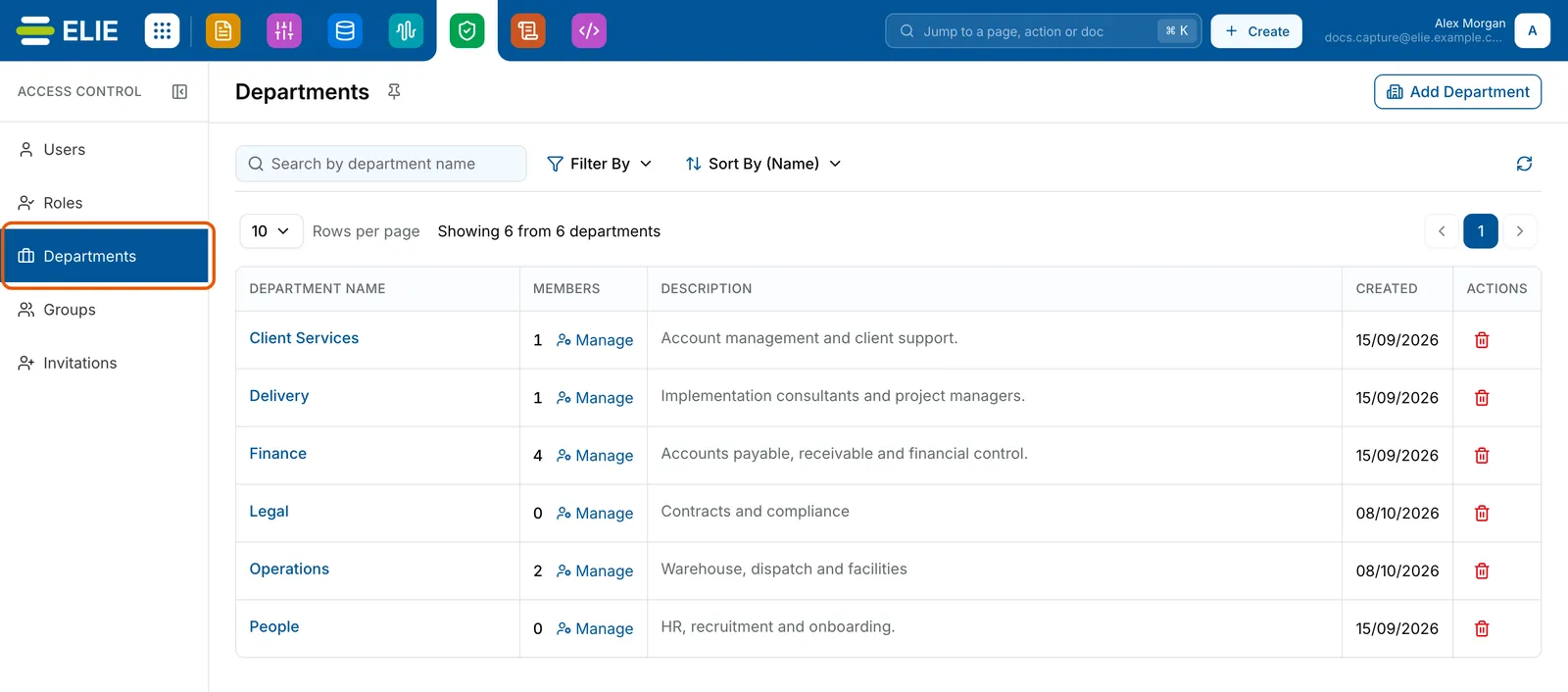
The Departments page with Departments ringed in the rail, listing Client Services, Delivery, Finance, Legal, Operations and People with their member counts, Manage links, descriptions and creation dates. EnlargeCreate the department
Select Add Department. Enter a Department Name and, if you like, a Description, then select Create.
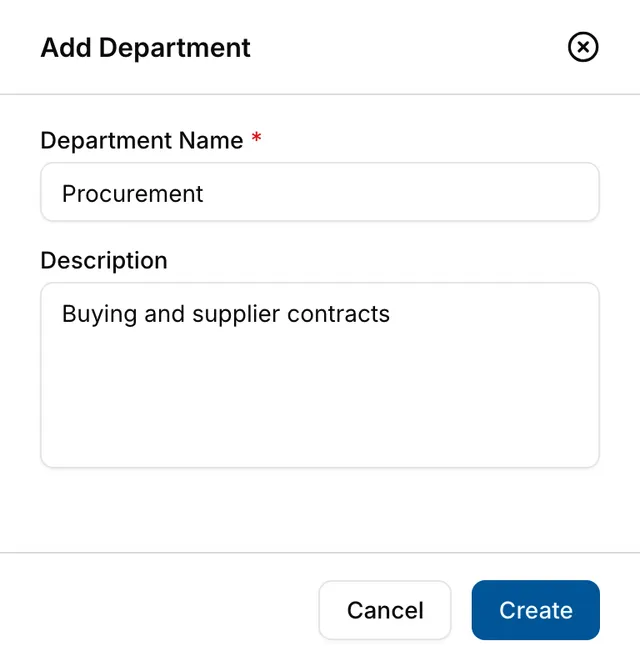
The Add Department panel with Department Name Procurement and Description Buying and supplier contracts, and Cancel and Create. Add its members
Open the department from its name, or from Manage in its MEMBERS cell. Under Manage Members, select Add Members, find people with Search by user name or email, and select each one. Every choice is saved as you make it; selecting a ticked person takes them out again.
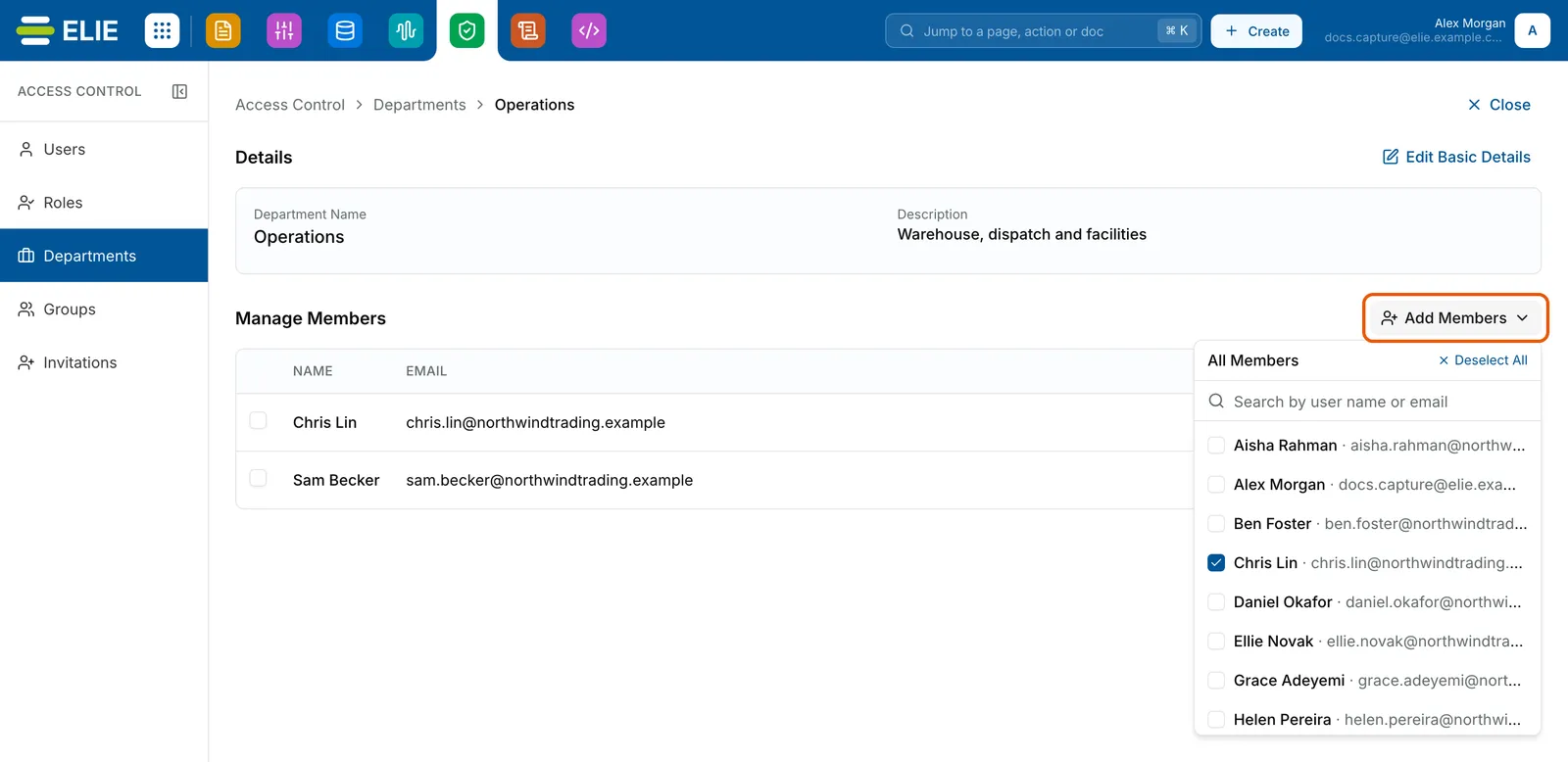
The Operations department page. Under Manage Members, Chris Lin and Sam Becker are listed, and the ringed Add Members list is open: Search by user name or email above everyone in the workspace, with Chris Lin ticked and Deselect All at the top. EnlargeTake people out
Select Remove on a member's row, or tick several rows and select Remove above the table. Deselect All inside Add Members empties the department. None of these asks you to confirm.
Rename it
On the department's page, select Edit Basic Details, change Department Name or Description in Basic Details, and select Update.
Remove it
On Departments, select Remove under ACTIONS, then Yes, Remove in Remove Department?. The department and its memberships go; the people's accounts stay.
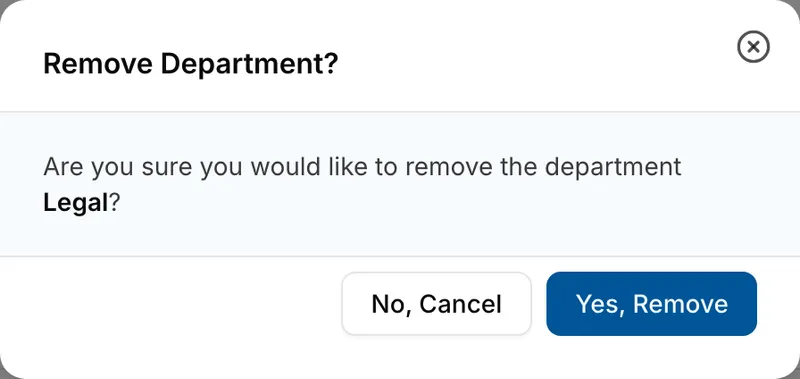
The Remove Department? dialog asking whether to remove the department Legal, with No, Cancel and Yes, Remove.


What success looks like
- Department created successfully! appears and the department is listed.
- Each member you add or take out confirms itself by name, for example Alex Morgan added to this department., and their DEPARTMENT column on Users follows.
- Changes saved successfully! after a rename, and Department removed successfully! after removal.
Where departments are used
A department is offered wherever another module asks for Departments, as soon as it exists. Removing one gives no warning about where it is used, so check those settings first. You can also put someone in a department from their User Details, or pre-assign it when you invite them.
If something goes wrong
| Symptom | Likely cause | What to do |
|---|---|---|
| Create stays greyed out, or the name shows an error. | The name is empty, outside 2-100 characters, or uses characters other than letters, numbers, spaces and . ' -. | Shorten or simplify the name. |
| A message says the department already exists. | Another department has that name. | Choose a different name. |
| A message says the person could not be added to this department. | The change was refused, often because your role lacks Identity & Users · Department - Update. | Ask an administrator for that permission. |
| Someone is missing from Add Members. | They have not accepted their invitation yet, or they were removed. | Pre-assign the department in their invitation, or check Invitations. |
| The page is replaced by 403 and Access Forbidden. | Your role does not allow that action. | Select Go Back and ask an administrator. See Permissions. |
Next
- Managing groups - the same mechanics for cross-cutting teams.
- Managing users - setting someone's department from their record.
- Visibility scope - scoping an orchestrator by department.